
🔄Migrating from Unity Plugin v3.x to v4.0
Introduction
This guide will walk you through migrating your Looking Glass Unity project from plugin version 3.x to the new 4.0 alpha version. Version 4.0 brings major performance improvements (2x to 4x faster!) but requires Unity 6 with Universal Render Pipeline and has fewer features.
Version 4.0 is currently in alpha/beta. It may have stability issues. Consider keeping a backup of your v3.x project.

Before You Begin
Requirements for v4.0
Unity 6000.0.39 to 6000.1.5
Universal Render Pipeline v17.0.4 to v17.1.0
Forward or Forward+ rendering
RenderGraph enabled
Looking Glass device (Go, 16", or 27")
Version 4.0 does NOT support the built-in render pipeline, HDRP, or earlier Unity versions.
Create a Backup
Before starting the migration:
Make a complete backup of your project
Consider using version control to create a new branch
Document any custom modifications you've made to the v3.x plugin
Step 1: Remove the Old Plugin
You MUST close Unity before deleting the old plugin. Unity holds references to the plugin files while open, which can cause errors if you try to delete them from within the editor.
Save your project and close Unity completely
Navigate to your project folder using Windows Explorer (Windows) or Finder (Mac)
Delete the old Looking Glass plugin folder and the Looking Glass post-processing folder:
Typically located at:
Assets/LookingGlassandAssets/LookingGlass Post-Processing 3.2.2Or wherever you imported the v3.x package
Clean Up Meta Files
After deleting the plugin folder:
Delete the corresponding
.metafile for the Looking Glass folderSearch for and remove any orphaned Looking Glass-related meta files
Step 2: Prepare Your Project for v4.0
Upgrade to Unity 6
If you're not already using Unity 6:
Open Unity Hub
Install Unity version 6000.0.39 to 6000.1.5
Open your project with the new Unity version
Allow Unity to upgrade your project (this may take some time)
Convert to Universal Render Pipeline
If your project isn't using URP:
Install URP via Package Manager
Create a URP Asset:
Create > Rendering > URP Asset (with Universal Renderer)Go to
Edit > Project Settings > GraphicsAssign your URP Asset to the Scriptable Render Pipeline Settings
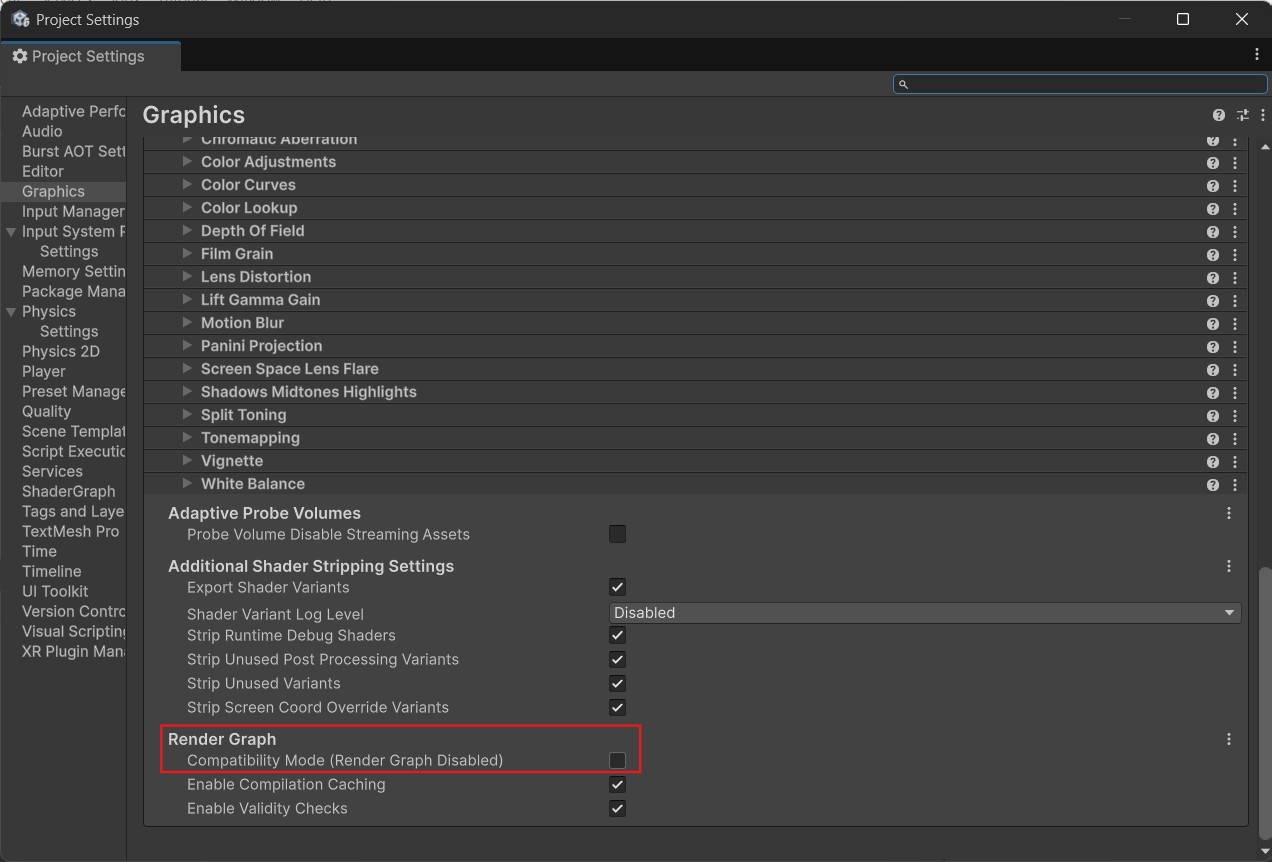
Enable RenderGraph
Go to
Edit > Project Settings > Graphics > URPScroll to the bottom of the page
Ensure that
Compatibiliity Modeis disabled
Step 3: Install the New Plugin
See the full getting started guide here.
Close the Unity Editor before proceeding.
Download and Extract
Download the Unity Plugin 4.0 zip for your version of Unity — downloads available here.
Extract the zip file. You'll find:
com.unity.render-pipelines.corefoldercom.unity.render-pipelines.universalfolderjp.keijiro.klak.syphonfolderjp.keijiro.klak.spoutfolderLooking Glass Unity Plugin 4.0.1-alpha.unitypackageA readme file
Install Package Dependencies
Important: Keep Unity closed for this step!
Navigate to your project's
PackagesfolderCopy these four folders into the Packages folder:
com.unity.render-pipelines.corecom.unity.render-pipelines.universaljp.keijiro.klak.syphonjp.keijiro.klak.spout
Import the Unity Package
Open your Unity project
Go to
Assets > Import Package > Custom PackageSelect the
Looking Glass Unity Plugin 4.0.1-alpha.unitypackageImport all files
Configure Project Settings
In the Project window, navigate to
Looking Glass Plugin/Settings/Select the
Project SetupobjectIn the Inspector, you'll see buttons for each render pipeline location
Click each button to automatically configure the settings
Launch the Preview Window App
Download the preview window applications (for Windows or MacOS) here.
Step 4: Update Your Scenes
Test the Example Scene
Open
Looking Glass Plugin/Scenes/Multiview Example SceneEnter Play mode to verify everything is working
If you see the example content, the plugin is installed correctly
Migrate Your Existing Scenes
The new plugin uses a different architecture. Here's how to update your scenes:
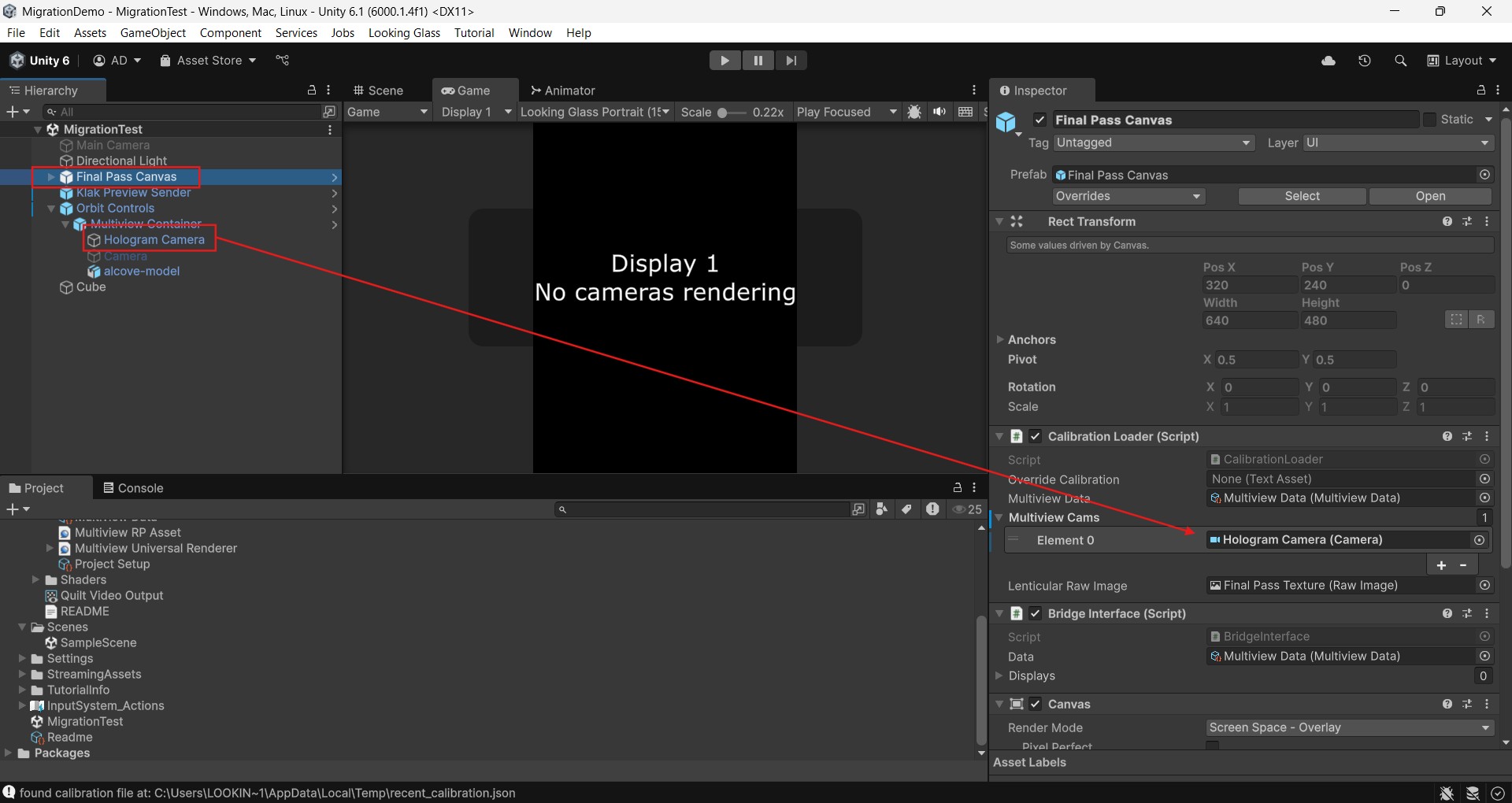
Replace the Old Hologram Camera
Delete the old Hologram Camera from v3.x
From the new plugin, add:
The
Multiview Container(found under Orbit Controls in the example scene)The
Final Pass Canvasobject
In the
Final Pass Canvasobject, open theMultiview Camsarray and add yourHologram Camerato the list
Add Preview Support
For live preview in the Editor:
Add a
Klak Preview Senderobject fromLooking Glass Plugin/PrefabsDownload and set up the Preview Window app (see plugin documentation)
Common Issues and Solutions
Unity Won't Delete Old Plugin Files
Solution: Make sure Unity is completely closed. Use Task Manager (Windows) or Activity Monitor (Mac) to ensure no Unity processes are running.
Missing References After Migration
Solution: Re-assign Looking Glass components in your scenes. The new plugin uses different component names and structures.
Performance Issues
Solution: Ensure RenderGraph is enabled in your URP settings. Check that you're using Forward or Forward+ rendering.
Preview Window Shows Black Screen
Solutions:
Enter Play mode in Unity
Ensure Looking Glass Bridge is running
Restart the Unity Editor
Check that the Klak Preview Sender is in your scene
Best Practices
Don't Modify Plugin Files
Never add your assets to the Looking Glass Plugin folder or modify its contents. Future updates will require deleting and replacing this folder.
Keep Both Versions During Transition
Consider keeping a separate project with v3.x while you test v4.0, especially for production projects.
Test Thoroughly
v4.0 is in alpha/beta. Test all functionality before deploying:
Interactive features
Build processes for your target platforms
Performance on your target hardware
Need Help?
If you encounter issues during migration:
Email us at [email protected]
Join our Discord community
Check the v4.0 documentation
Consider using the stable v3.x plugin if you need reliability
Remember, v4.0 is still in development. Your feedback helps us improve! Please fill out our survey if you have feedback.