> For the complete documentation index, see [llms.txt](https://lfdocs.lookingglassfactory.com/llms.txt). Markdown versions of documentation pages are available by appending `.md` to page URLs; this page is available as [Markdown](https://lfdocs.lookingglassfactory.com/software/index/setting-up.md).
# Setting up your Development Environment
## 1) Installs and Downloads
The Looking Glass Unity Plugin requires:
* Unity v2021 or later
* Looking Glass Bridge v2.0.9 or later
This plugin is compatible with:
* Windows 10 or 11
* Mac with Apple Silicon
{% hint style="warning" %}
For best performance, we recommend Windows laptops with dedicated graphics cards, ideally an RTX 3070 or better.
{% endhint %}
This plugin supports:
* Built-in Render Pipeline
* Universal Render Pipeline (though there are known issues with deferred rendering and the 3D cursor)
Once your Looking Glass is [connected to your computer](/software/looking-glass-bridge.md), you'll want to download the Plugin:
[Download the Plugin](https://look.glass/unity)
## 2) Display Settings
In order to see your Unity Scene with a live, real-time preview on your Looking Glass, it will need to be configured with your computer as an extended display, not a mirrored one.
### For Mac
Open your system preferences and go to display settings and ensure "Mirror Displays" is off.

It is also recommended that you set your Mission Control preferences so that "Displays have separate Spaces" is toggled on. This will allow Unity builds to target *only* your Looking Glass monitor, leaving your main monitor free to use normally.

### For Windows
Open your display settings. Select **Extend these displays** from the **Multiple displays** pulldown.
Also, ensure that **Change the size of text, apps, and other items** is set to 100% and that the resolution of the second display matches the following:
* **1440 x 2560** for the Looking Glass Go
* **1536 x 2048** for the Looking Glass Portrait
* **3840 x 2160** for the Looking Glass 16" Spatial Display (landscape)
* **2160 x 3840** for the Looking Glass 16" Spatial Display (portrait)
* **7680 x 4320** for the Looking Glass 32" Spatial Display (landscape)
* **4320 x 7680** for the Looking Glass 32" Spatial Display (portrait)
* **7680 x 4320** for the 65" Looking Glass
{% hint style="warning" %}
For the 16" Spatial Display (portrait) and the 32" Spatial Display (portrait), you need to additionally set the "Display orientation" to be "Portrait (flipped)".
{% endhint %}

### For Linux (Ubuntu)
Open your display settings, and select **Join Displays**, and click **Apply**. Ensure that the resolution of your Looking Glass display has been set to the following:
* **1440 x 2560** for the Looking Glass Go
* **1536 x 2048** for the Looking Glass Portrait
* **3840 x 2160** for the Looking Glass 16" Spatial Display (landscape)
* **2160 x 3840** for the Looking Glass 16" Spatial Display (portrait)
* **7680 x 4320** for the Looking Glass 32" Spatial Display (landscape)
* **4320 x 7680** for the Looking Glass 32" Spatial Display (portrait)
* **7680 x 4320** for the 65" Looking Glass
## 3) Importing the Looking Glass Plugin into Unity
Open Unity Hub and click **"New project"** on the top right side of the window to start a new project.
Title the project and make sure that "3D Core" or "3D (URP) Core" is selected. Select the **Create project** button at the bottom right.
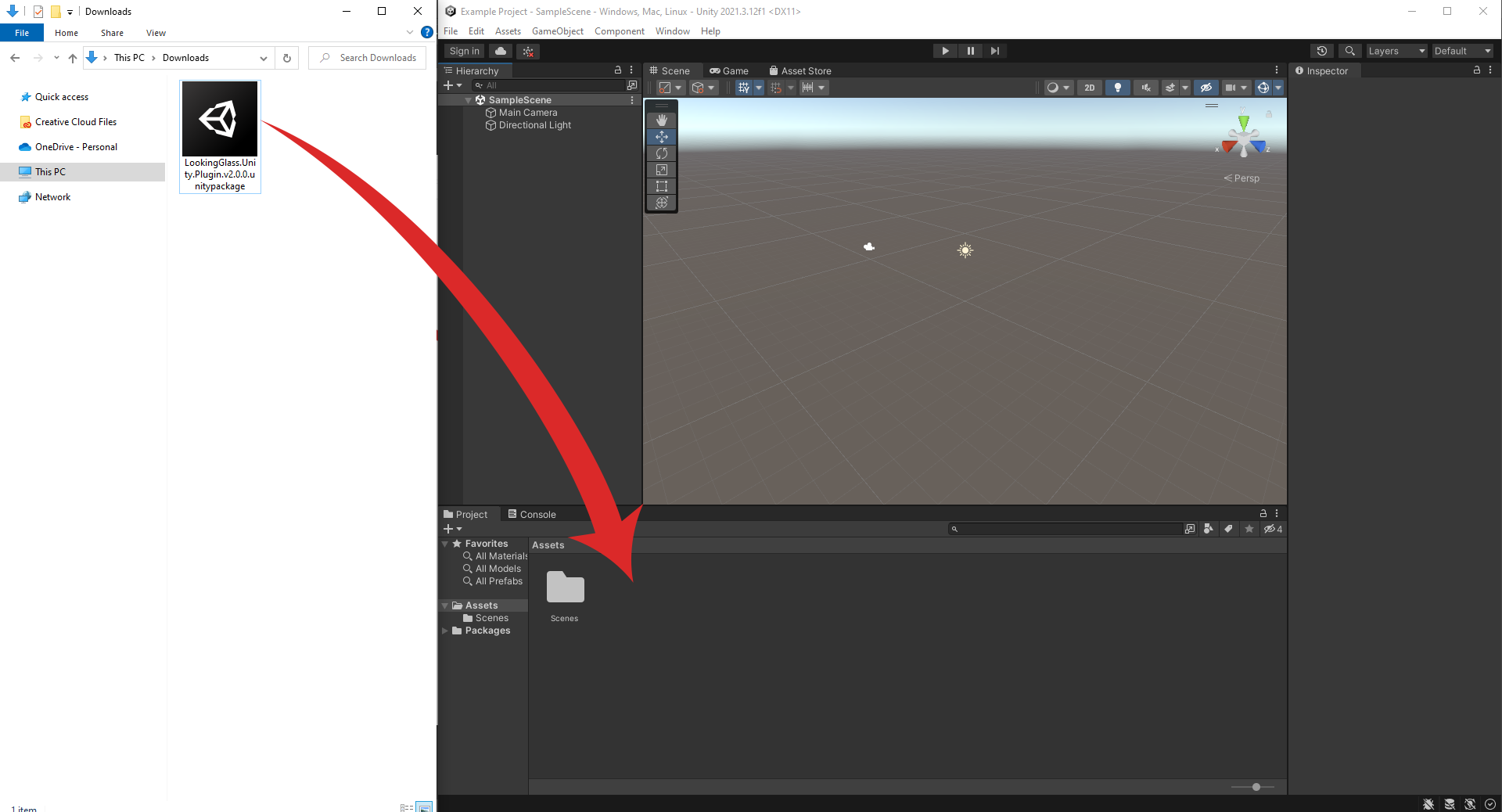
Within the new project, select **Assets** -> **Import Package** -> **Custom Package...**, and select the Looking Glass Plugin. You can alternately double click the .unitypackage file or drag the Unity package into your assets folder, as pictured below.
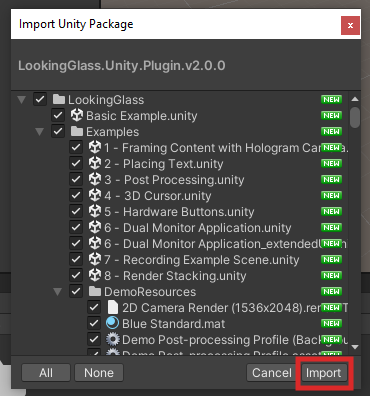
Select "Import."
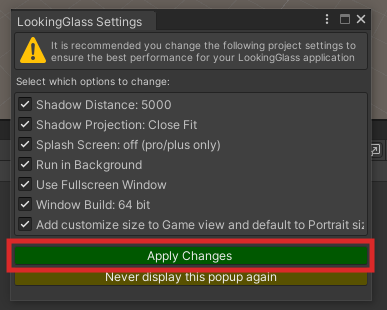
When the package finishes importing, select "Apply Changes."
## 4) Cast a Hologram to your Device
With you Looking Glass display connected, open the scene located at `Assets/LookingGlass/Basic Example.unity`
To cast the hologram to the display:
1. Select the “Hologram Camera” object in the scene hierarchy
2. In the inspector, scroll down and select “Cast to Looking Glass (CTRL + E)”
If you see the example scene in your display, your environment is set up properly. If not, please visit our [additional support page](/software/index/additional-support.md).
You can learn more about our example scenes [here](/software/index/example-scenes.md).
Head back to the [intro](/software/index.md) page for more information about all the features, and see the script references.