
# Capturing Light Fields in Maya

## Introduction

This is a guide to rendering out a light field sequence in Maya for the Looking Glass display. There are a few approaches which work reasonably well, such as rotating a camera in an arc around a fixed point or [**moving the camera along a linear path**](https://docs.lookingglassfactory.com/keyconcepts/capturing-a-lightfield/linear-light-field-capture) and ‘toeing-in’ to fix the camera on a point in the image.

However, neither of these approaches compensate for the physical rotation of the Looking Glass screen in relation to the viewer, and the perspective distortion this has on the image.

With the approach we'll use in this tutorial, the perspective distortion is automatically corrected, so that when seen from an angle, the perspective is correct, giving the most natural and realistic looking 3D image.

## Requirements

<table data-view="cards"><thead><tr><th></th><th></th><th></th><th data-hidden data-card-cover data-type="files"></th><th data-hidden data-card-target data-type="content-ref"></th></tr></thead><tbody><tr><td></td><td><a href="https://look.glass/bridge"><strong>Looking Glass Bridge</strong></a></td><td>The connection between your computer and your Looking Glass.</td><td><a href="https://content.gitbook.com/content/PuCaeVAli72TiclYlEG5/blobs/9GkLra3t3Nd7T2pdjW0b/gitbook_bridge_card.webp">gitbook_bridge_card.webp</a></td><td><a href="https://lookingglassfactory.com/software/looking-glass-bridge">https://lookingglassfactory.com/software/looking-glass-bridge</a></td></tr><tr><td></td><td><a href="https://look.glass/studio"><strong>Looking Glass Studio</strong></a></td><td>A holographic media player. </td><td><a href="https://content.gitbook.com/content/PuCaeVAli72TiclYlEG5/blobs/9OjpWKBASfEV0hBnyJi1/studio_card.png">studio_card.png</a></td><td><a href="https://lookingglassfactory.com/software/looking-glass-studio">https://lookingglassfactory.com/software/looking-glass-studio</a></td></tr><tr><td></td><td><a href="https://www.autodesk.com/products/maya/overview?term=1-YEAR&#x26;tab=subscription"><strong>Autodesk Maya</strong></a></td><td>Maya is used for this tutorial, but the concepts apply to any 3D software.</td><td><a href="https://content.gitbook.com/content/PuCaeVAli72TiclYlEG5/blobs/KSYYSj27mCx7zS3VsgvE/thumbnail_autodesk_maya%20(1).png">thumbnail_autodesk_maya (1).png</a></td><td><a href="https://www.autodesk.com/products/maya/overview?">https://www.autodesk.com/products/maya/overview?</a></td></tr></tbody></table>

## Key Concepts

The Looking Glass Portrait has a horizontal viewing cone of around 58 degrees before the image ‘flips’ back to the first or last frame in the sequence. So, in general, the Maya camera should move around 45 degrees to create the most natural looking hologram.

This does mean you have to be careful with the amount of depth in the scene – objects too far back or forward in the scene can have too much parallax, which results in a blurry image or jerky movement as you look around the hologram.

<div align="center"><figure><img src="https://content.gitbook.com/content/PuCaeVAli72TiclYlEG5/blobs/WWtZZ0N0I6UMbMIDU7lA/spaces_qg7MAbqYgsNGDWVKdvSn_uploads_Xs8pGZyPydEhQNQuyNJa_62facb7365d87860e559d869_scarjo%20(2).webp" alt="A gif of a Looking Glass portrait showing a digital human created by artist Jay Howse"><figcaption><p>ScarJo by Jay Howse</p></figcaption></figure></div>

<figure><img src="https://content.gitbook.com/content/PuCaeVAli72TiclYlEG5/blobs/Etq974BYwcqX9nZmLYPc/docs-divider-gradient-stroke.png" alt="Section Marker"><figcaption></figcaption></figure>

## Setting up your project settings

<figure><img src="https://content.gitbook.com/content/PuCaeVAli72TiclYlEG5/blobs/q5n2jxoQjrsZs37xqUsM/62fac9493ce00c189b52beb6_set-resolution-to-match-the-device%20(1).png" alt="A screenshot in Maya showing the resolution settings changing."><figcaption><p>Update the Render Settings UI</p></figcaption></figure>

The first step is to set the project resolution of the scene to match the resolution of the Looking Glass screen. For this tutorial, I am using a Looking Glass Portrait which has a resolution of **1536** (width) and **2048** (height) So go to <mark style="color:purple;">**`Windows> Rendering Editors> Render Settings.`**</mark>

Make sure the renderer is set to the one you want to use (In this case, Arnold) then scroll down to Image Size and set width and height as required.

<figure><img src="https://content.gitbook.com/content/PuCaeVAli72TiclYlEG5/blobs/Etq974BYwcqX9nZmLYPc/docs-divider-gradient-stroke.png" alt=""><figcaption></figcaption></figure>

## Setting up the camera

<figure><img src="https://content.gitbook.com/content/PuCaeVAli72TiclYlEG5/blobs/jd2JNtkIKMmrtCoGofBo/image.png" alt=""><figcaption></figcaption></figure>

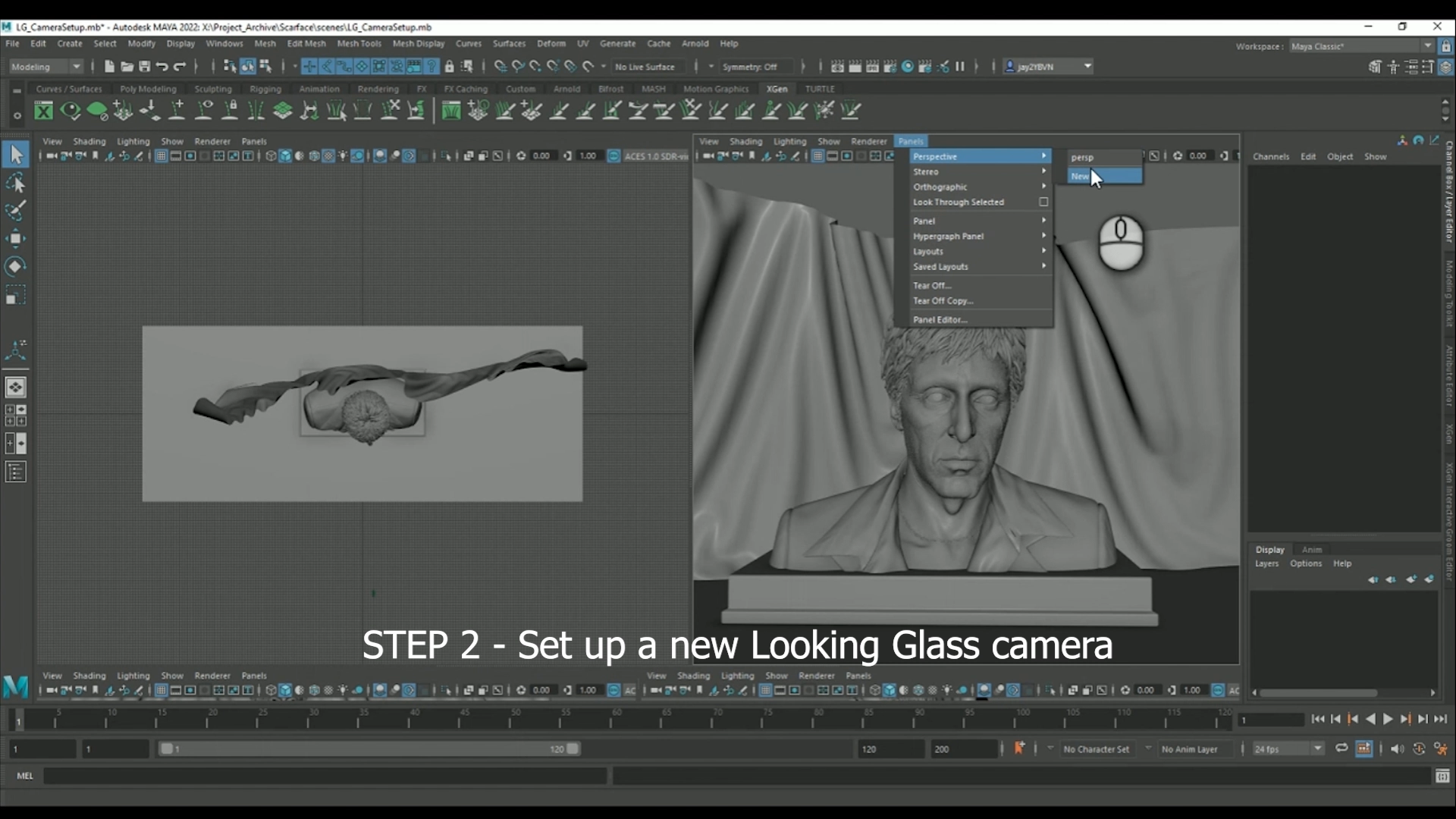
In the viewport, go to <mark style="color:purple;">**`Panels> camera> New`**</mark> to create a new camera. Maya will automatically switch to look through the newly created camera. It’s a good idea to rename this camera to something appropriate (e.g., LG\_CAMERA)

<figure><img src="https://content.gitbook.com/content/PuCaeVAli72TiclYlEG5/blobs/7TCsRUoIrM1ZyqY3Qmqd/image.png" alt=""><figcaption></figcaption></figure>

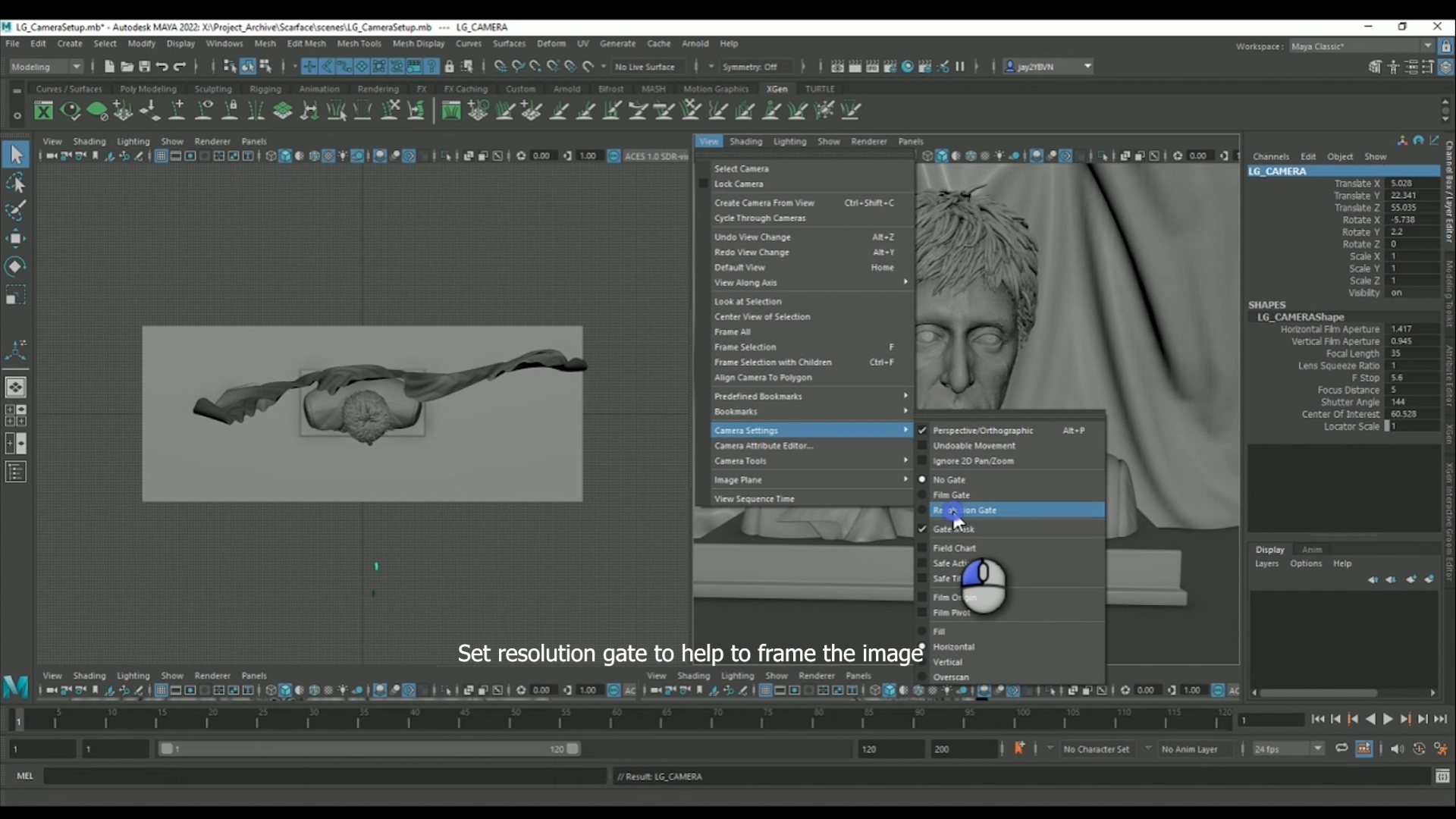
Next, in the viewport, go to <mark style="color:purple;">**`View> Camera Settings> Resolution Gate.`**</mark> This creates a border in the viewport representing what the rendered frame will be.

Then in the camera’s Channel box, make sure the camera Rotate X, Y and Z values are set to 0, and the camera Translate X is also set to 0.

For this tutorial, I’ve made sure the reference model is placed in the middle of the scene so that the camera can be set up with no rotation in any axis. (The camera can be moved or rotated anywhere later, but this just keeps things simpler when setting it up.)

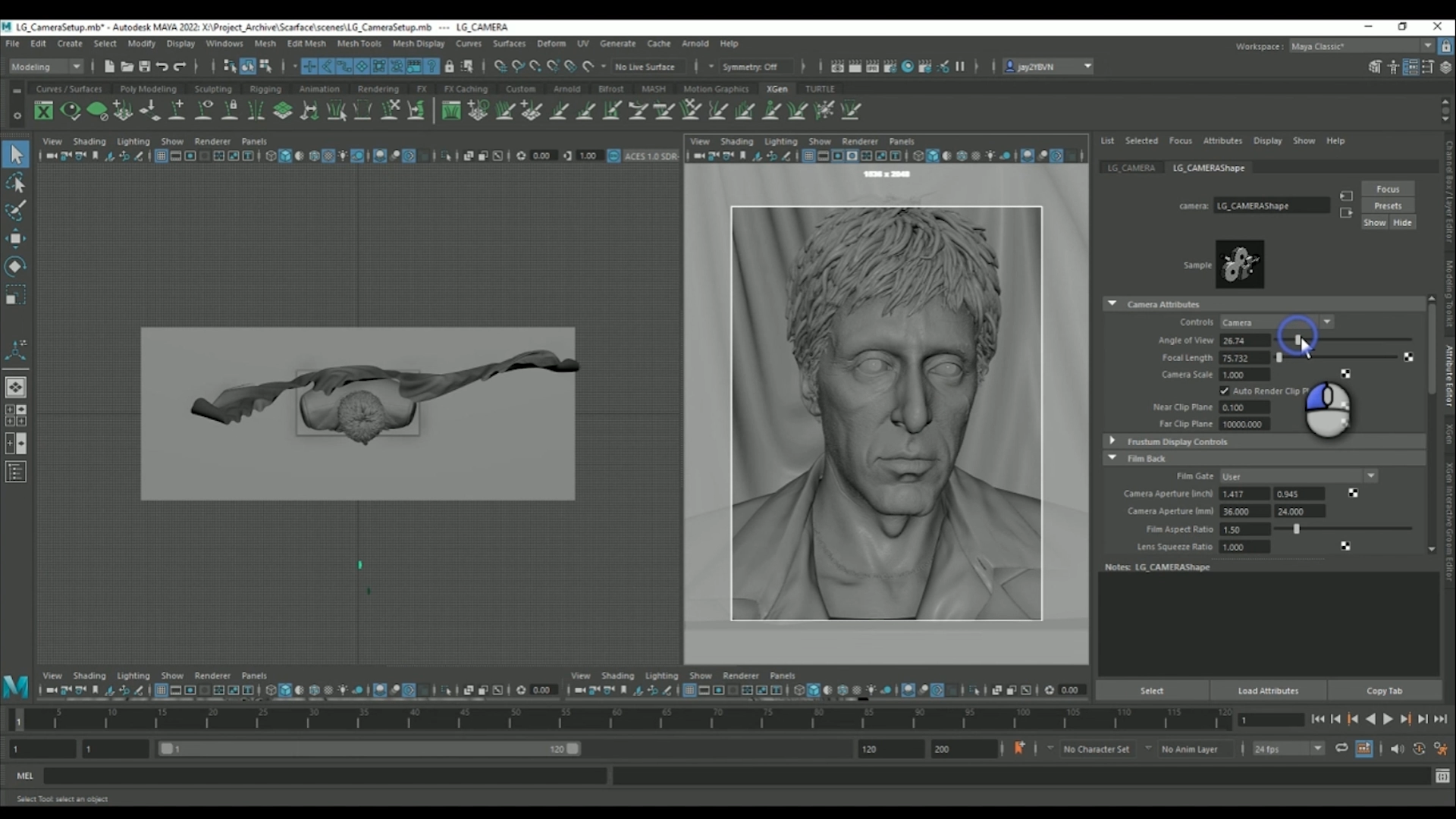
Next in the viewport go to <mark style="color:purple;">**`View> Select Camera`**</mark> and press <mark style="color:purple;">**`Ctrl + a`**</mark> on your keyboard to open the camera attributes.

<figure><img src="https://content.gitbook.com/content/PuCaeVAli72TiclYlEG5/blobs/CHh6lpTxbNK4prRQ4NtJ/image.png" alt=""><figcaption></figcaption></figure>

From here change the angle of view/focal length and move the camera backwards, forwards, up and down until the scene is framed nicely. I find for portraits a Focal length between 80 to 100 works well.

{% hint style="warning" %}
**Make sure you don’t rotate the camera at this stage- it must be pointing straight ahead**.
{% endhint %}

If the scene is not centered properly in the X Axis, make sure the camera's X Translation is still set to 0 and adjust the models in the reference scene to fit, rather than moving the camera. **Once in position, don’t touch this camera again until later** – for the next section use the default Perspective camera to navigate around the scene.

<figure><img src="https://content.gitbook.com/content/PuCaeVAli72TiclYlEG5/blobs/Etq974BYwcqX9nZmLYPc/docs-divider-gradient-stroke.png" alt=""><figcaption></figcaption></figure>

> ## Creating guide geometry for the camera

<figure><img src="https://content.gitbook.com/content/PuCaeVAli72TiclYlEG5/blobs/AWt4TJ5ZSu9i7z85smq9/image.png" alt=""><figcaption></figcaption></figure>

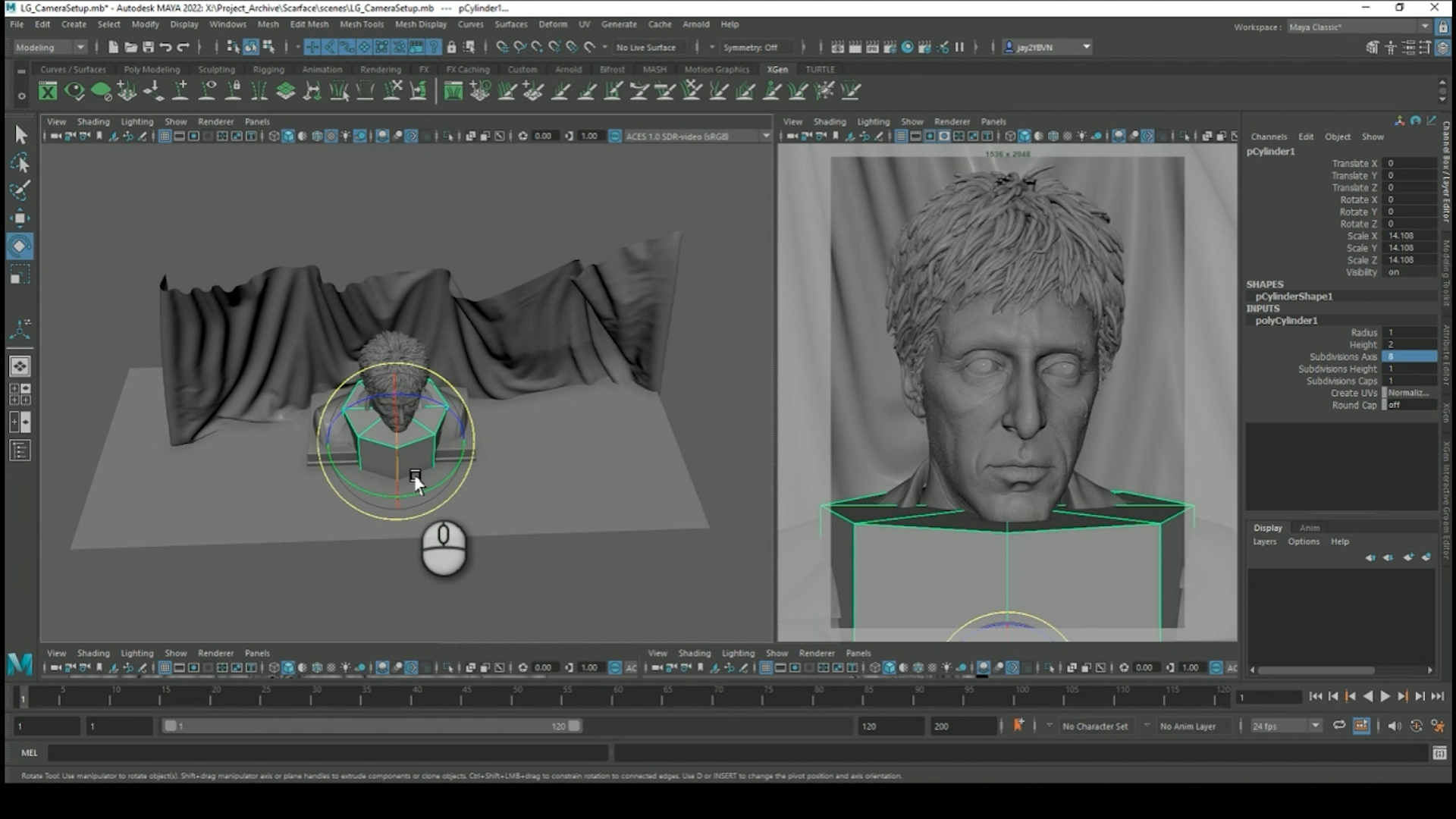
To help getting the right amount of movement in the camera, we need to create some guide geometry to help.

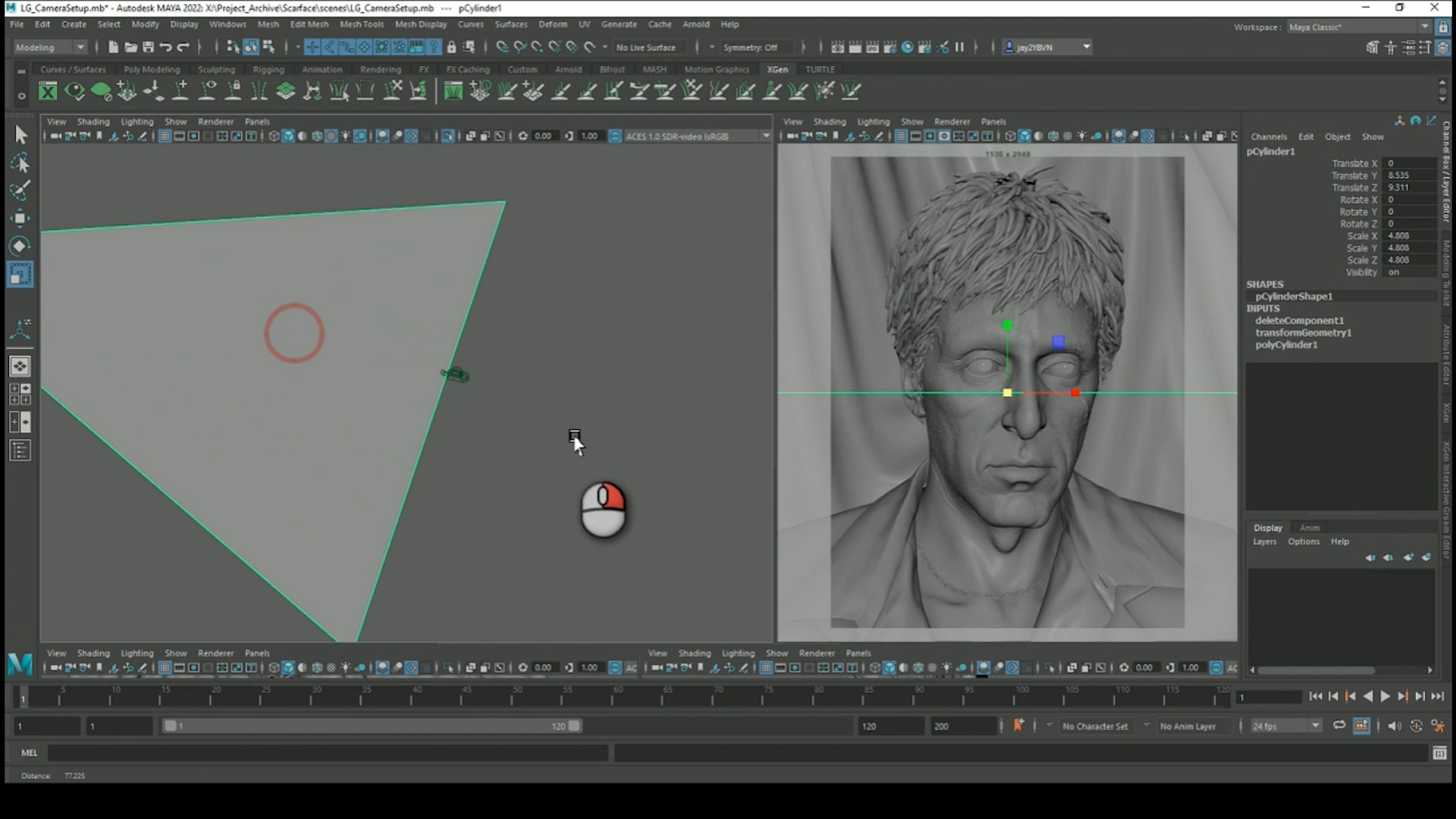
The first step is to create a polygonal cylinder, and set the divisions to 8, so that each segment of the cylinder is a 45-degree arc.

Rotate the cylinder in the X Axis by 22.5 degrees so the segment is lined up to the camera and go to <mark style="color:purple;">**`Modify> Freeze Transformations.`**</mark>

Next, delete all the unneeded faces so you are left with a single polygon from the top of the cylinder.

<figure><img src="https://content.gitbook.com/content/PuCaeVAli72TiclYlEG5/blobs/iCUcDatwG9oyGZghwfSz/image.png" alt=""><figcaption></figcaption></figure>

Then scale the guide until its edge reaches the Looking Glass camera you have previously set up. This edge will act as a guide for the camera path.

> ## Keyframe the camera

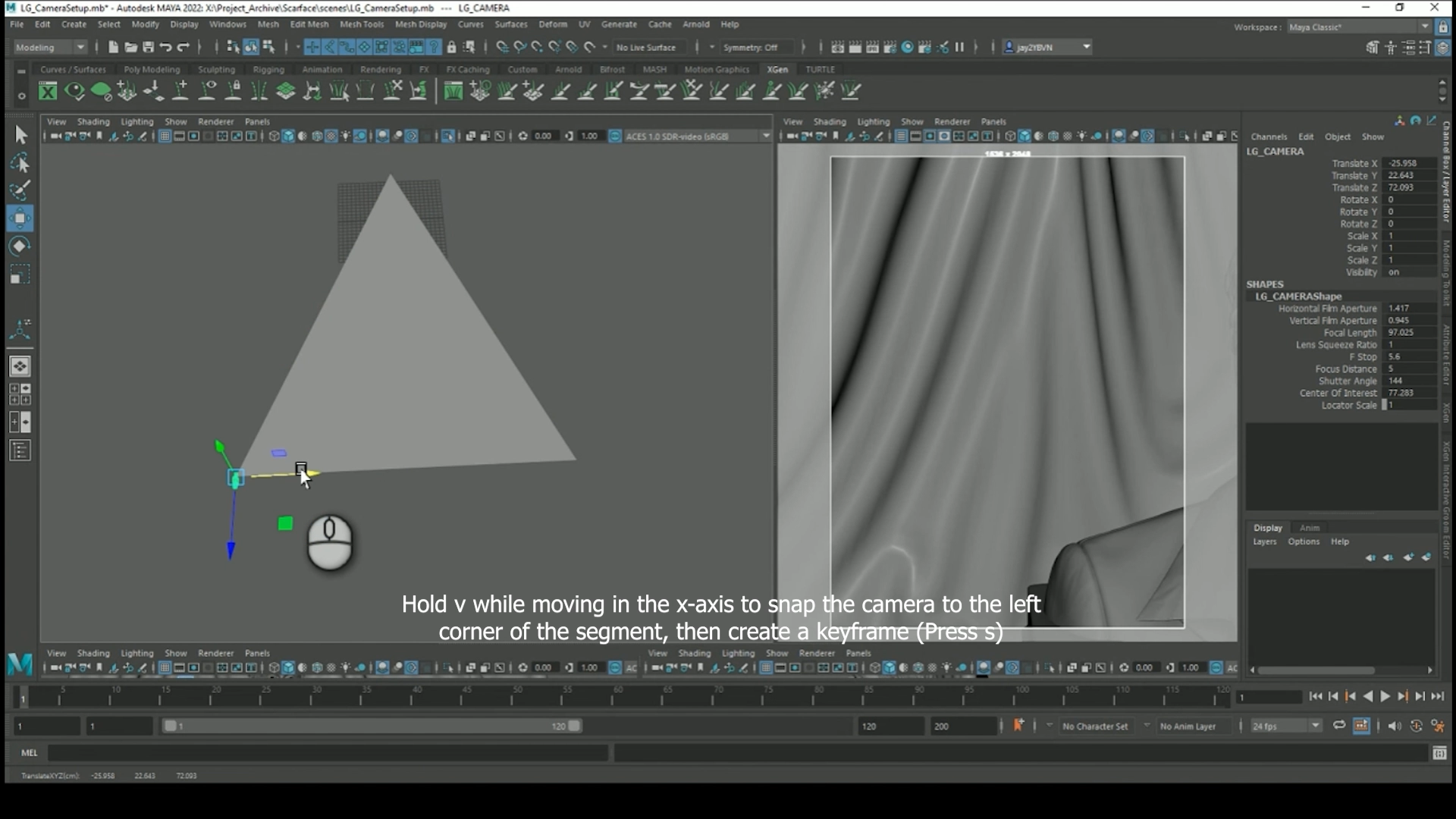
First make sure the animation timeline is set to frame 1, and using your default persp camera to navigate, select the LG\_CAMERA, then hold V to enable snapping, and move the camera left to snap to the left corner of the guide segment.

<figure><img src="https://content.gitbook.com/content/PuCaeVAli72TiclYlEG5/blobs/VHfsFEsseIE6uNUiRhZV/image.png" alt=""><figcaption></figcaption></figure>

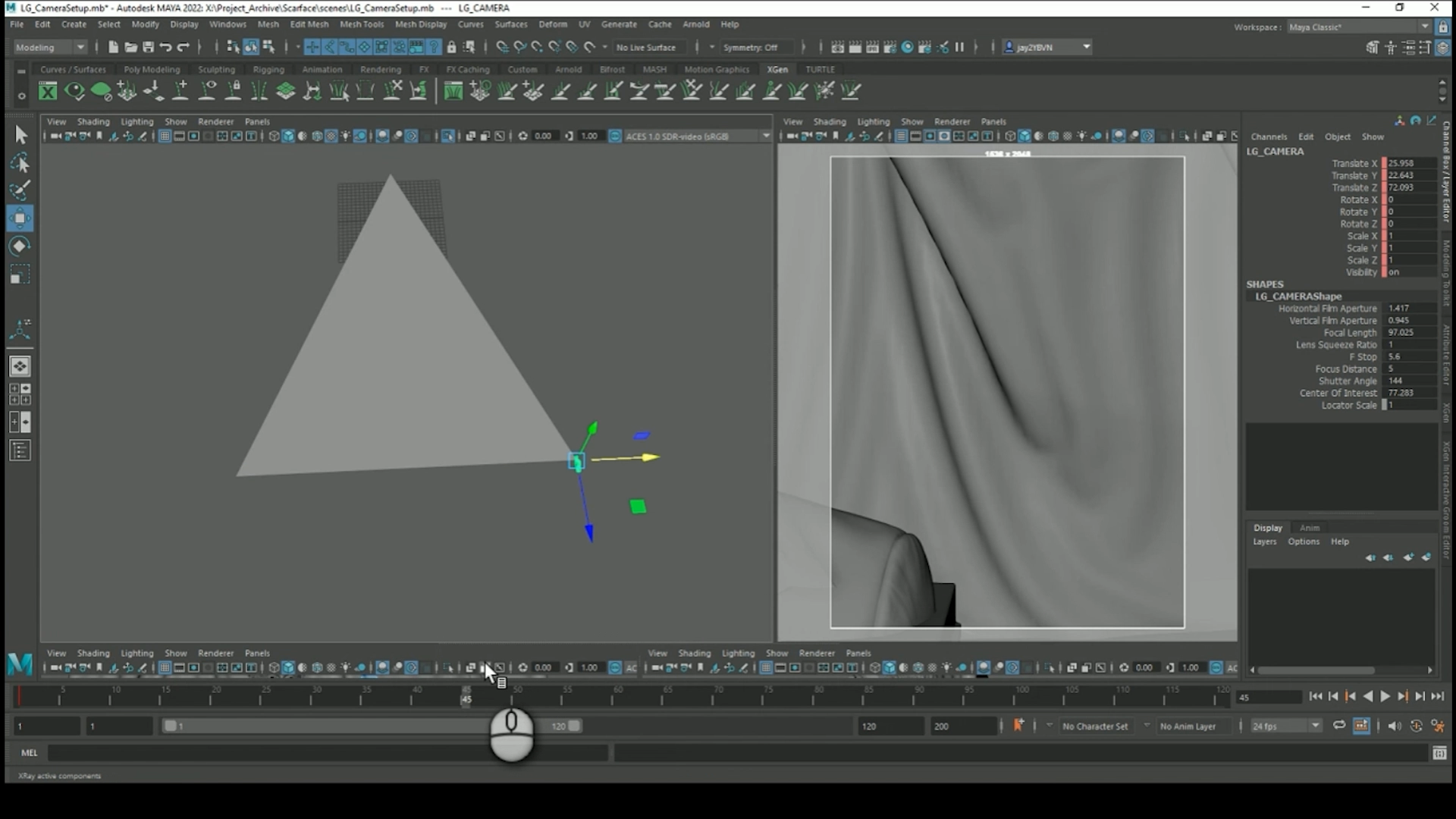
Then, still with the LG\_CAMERA selected, create a keyframe by pressing S. Next, move the animation timeline to frame 45, snap the LG\_CAMERA to the right corner of the guide, and set another keyframe.

<figure><img src="https://content.gitbook.com/content/PuCaeVAli72TiclYlEG5/blobs/5jtAz25PaKOUdJDqaGwM/image.png" alt=""><figcaption></figcaption></figure>

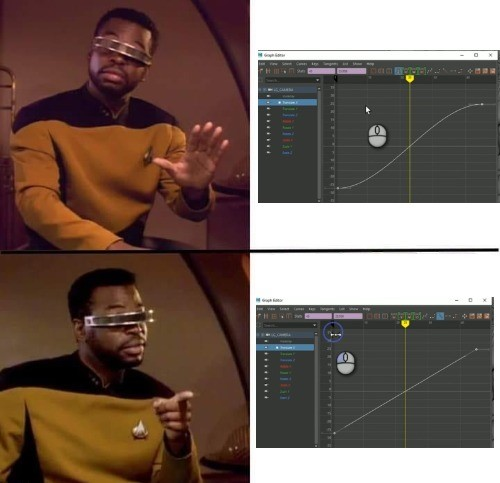
If you scrub back and forth through the timeline now, the camera should move from left to right. Finally, go to Windows> Animation Editors> Graph Editor, then select the Translate X curve and go to Tangents> Linear.&#x20;

{% hint style="warning" %}
**This ensures that the camera moves at a constant speed so the rendered frames will all be spaced apart at equal intervals.**\
\ <mark style="color:orange;">**If you do not do this step your light field will not render correctly in the Looking Glass!**</mark>

![](https://content.gitbook.com/content/PuCaeVAli72TiclYlEG5/blobs/aj46RtEDseqpUkoT9hQb/image.png)
{% endhint %}

> ## Creating the Image Frame

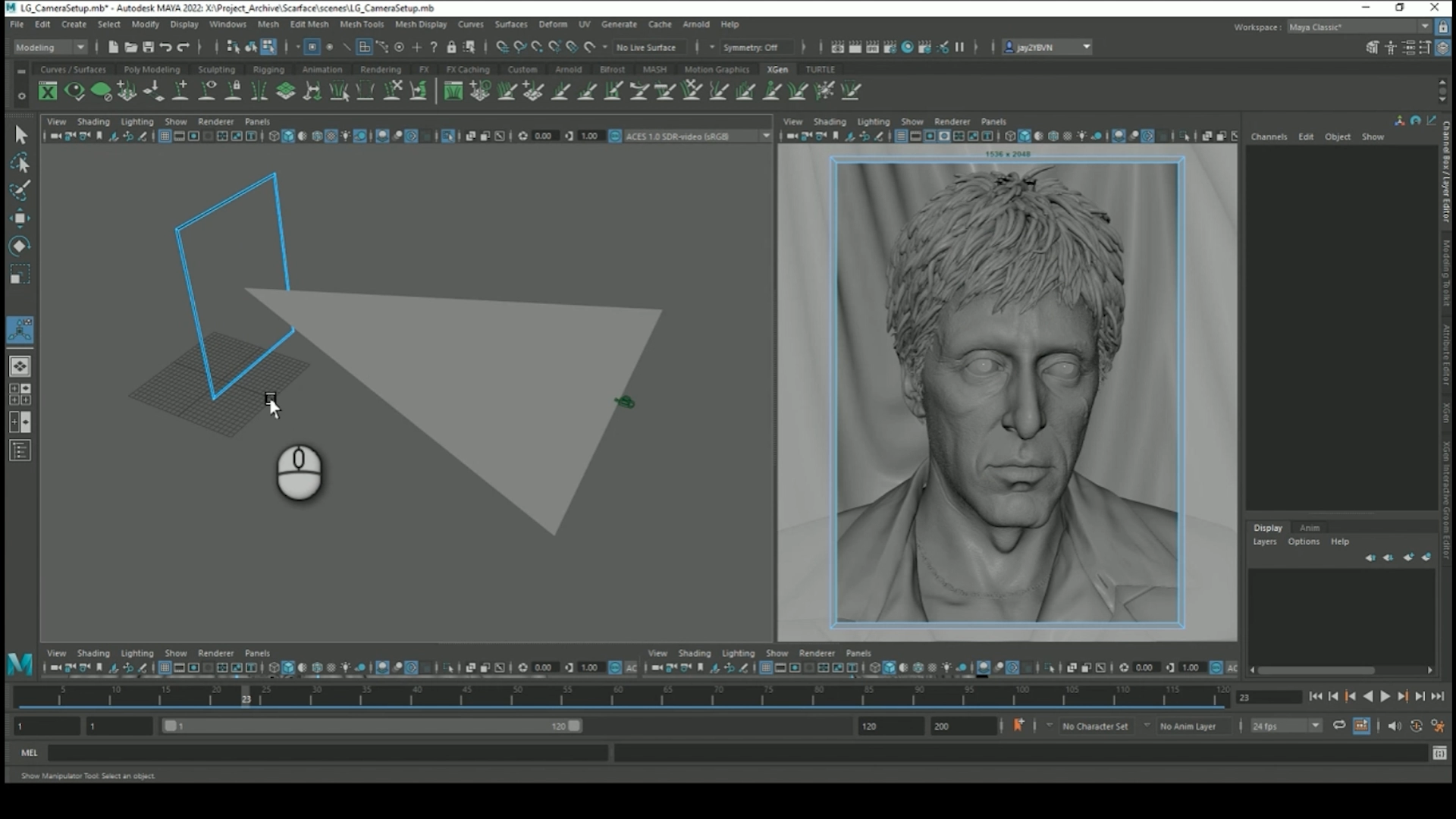
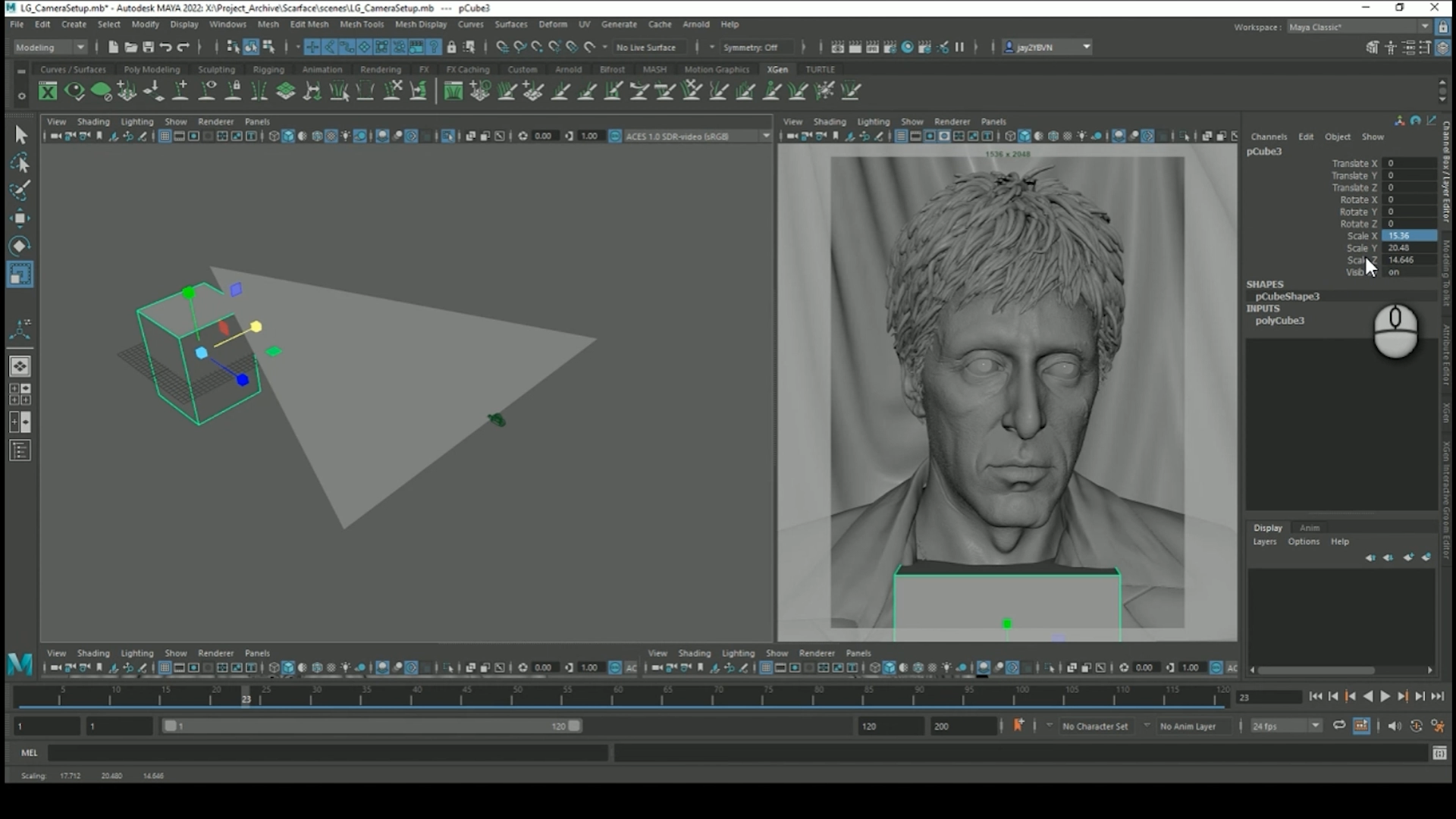
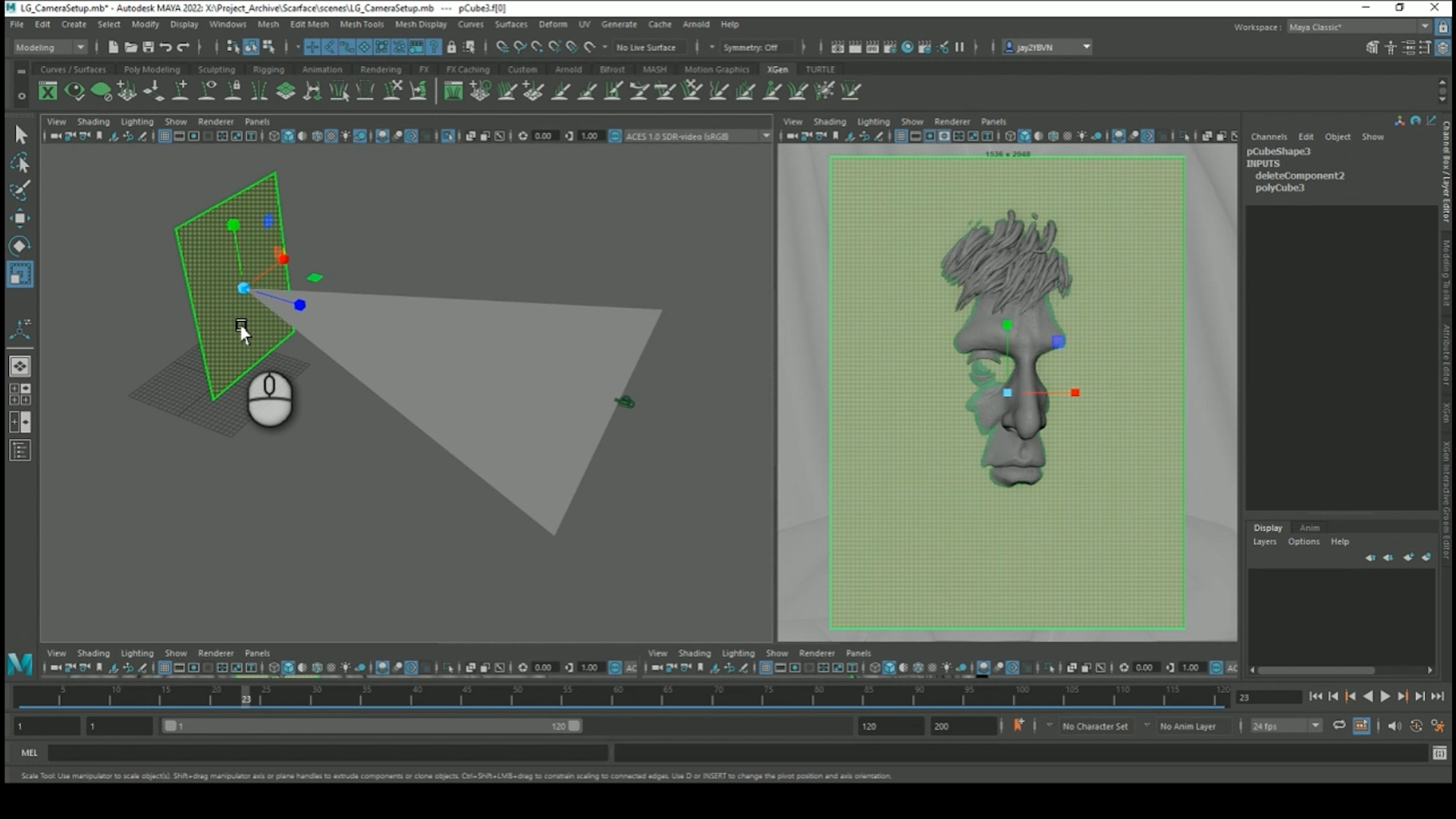
Next step is to create a frame guide geometry for the scene – the frame will be a representation of the screen of the Looking Glass and represents the focal plane of the camera – Everything in front of this plane will appear in front of the screen of the Looking Glass and everything behind will appear behind.

So, first in the timeline set the frame to 22.5. This will be the ‘middle’ frame in a 45-frame sequence.

Next create a polygonal cube and scale to **X=15.36 Y=20.48** (ignore the Z axis) This scales the cube to be the same size ratio as the render resolution (1536X2048).
<figure><img src="https://content.gitbook.com/content/PuCaeVAli72TiclYlEG5/blobs/LMwg89NHyXb6R45mts9d/image.png" alt=""><figcaption></figcaption></figure>

Uniform scale it to approximately the right size so it fills the LG\_CAMERA view and delete all but the front face.

<figure><img src="https://content.gitbook.com/content/PuCaeVAli72TiclYlEG5/blobs/VQbn3VZXly2ND2AMgGMC/image.png" alt=""><figcaption></figcaption></figure>

Now go to <mark style="color:purple;">**`Modify> Center Pivot`**</mark>, then snap the plane to the point of your reference arc geometry.<br>

Now, carefully scale this plane until it fills the LG\_CAMERA window as close as possible. Extrude the face and offset slightly then delete the middle polygons to get a thin frame around your render window.

<figure><img src="https://content.gitbook.com/content/PuCaeVAli72TiclYlEG5/blobs/ikySsIWEEWuzmPNeCS4m/image.png" alt=""><figcaption></figcaption></figure>

{% hint style="warning" %}
**Important: Once you are happy with the position of the focal plane geometry select it and go to&#x20;**<mark style="color:purple;">**`Modify> Freeze Transformations.`**</mark>
{% endhint %}

<figure><img src="https://content.gitbook.com/content/PuCaeVAli72TiclYlEG5/blobs/Etq974BYwcqX9nZmLYPc/docs-divider-gradient-stroke.png" alt=""><figcaption></figcaption></figure>

## Moving the camera

At this stage you might have noticed the scene still does not stay in shot as you scrub the timeline.

Rather than toeing in the camera to keep the scene in shot, we change the film offset value instead – In your animation timeline go to frame 1 – the scene should go off to the right in the <mark style="color:purple;">**`LG_CAMERA`**</mark> view.<br>

Select the <mark style="color:purple;">**`LG_CAMERA`**</mark> and press <mark style="color:purple;">**`Ctrl + a`**</mark> to go to the camera attributes. Scroll down and change the Film Offset to a value of 1.5. This should move the scene back to the left, closer to the center.<br>

**This offset value will vary quite a bit depending on the scale of your scene so experiment with it**. The idea is to get the reference frame geometry back, so it fits perfectly into the LG\_CAMERA window.

Once you have this value correct and the frame fits exactly, right click in the film offset value box and select Set Key. Then go to frame 45, set the film offset to the negative value of the film offset on frame 1 (e.g., -1.5) and Set Key again.

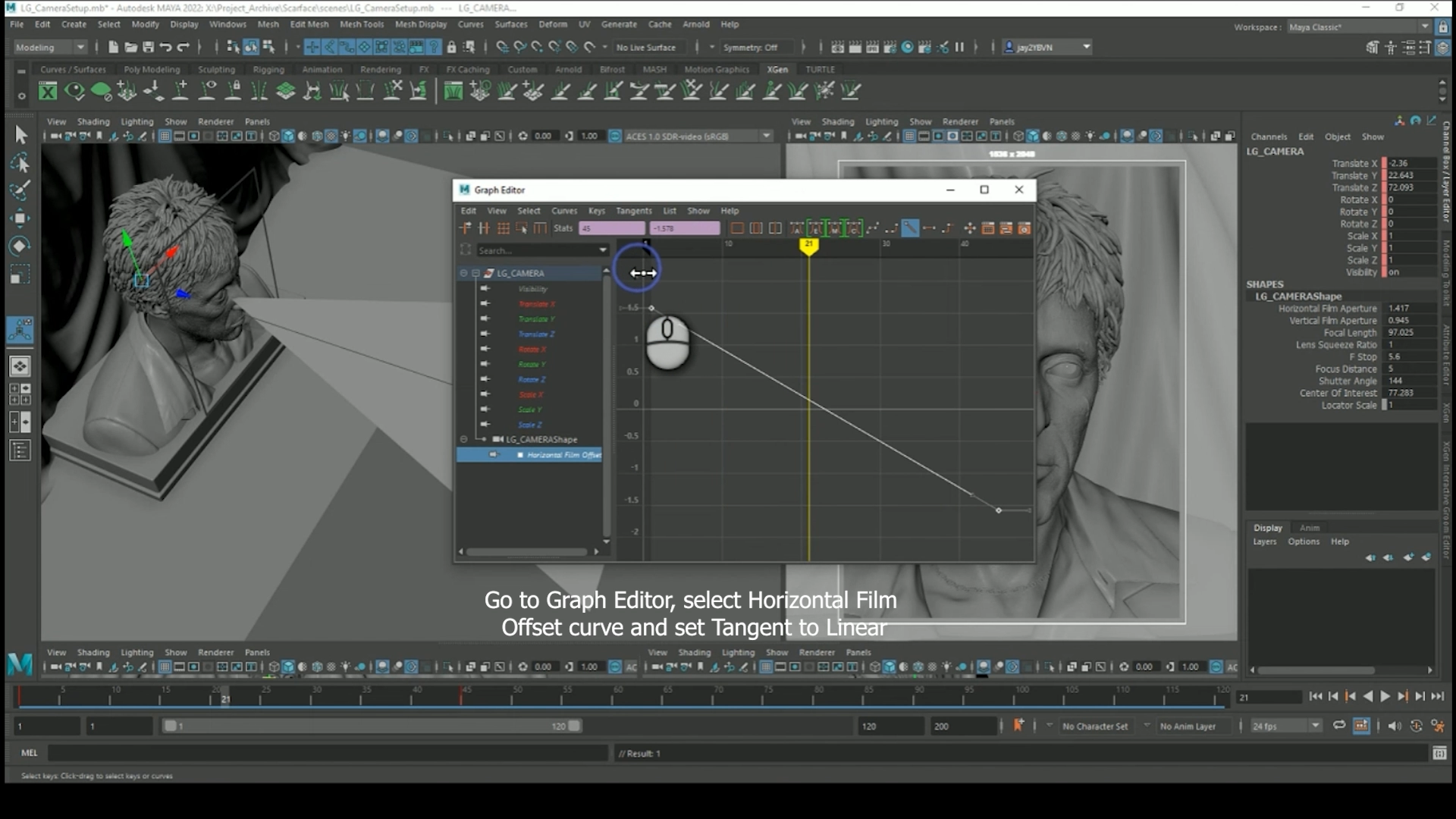
The last step is to open <mark style="color:purple;">**`Windows> Animation Editors> Graph Editor`**</mark> again and click on <mark style="color:purple;">**`LG_CAMERA> Shape> Horizontal Film Offset`**</mark>. **Select the curve and go to&#x20;**<mark style="color:purple;">**`Tangents> Linear`**</mark>**&#x20;to ensure the offset value changes at a constant speed.** Now if you scrub back and forth on the timeline, your scene should stay perfectly centered in the <mark style="color:purple;">**`LG_CAMERA`**</mark> window.

<figure><img src="https://content.gitbook.com/content/PuCaeVAli72TiclYlEG5/blobs/enG9lJQy0GwNXuCRquCc/image.png" alt=""><figcaption></figcaption></figure>

> ## Parenting the camera to the reference frame

Select your reference frame geometry and rename it to LG\_IMAGE PLANE\_GUIDE, then select LG\_CAMERA and parent it directly underneath LG\_IMAGE PLANE\_GUIDE.<br>

{% hint style="warning" %}
From now on, you shouldn’t move the camera directly - select LG\_IMAGE PLANE\_GUIDE and it can be moved around the scene and rotated freely, and LG\_CAMERA will follow.&#x20;
{% endhint %}

You can even scale LG\_IMAGE PLANE GUIDE, and it will effectively scale the whole scene, making it larger or smaller in the frame, without needing to move the camera away from your scene and change the position of the image plane.

{% hint style="info" %}
Remember, when the frames are rendered, everything in front of LG\_IMAGE\_PLANE\_GUIDE will appear to come ‘out’ in front of the Looking Glass screen and everything behind it will appear to be behind the screen.
{% endhint %}

In general, on the Looking Glass, objects can appear further ‘back’ than they can appear in front of the screen – I typically set the focal plane so around three quarters of the scene is behind the image plane, and maybe one quarter is in front of it.

For a 3D portrait, for example, I would normally set the image plane around the eyes, so they are most in focus. The nose and mouth will come out slightly from the surface and the rest of the head will appear behind. This gives a good balance of positive and negative depth and means that everything can be kept in good focus.

<figure><img src="https://content.gitbook.com/content/PuCaeVAli72TiclYlEG5/blobs/Etq974BYwcqX9nZmLYPc/docs-divider-gradient-stroke.png" alt=""><figcaption></figcaption></figure>

## Rendering your Light Field

#### Hide the Reference Plane from the Render View

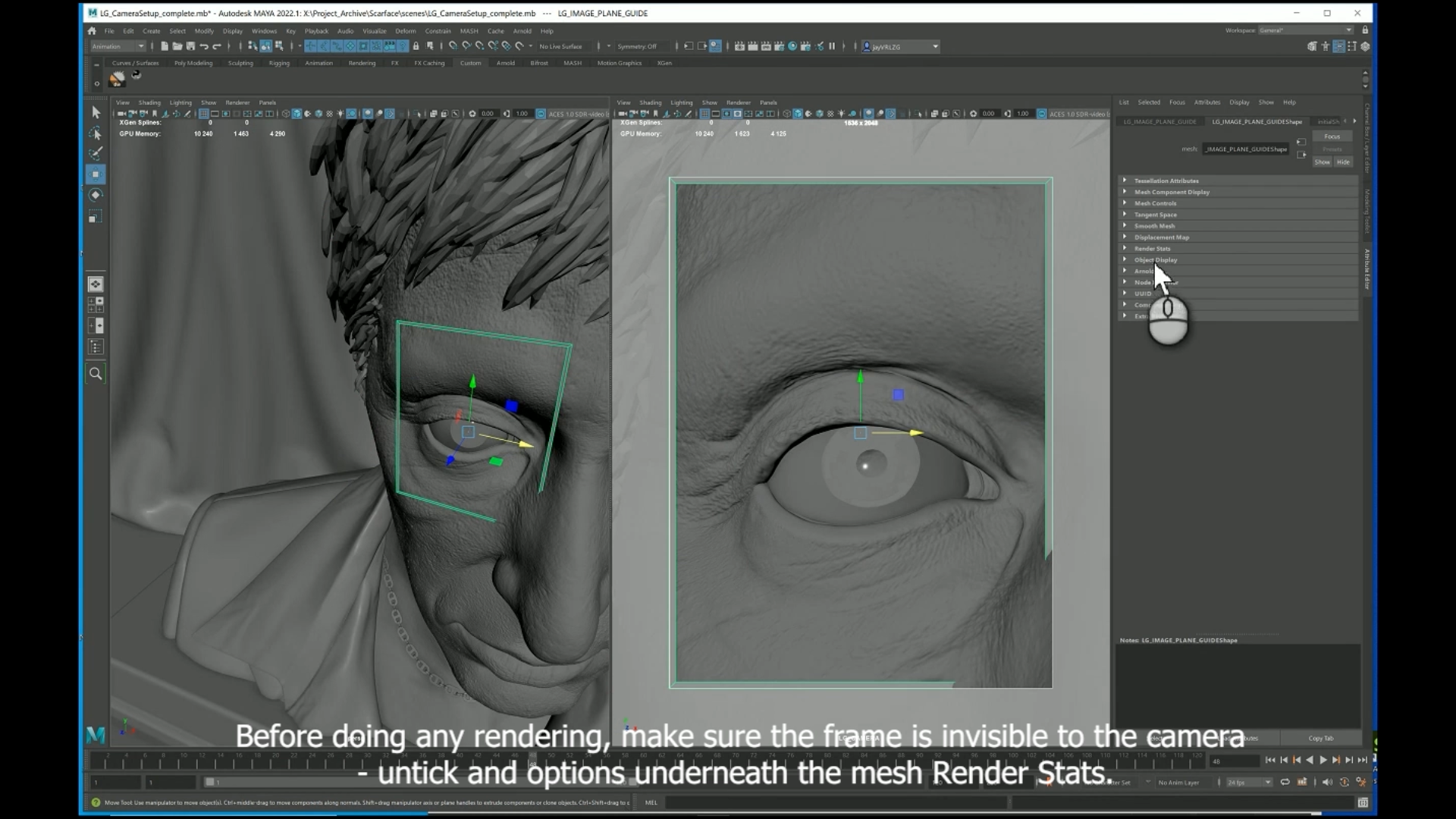
Before doing any rendering, make sure the frame we created in the previous step is invisible to the camera, select the guide, then untick the options underneath render stats.

<figure><img src="https://content.gitbook.com/content/PuCaeVAli72TiclYlEG5/blobs/TZhf1g3iW8iPsWUT5Ymc/image.png" alt=""><figcaption></figcaption></figure>

> ### Previewing your Render

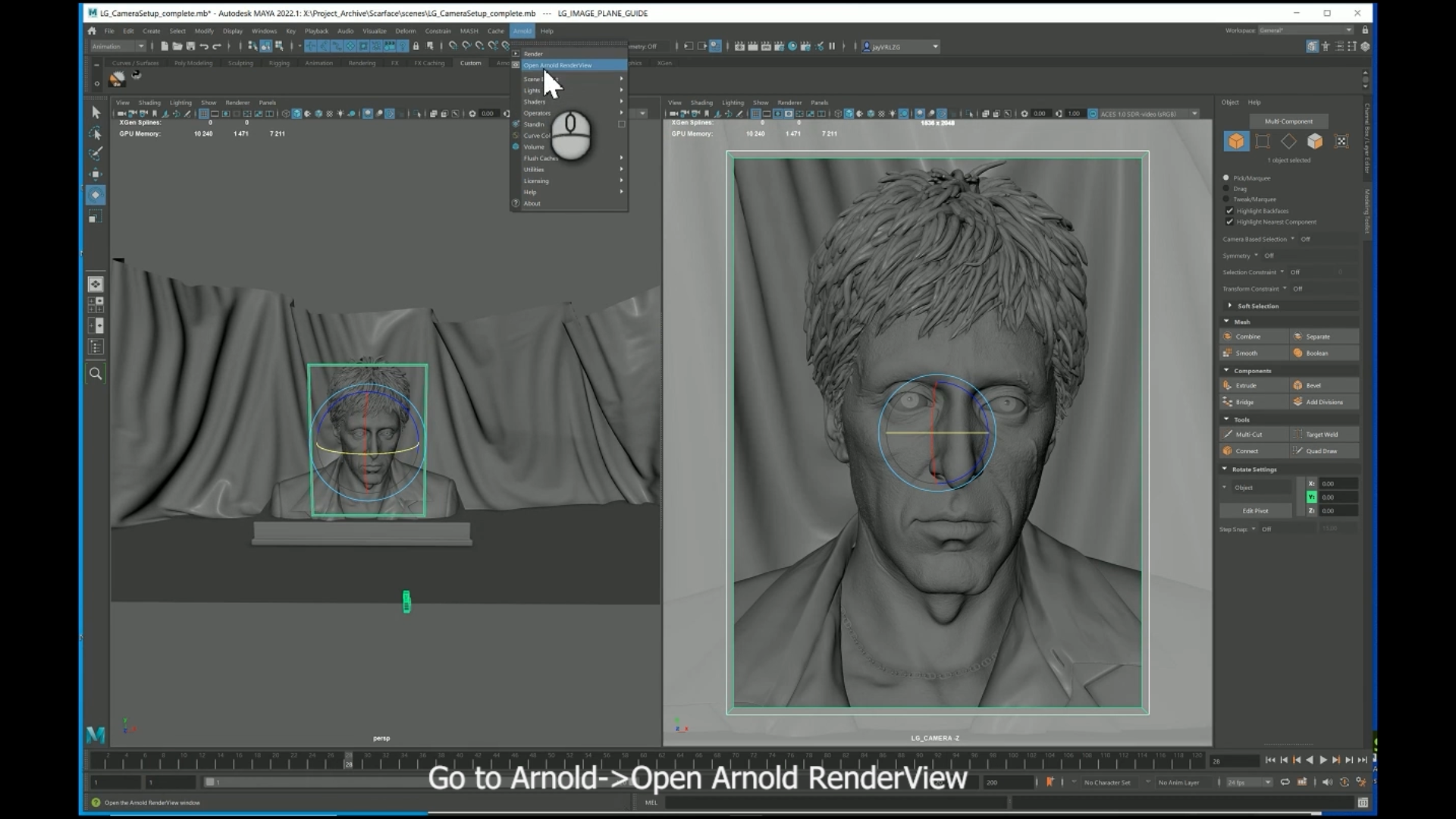
It’s normally a good idea to do some test renders before you render a whole sequence. Once you are happy with your camera position and ready to render, go to <mark style="color:purple;">**`Arnold>Open Arnold RenderView`**</mark>.

<figure><img src="https://content.gitbook.com/content/PuCaeVAli72TiclYlEG5/blobs/FABHr7mBTuscmAwFz0Pt/image.png" alt=""><figcaption></figcaption></figure>

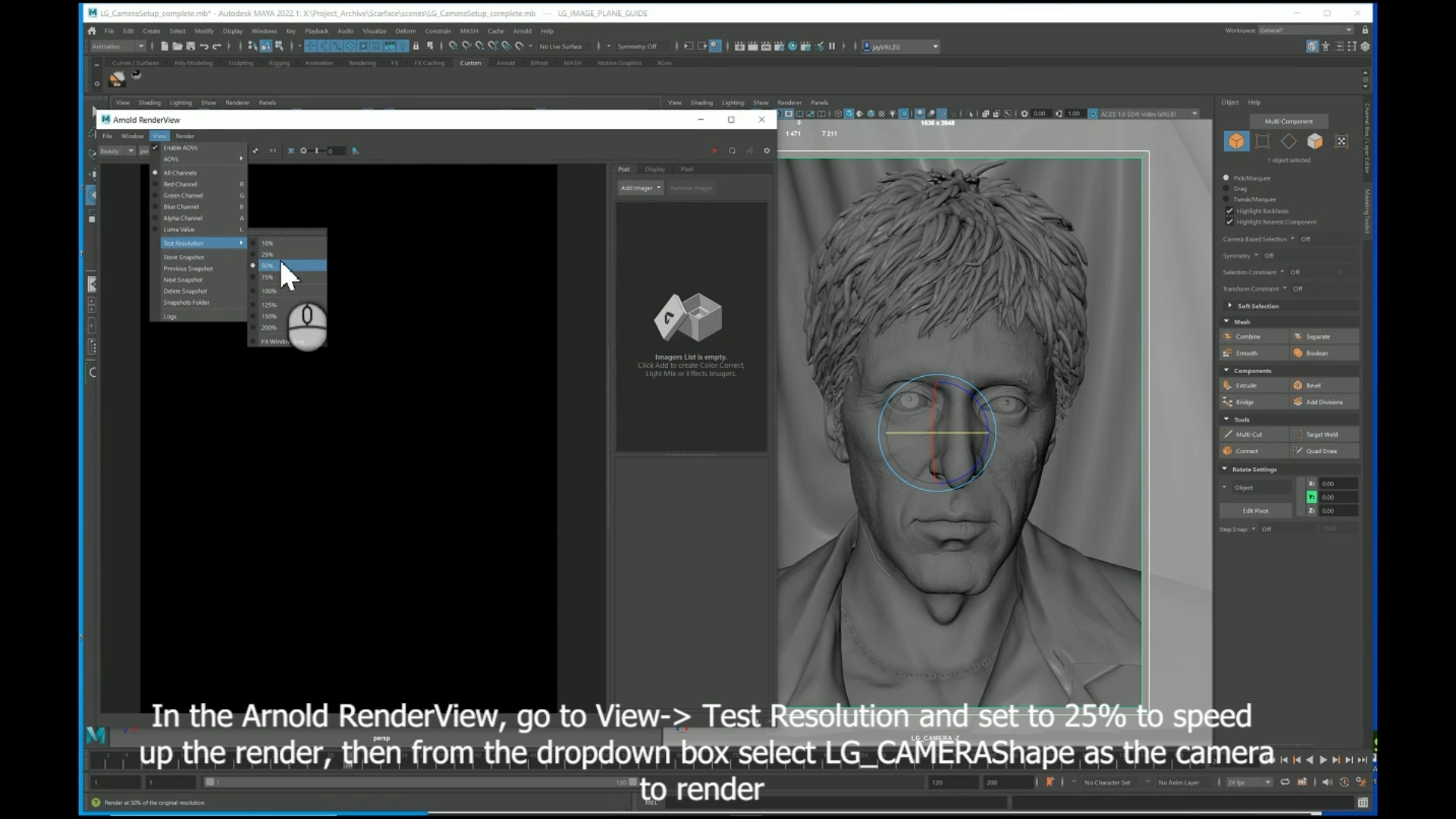
From the Renderview window you can go to <mark style="color:purple;">**`View> Test Resolution`**</mark> and set it to 50 or 25% so it renders a faster preview.

<figure><img src="https://content.gitbook.com/content/PuCaeVAli72TiclYlEG5/blobs/GAngpHJLtFaRr495SDr3/image.png" alt=""><figcaption></figcaption></figure>

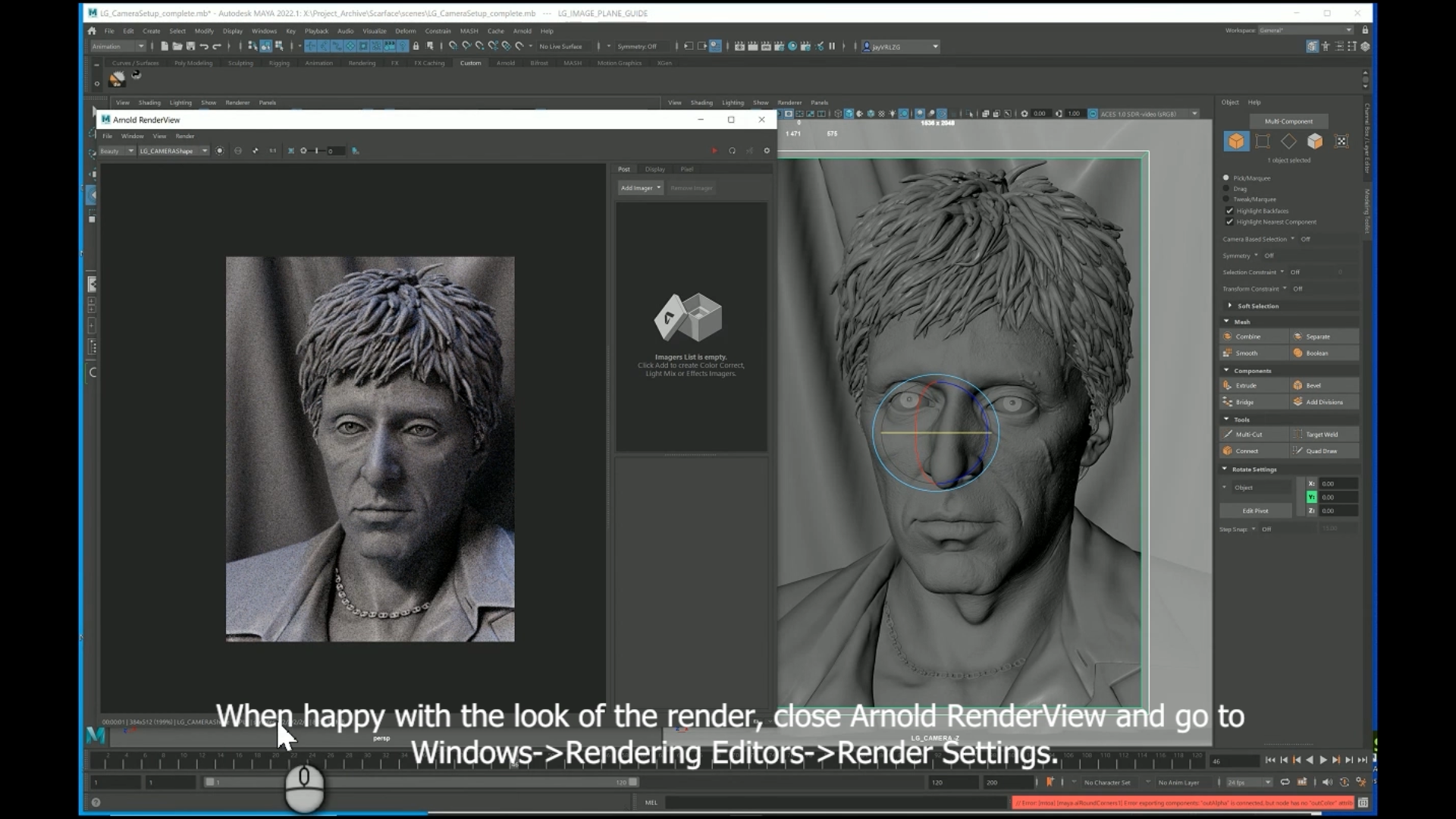
Select **LG\_CAMERA** from the dropdown box and go to Render>Run IPR to set off a test render of the current frame.

From the Renderview window you can go to View> Test Resolution and set it to 50 or 25% so it renders a faster preview.

<figure><img src="https://content.gitbook.com/content/PuCaeVAli72TiclYlEG5/blobs/9iD5LtpafX1GRC1maser/image.png" alt=""><figcaption></figcaption></figure>

Select **LG\_CAMERA** from the dropdown box and go to Render>Run IPR to set off a test render of the current frame.

> ### Render Settings

Once you have tested a few different frames in the sequence and you want to render the whole sequence, close the Arnold RenderView, open <mark style="color:purple;">**`Windows> Rendering Editors> Render Settings`**</mark>.

<figure><img src="https://content.gitbook.com/content/PuCaeVAli72TiclYlEG5/blobs/QPAoay7hSh5a5TRTw53r/image.png" alt=""><figcaption></figcaption></figure>

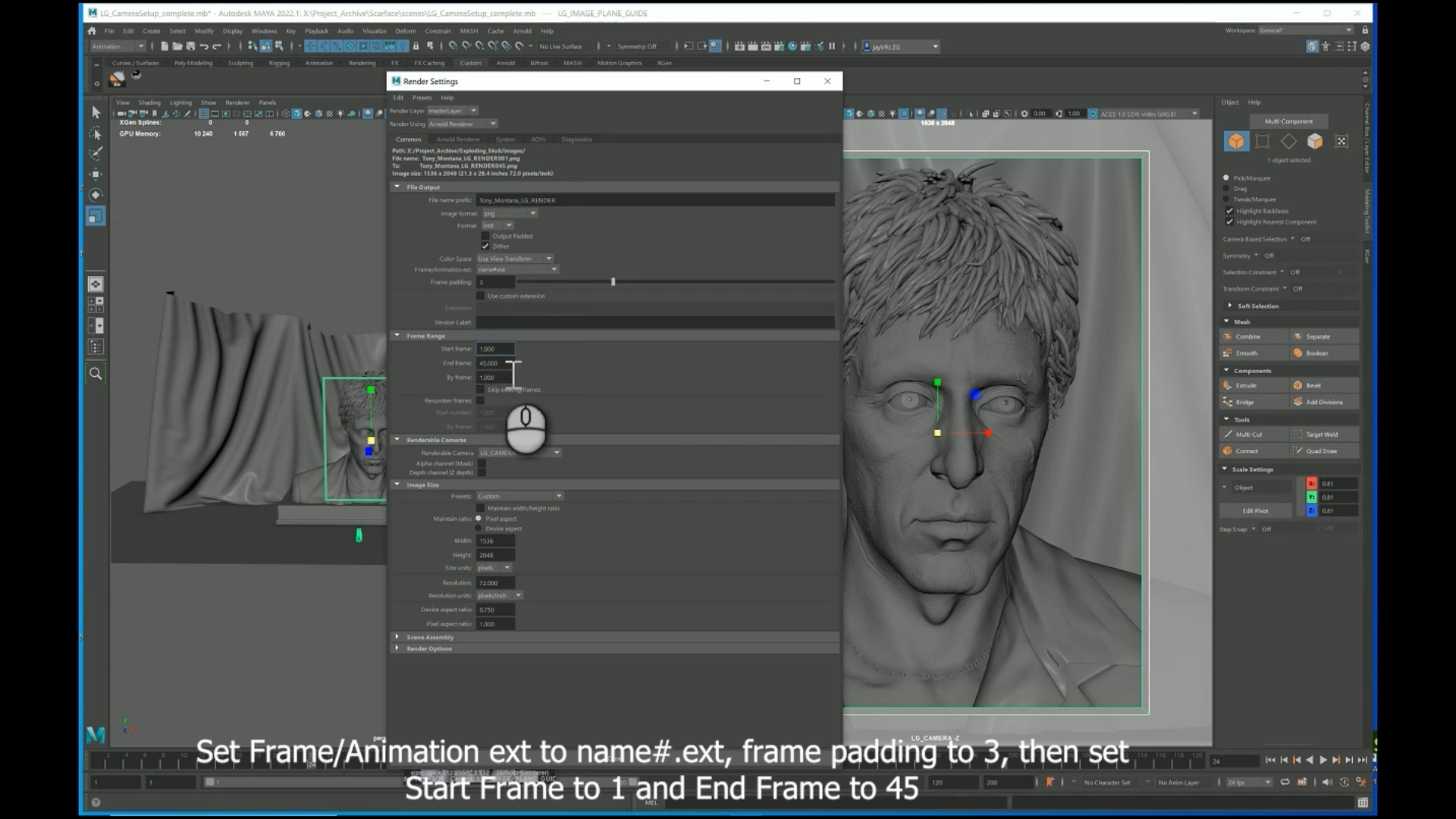
Choose a suitable filename in File name prefix and select the image format you want (png and jpg can be read directly by the Looking Glass so stick with them)\
\
In Frame/Animation ext selectname#.ext and set frame padding to 3. Set start frame to 1 and End frame to 45 and set Renderable Camera to **LG\_CAMERA**.

<figure><img src="https://content.gitbook.com/content/PuCaeVAli72TiclYlEG5/blobs/9bsJX7v82B1ZyC2U4yQN/image.png" alt=""><figcaption></figcaption></figure>

Untick Alpha Channel or Depth Channel if selected, then close the Render Settings Window.

Next go to Windows> Rendering Editors> Render View. Make sure the renderer is set to Arnold Render (or your renderer of choice) then go to <mark style="color:purple;">**`Render> Render Sequence`**</mark> and click on the box to the right to open up the options. From here, select LG\_CAMERA as the Current camera, leave everything else unticked and select an Alternate Output File Location if required. Then click Render Sequence and wait…

<figure><img src="https://content.gitbook.com/content/PuCaeVAli72TiclYlEG5/blobs/Etq974BYwcqX9nZmLYPc/docs-divider-gradient-stroke.png" alt=""><figcaption></figcaption></figure>

## Displaying your hologram

{% embed url="<https://blocks.glass/jay/900?theme=dark&aspect=1.75>" %}

Once you have your image set rendered, make sure they are in a folder on their own with no other files.

> ### Using Looking Glass Studio

Open [<mark style="color:purple;">**Looking Glass Studio**</mark>](https://docs.lookingglassfactory.com/3d-viewers/looking-glass-studio), go to create hologram, select light field image set and then select the **first** image in the set.

Initially the image may look strange and appear pseudoscopic (depth is reversed). Just click on reverse images to fix this and view your 3D image.&#x20;

> ### Making a light field on the web

If you run into issues using Looking Glass Studio you can also view light field on the web using the following tool written by [<mark style="color:purple;">**Oscar Tong**</mark>](https://blocks.glass/moscartong)<mark style="color:purple;">**.**</mark>

{% embed url="<https://lkg.vercel.app/images>" %}

For this tool, select all the images in your light field set and upload them to the tool. You'll need to focus and crop the light field, but once you've done that, you'll have a quilt file you can use with the Looking Glass or upload to [<mark style="color:purple;">**Blocks**</mark>](https://blocks.glass)<mark style="color:purple;">**.**</mark>&#x20;