
# Using Looking Glass Bridge

{% hint style="info" %}
The latest version of Looking Glass Bridge is available [here](https://lookingglassfactory.com/software/looking-glass-bridge).
{% endhint %}

Looking Glass Bridge is a **service** application, that means that for the most part, it runs in the background and provides interfaces for other user-facing applications. \
\
This also means that Looking Glass Bridge is accessible via different methods than you might expect from a normal application.

### Windows 🪟

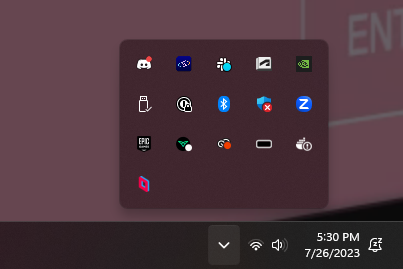
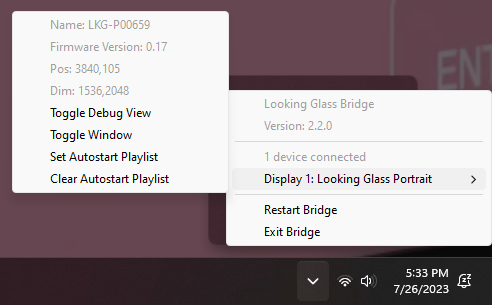
On Windows, Looking Glass Bridge is available in the Icon Tray. \
\
This is located on the right side of the Windows Taskbar, next to the clock, volume and Wi-Fi settings. To access Bridge, click the Up arrow in the Icon Tray, then choose the Bridge application.&#x20;

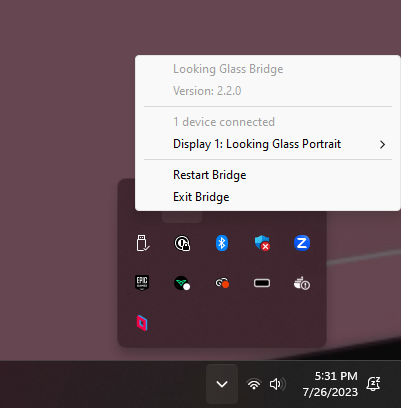
<table data-view="cards"><thead><tr><th></th><th data-hidden data-card-cover data-type="files"></th></tr></thead><tbody><tr><td>Bridge exists in the icon Tray. <br><br>To interact with Bridge select the Bridge icon. </td><td><a href="https://content.gitbook.com/content/PuCaeVAli72TiclYlEG5/blobs/qwOsG8kn99kVdBLE3xBA/image.png">image.png</a></td></tr><tr><td>The main menu of Looking Glass Bridge will show the Looking Glass displays that are connected to your computer.</td><td><a href="https://content.gitbook.com/content/PuCaeVAli72TiclYlEG5/blobs/wJVR68Wn7Q4oeFOxEeu2/image.png">image.png</a></td></tr><tr><td>When you select a display, you'll see a few options for actions you can perform. <br><br>These actions are the same across all platforms, we'll go over them below.</td><td><a href="https://content.gitbook.com/content/PuCaeVAli72TiclYlEG5/blobs/vKdKUegQbrpI7SYxvEZl/image.png">image.png</a></td></tr></tbody></table>

### MacOS 🍎

On MacOS, Looking Glass Bridge is available via the Menu Bar. \
\
This is located at the top of your Mac's main screen.&#x20;

<figure><img src="https://content.gitbook.com/content/PuCaeVAli72TiclYlEG5/blobs/0jKR7jkWS7qV18GG3NLS/image.png" alt=""><figcaption></figcaption></figure>

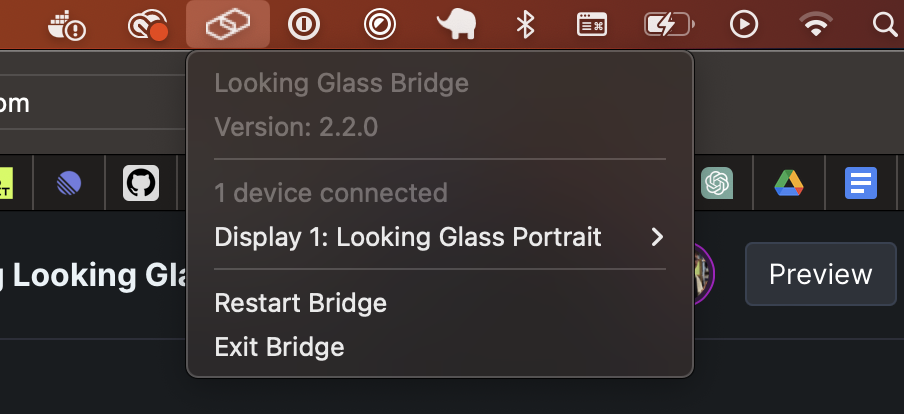
Once you click on the Bridge icon, you'll see the following menu.&#x20;

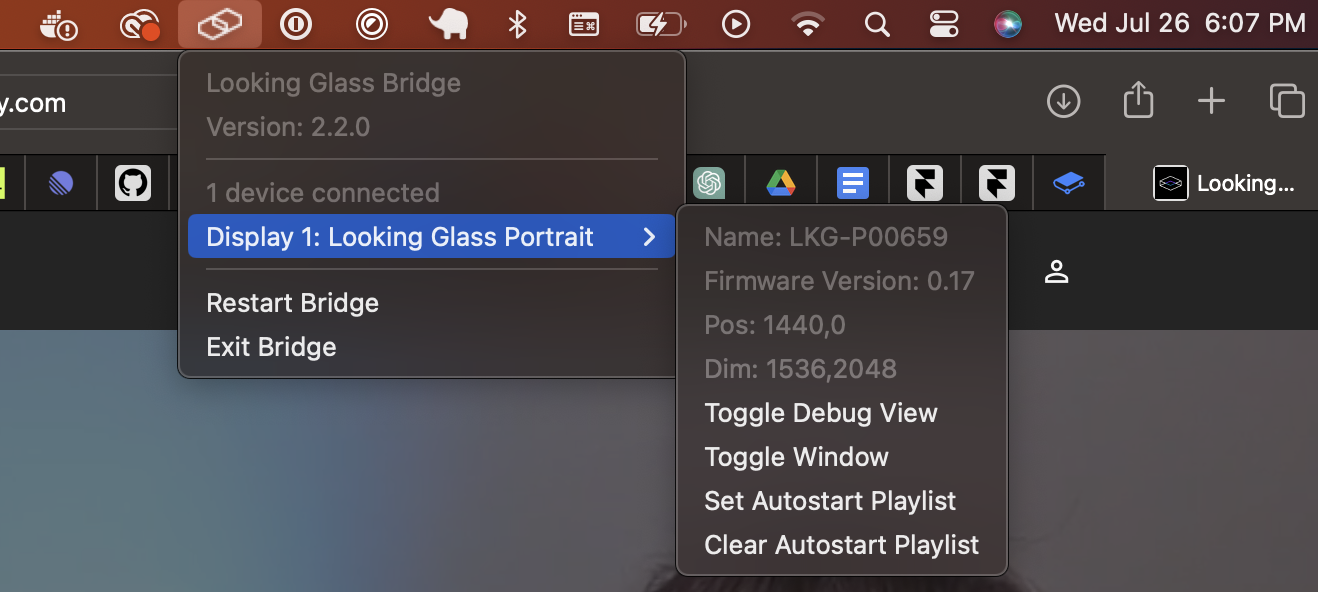
<table data-view="cards"><thead><tr><th></th><th data-hidden></th><th data-hidden></th><th data-hidden data-card-cover data-type="files"></th></tr></thead><tbody><tr><td>Once you select the Bridge icon in the Menu Bar, you'll see the following menu. </td><td></td><td></td><td><a href="https://content.gitbook.com/content/PuCaeVAli72TiclYlEG5/blobs/rYaOkzlXFkqKy6TufwAu/image.png">image.png</a></td></tr><tr><td>Selecting a Display from Bridge's menu will show you a series of actions you can perform. <br><br>Those actions are described in more detail below.</td><td></td><td></td><td><a href="https://content.gitbook.com/content/PuCaeVAli72TiclYlEG5/blobs/Mpx1pFajoGldLRXA6ksE/image.png">image.png</a></td></tr></tbody></table>

## Actions:

### Toggle Debug View

This action will toggle the debug view on and off. \
\
The debug view is useful to ensure that Looking Glass Bridge is displaying content correctly on your Looking Glass display.&#x20;

### Toggle Window

This action will toggle the window created by Looking Glass Bridge on and off.&#x20;

### Set AutoStart Playlist

Introduced in Looking Glass Bridge 2.2, this option will allow you to play through a playlist created by Looking Glass Studio automatically when you start Looking Glass Bridge. When you click this option, a file browser window will open. \
\
You'll want to navigate to your `Documents/HoloPlayStudio/New Playlist` folder, then choose your `playlist.json` file.&#x20;

Alternatively, you can supply [an `.m3u` playlist file](https://en.wikipedia.org/wiki/M3U) that includes a list of image and video assets. However, this method will only work for quilt media that uses [the file naming convention to supply quilt settings](https://docs.lookingglassfactory.com/keyconcepts/quilts#file-naming-conventions).

Once you've selected a playlist, Bridge will start playing it. Bridge will also play that playlist each time it starts on that computer.&#x20;

Use [Clear AutoStart Playlist](#clear-autostart-playlist) to discontinue playback.

### Clear AutoStart Playlist

Introduced in Looking Glass Bridge 2.2, this option will allow you to clear a playlist set to automatically start. When you click this option, Bridge will clear the playlist from the Autostart option, while restarting Bridge will close the playlist if it's currently playing.&#x20;

In order to control the playlist, you can use the[ **Looking Glass Bridge API Library**](https://github.com/Looking-Glass/bridge.js). <br>

{% hint style="warning" %}
Currently, hardware-accelerated video playback is only available on NVIDIA graphics cards. \
\
This is highly recommended for proper playback of 8K quilts and other high-resolution content.
{% endhint %}


---

# Agent Instructions: Querying This Documentation

If you need additional information that is not directly available in this page, you can query the documentation dynamically by asking a question.

Perform an HTTP GET request on the current page URL with the `ask` query parameter:

```
GET https://lfdocs.lookingglassfactory.com/software/looking-glass-bridge/using-looking-glass-bridge.md?ask=<question>
```

The question should be specific, self-contained, and written in natural language.
The response will contain a direct answer to the question and relevant excerpts and sources from the documentation.

Use this mechanism when the answer is not explicitly present in the current page, you need clarification or additional context, or you want to retrieve related documentation sections.