# Display Settings on Windows

For Looking Glass software to work as best as possible your Looking Glass display must be set to the proper resolution. The following recommendations will make sure that your computer and Looking Glass are setup properly.&#x20;

{% hint style="warning" %}
Some Windows-based laptops limit which ports are connected to the dedicated graphics card. In some cases, the HDMI port will only be linked to the integrated graphics card, resulting in lower performance for demanding applications. \
\
Please consult your computer's user guide to determine which ports are connected to your dedicated graphics card.&#x20;
{% endhint %}

## Display Adapters

If your computer only has USB-C output, you'll need a display adapter to connect the HDMI or DisplayPort cable to your Looking Glass. \
\
For Looking Glass Portrait, we typically recommend adapters from [Anker](https://www.anker.com/products/a8312). \
\
For Looking Glass Go, we recommend this [official adapter](https://checkout.lookingglassfactory.com/products/looking-glass-go-hdmi-cable).

If you need a different display adapter, ensure that it supports at minimum 4K\@30Hz for use with the Looking Glass Portrait and Looking Glass 16", and 5K\@30hz for the Looking Glass 27".

{% hint style="danger" %}
A display adapter that doesn't support 4K\@30hz will not work with your Looking Glass Portrait or 16". The Looking Glass 27" requires a display adapter that supports 5K\@30hz.
{% endhint %}

{% hint style="warning" %}
For the Looking Glass 32" or 65" you must plug in both DisplayPort cables to your computer.\
\
We strongly recommend using a desktop computer with a powerful NVIDIA graphics card for these systems. For more information, please see the Looking Glass user guide for the [32"](https://lfdocs.lookingglassfactory.com/legacy/legacy-hardware/looking-glass-32) or [65"](https://lfdocs.lookingglassfactory.com/getting-started/looking-glass-65) for minimum required specifications for your PC.&#x20;
{% endhint %}

## Display Settings

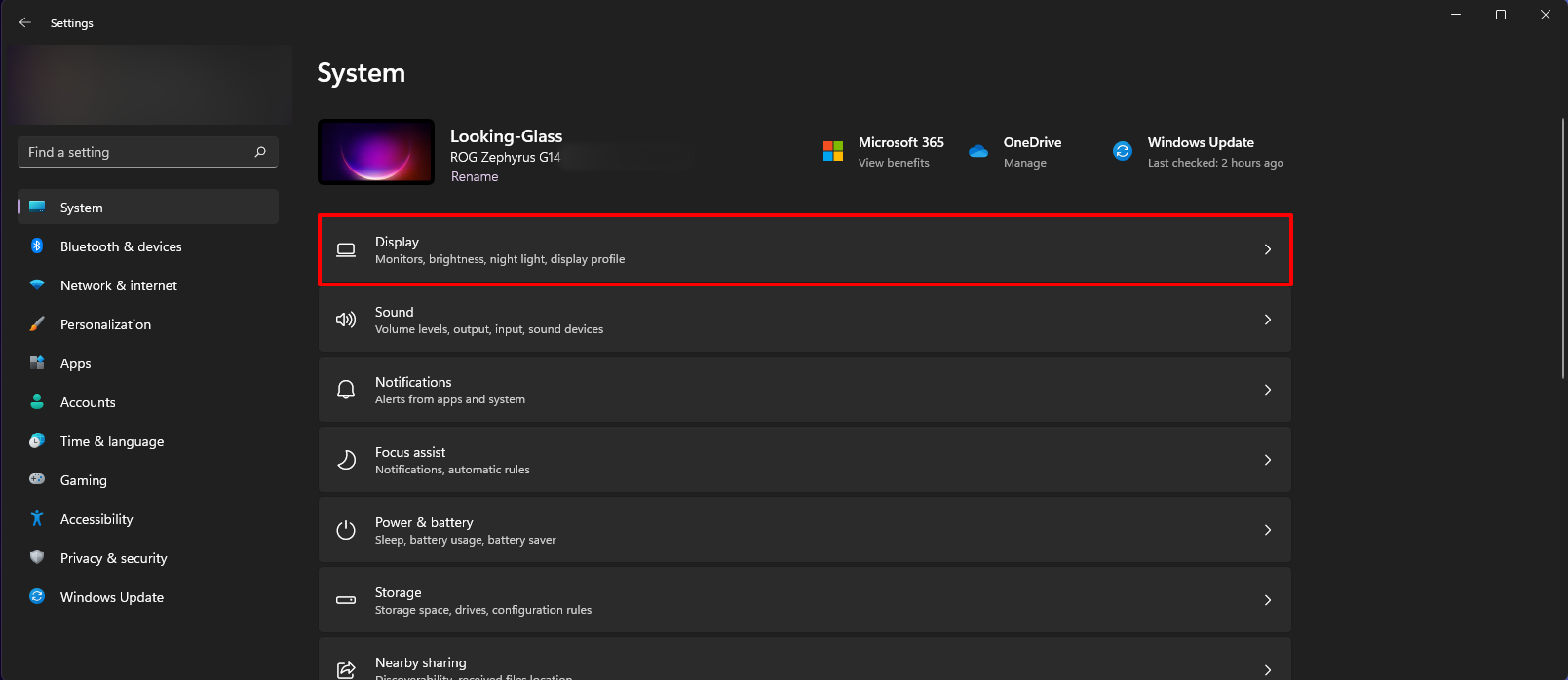
To get to display settings, open the **Settings** app and then click on **Display.** &#x20;

<figure><img src="https://content.gitbook.com/content/PuCaeVAli72TiclYlEG5/blobs/xxf9B8qjSzbcZ6rOaVvl/display%20settings%20-1.png" alt="A screenshot showing the windows 11 settings menu. "><figcaption></figcaption></figure>

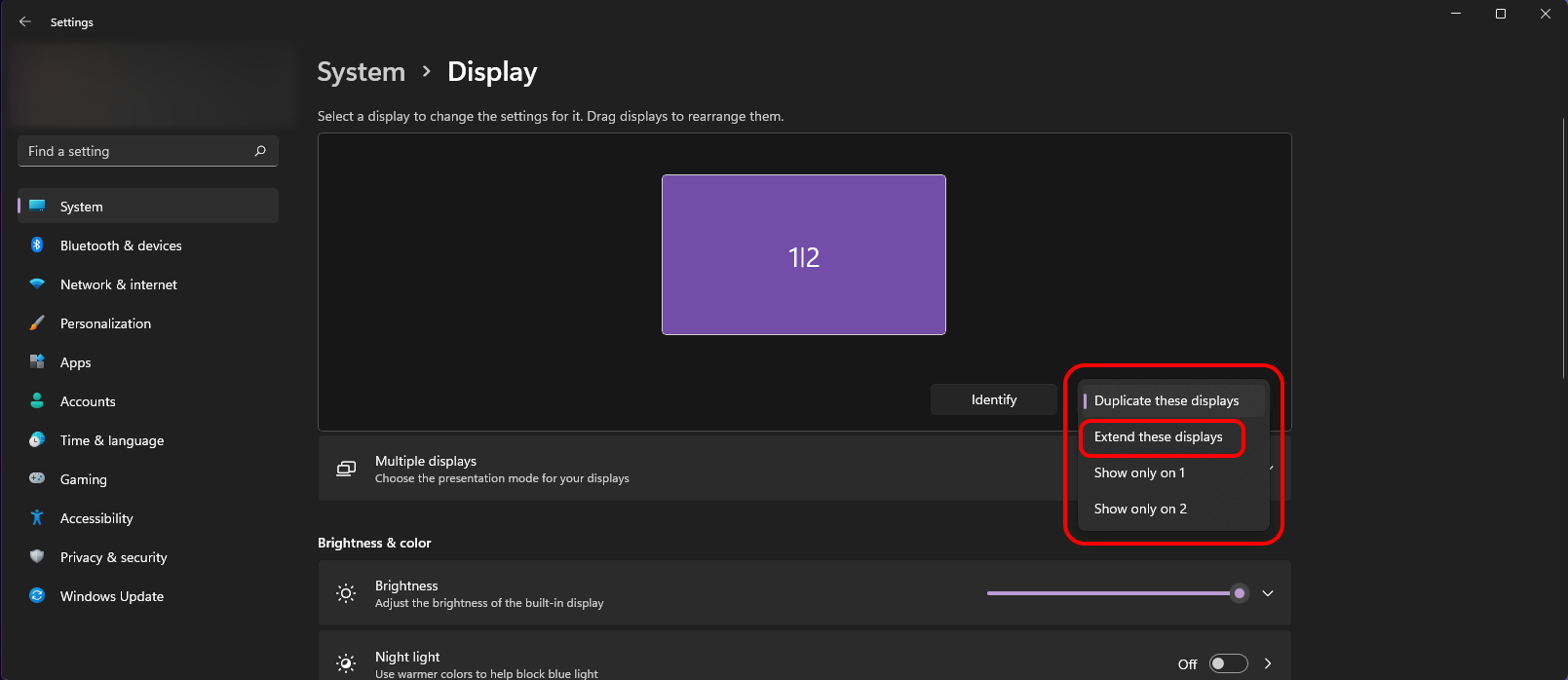
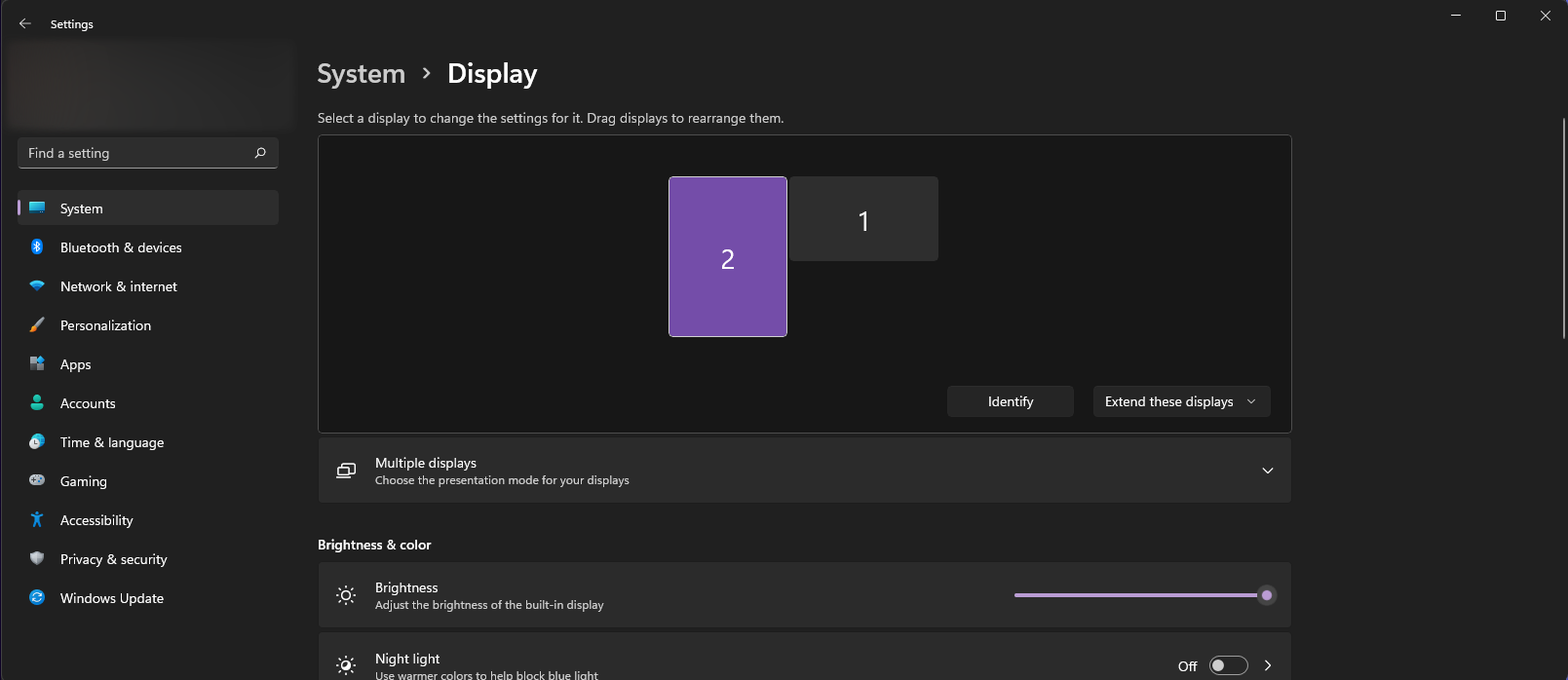
Windows usually sets new monitors to **Duplicate** to the main screen. In order for your Looking Glass to work properly, it must be set as an Extended Display. Select the **Duplicate these displays** text and then choose **Extend these displays**. This will now show two rectangles in the Settings menu, representing your main monitor and your Looking Glass display.&#x20;

<figure><img src="https://content.gitbook.com/content/PuCaeVAli72TiclYlEG5/blobs/tUqplTvqautcWPYaozNV/display%20settings%20-2.png" alt=""><figcaption></figcaption></figure>

<figure><img src="https://content.gitbook.com/content/PuCaeVAli72TiclYlEG5/blobs/QO4W8dZHiVzUe9cSTQ1P/display%20settings%20-3.png" alt=""><figcaption></figcaption></figure>

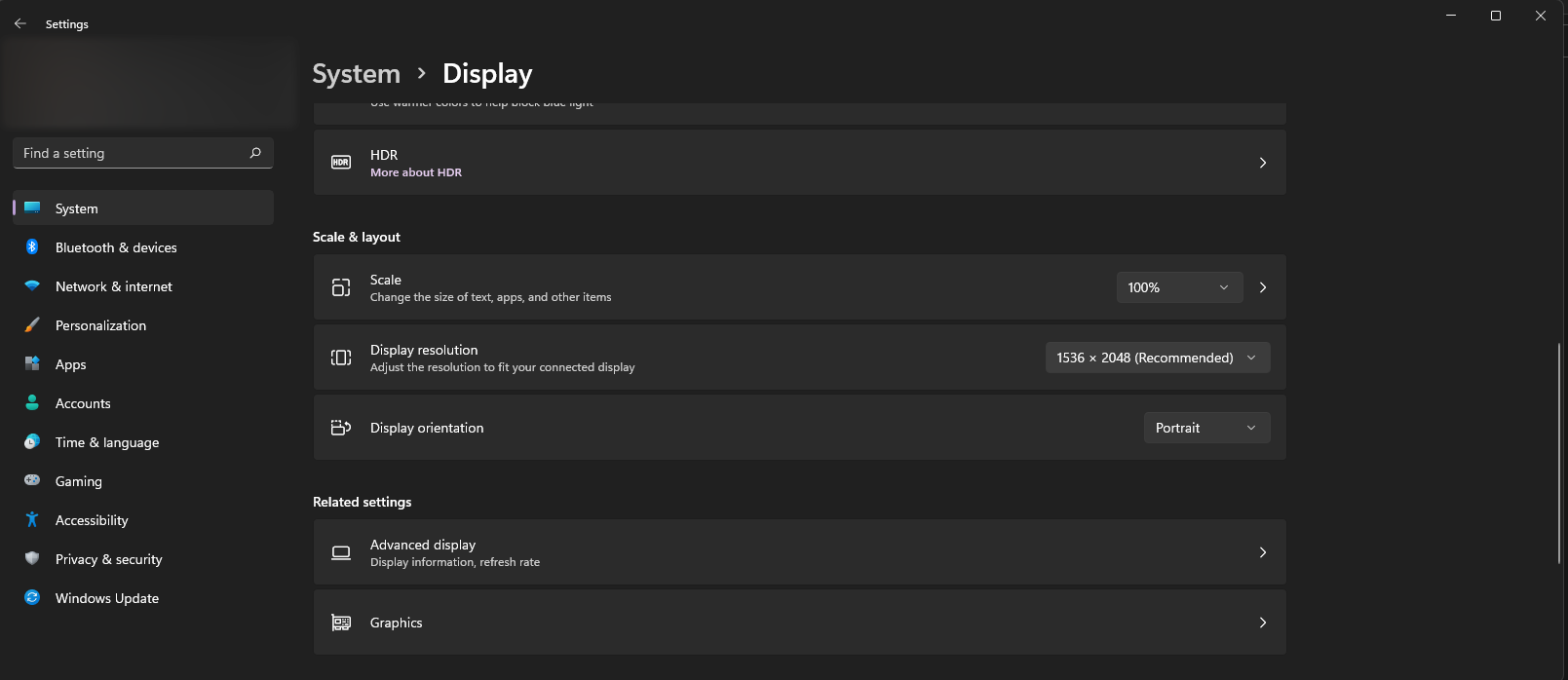
Select your Looking Glass display and scroll down until you see the **Display Scaling** and **Resolution** options, under the **Scale and Layout** category.&#x20;

<table><thead><tr><th width="324.5">Device</th><th>Display Resolution</th><th>Orientation</th></tr></thead><tbody><tr><td>Looking Glass Go</td><td>1440 x 2560</td><td>Portrait</td></tr><tr><td>Looking Glass 16" Light Field Display (Landscape)</td><td>3840 x 2160</td><td>Landscape</td></tr><tr><td>Looking Glass 16" Light Field Display (Portrait)</td><td>2160 x 3840</td><td>Portrait (270 degrees)</td></tr><tr><td>Looking Glass 27" Light Field Display (Landscape)</td><td>5120 x 2880</td><td>Landscape</td></tr><tr><td>Looking Glass 27" Light Field Display (Portrait)</td><td>2880 x 5120</td><td>Portrait (270 degrees)</td></tr><tr><td>Looking Glass 32" Light Field Display (Landscape)</td><td>7680 x 4320</td><td>Landscape</td></tr><tr><td>Looking Glass 32" Light Field Display (Portrait)</td><td>4320 x 7680</td><td>Portrait</td></tr><tr><td><strong>Looking Glass Portrait</strong></td><td>1536 x 2048</td><td>Portrait</td></tr><tr><td><strong>Looking Glass 16"</strong></td><td>3840 x 2160</td><td>Landscape</td></tr><tr><td><strong>Looking Glass 32" or 65"</strong></td><td>7680 × 4320</td><td>Landscape</td></tr></tbody></table>

### Display Scaling On

Ensure that **Scale** is set to 100% and that the **Display resolution** setting matches the settings for your display in the table above.&#x20;

<figure><img src="https://content.gitbook.com/content/PuCaeVAli72TiclYlEG5/blobs/5hH8JHehTPLXUQOjid0J/display%20settings%20-4.png" alt=""><figcaption></figcaption></figure>