# Display Settings on macOS

{% hint style="warning" %}
Apple Silicon Macs like the 13" Macbook Air and Macbook Pro can only output to **one** external monitor and have a max resolution of 3840x2160. \
\
Only the M1/M2/M3/M4 Pro, Max, and Ultra variants support multiple monitors.&#x20;
{% endhint %}

For Looking Glass software to work as best as possible your Looking Glass display must be set to the proper resolution. macOS in particular tends to scale monitors to optimize for things like text size. While this works great for 2D displays, it can cause some trouble with holographic displays.&#x20;

Follow the recommendations below to adjust your display settings on macOS.&#x20;

## Display Adapters

If your Mac computer only has USB-C output, you'll need a display adapter to connect the HDMI or DisplayPort cable to your Looking Glass. \
\
For Looking Glass Portrait, we typically recommend adapters from [Anker](https://www.anker.com/products/a8312). \
\
For Looking Glass Go, we recommend this [official adapter](https://checkout.lookingglassfactory.com/products/looking-glass-go-hdmi-cable).

If you need a different display adapter ensure that it supports at minimum 4K\@30Hz for use with the Looking Glass Portrait and Looking Glass 16", and 5K\@30hz for the Looking Glass 27".

{% hint style="danger" %}
A display adapter that doesn't support 4K\@30hz will not work with your Looking Glass Portrait or 16". The Looking Glass 27" requires a display adapter that supports 5K\@30hz.
{% endhint %}

## Display Scaling

Looking Glass displays are meant to be used as an external monitor. \
\
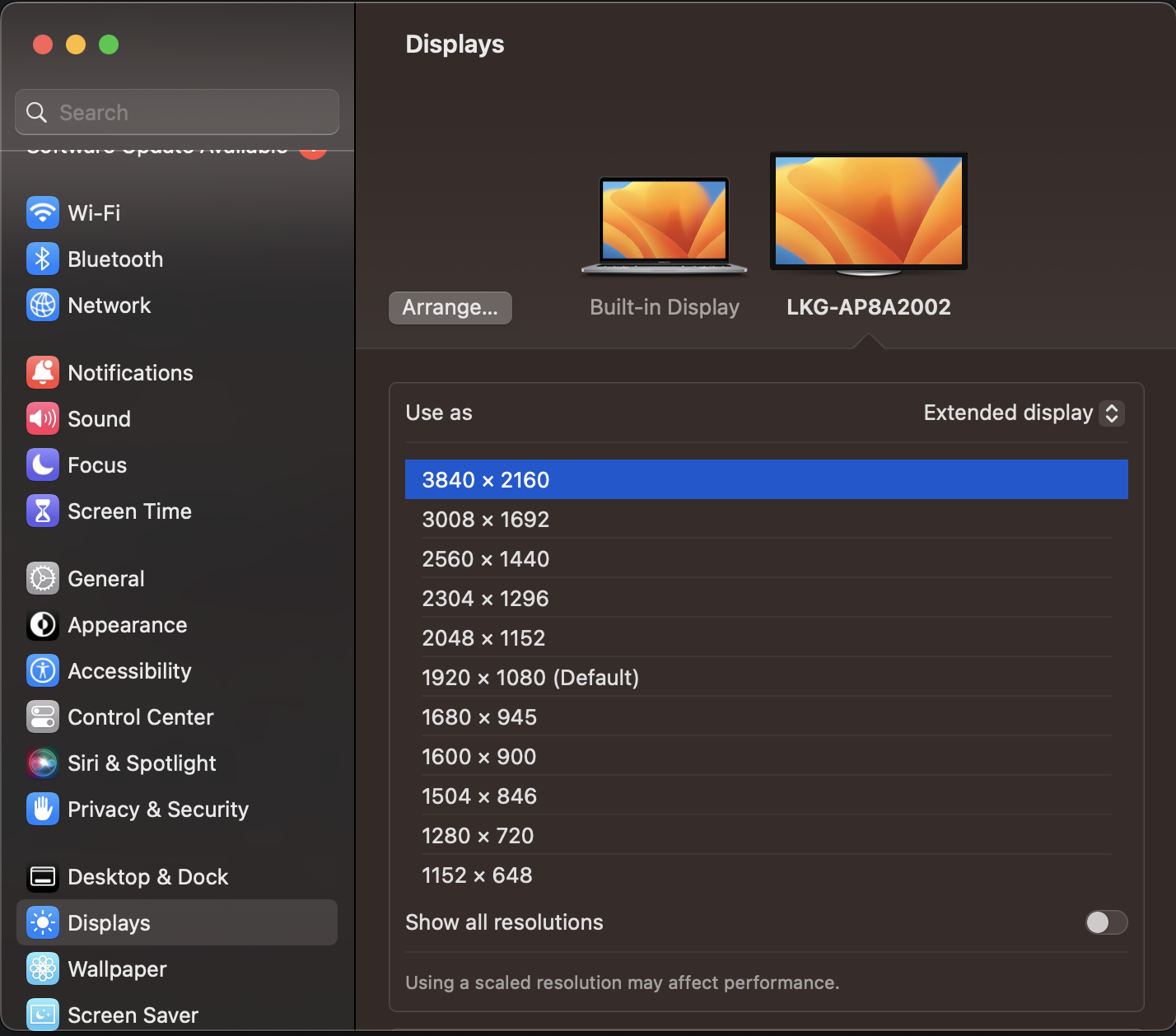
In Display Settings under System Preferences, ensure that your Looking Glass is set to be used as an **Extended Display*****.***

Looking Glass displays must be set in accordance with the following display resolutions in order for Looking Glass software to work properly.&#x20;

<table><thead><tr><th width="324.5">Device</th><th>Display Resolution</th><th>Orientation</th></tr></thead><tbody><tr><td>Looking Glass Go</td><td>1440 x 2560</td><td>Portrait</td></tr><tr><td>Looking Glass 16" Light Field Display (Landscape)</td><td>3840 x 2160</td><td>Landscape</td></tr><tr><td>Looking Glass 16" Light Field Display (Portrait)</td><td>2160 x 3840</td><td>Portrait (270 degrees)</td></tr><tr><td>Looking Glass 27" Light Field Display (Landscape)</td><td>5120 x 2880</td><td>Landscape</td></tr><tr><td>Looking Glass 27" Light Field Display (Portrait)</td><td>2880 x 5120</td><td>Portrait (270 degrees)</td></tr><tr><td>Looking Glass 32" Light Field Display (Landscape)</td><td>7680 x 4320</td><td>Landscape</td></tr><tr><td>Looking Glass 32" Light Field Display (Portrait)</td><td>4320 x 7680</td><td>Portrait</td></tr><tr><td><strong>Looking Glass Portrait</strong></td><td>1536 x 2048</td><td>Portrait</td></tr><tr><td><strong>Looking Glass 16"</strong></td><td>3840 x 2160</td><td>Landscape</td></tr><tr><td><strong>Looking Glass 32" or 65"</strong></td><td>7680 × 4320</td><td>Landscape</td></tr></tbody></table>

### Display scaling on macOS Ventura

{% hint style="info" %}
Don't see your Looking Glass in Display Settings? \
\
Ensure you have the display cable and USB cable plugged in properly and that Looking Glass display is powered on and running in Desktop Mode.&#x20;
{% endhint %}

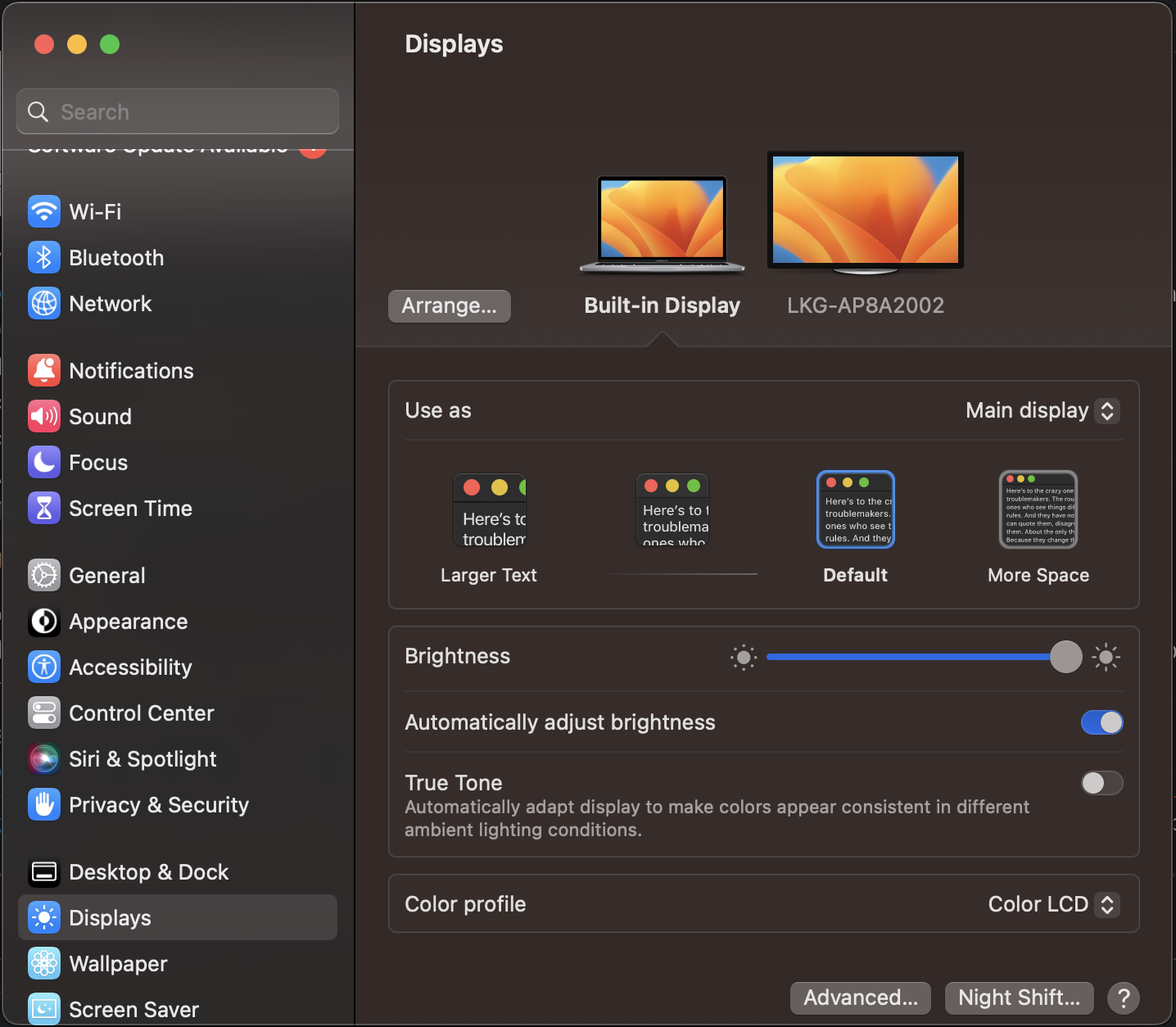
On macOS Ventura, the display scaling functionality is hidden by default. \
\
To expose this functionality, first select your Looking Glass display, then hold down the **Option** key and [**right**](#user-content-fn-1)[^1]**-click** the **More Space** option. This will bring up a dropdown where you can select the display resolution. Choose the resolution that matches your display from the table above.&#x20;

<figure><img src="https://content.gitbook.com/content/PuCaeVAli72TiclYlEG5/blobs/G5nsDQZt5DnGWQZrWM4E/image.png" alt=""><figcaption></figcaption></figure>

### Display scaling on macOS Big Sur

{% hint style="info" %}
Don't see your Looking Glass in Display Settings? \
\
Ensure you have the display cable and USB cable plugged in properly and that Looking Glass display is powered on and running in Desktop Mode.
{% endhint %}

On macOS Big Sur you should have the option to set the resolution manually via a dropdown menu. Ensure that your Looking Glass display matches the resolution listed in the table below.&#x20;

<figure><img src="https://content.gitbook.com/content/PuCaeVAli72TiclYlEG5/blobs/GY9tJWhAkN3I2qHVPR0V/image.png" alt=""><figcaption></figcaption></figure>

[^1]: Some Mac systems have right click disabled by default, ensure you have this enabled if you're hitting issues here.