# Display Settings on Linux

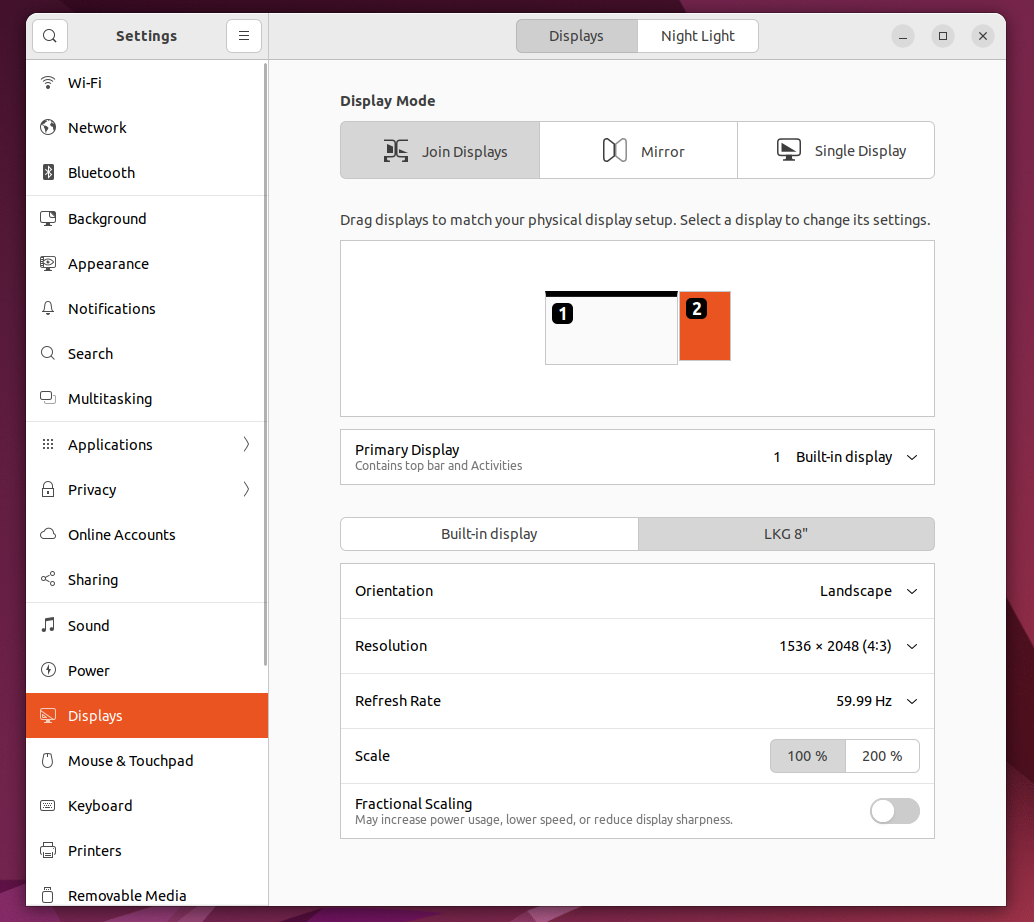
Much like Windows and macOS, it is important to set the proper display settings in order for your Looking Glass to work properly on Linux systems.\
\
The settings UI may vary based on what Linux distribution you're running, but the general settings should remain the same across distributions.\
\
Your Looking Glass must be set to 100% Scaling, and be showing as the correct resolution and orientation. It should also be set to Extended Mode. On Ubuntu, this is worded as "Join Displays".

The table below will show the correct resolution for your Looking Glass.&#x20;

<table><thead><tr><th width="324.5">Device</th><th>Display Resolution</th><th>Orientation</th></tr></thead><tbody><tr><td>Looking Glass Go</td><td>2560 x 1440</td><td>Portrait</td></tr><tr><td>Looking Glass 16" Light Field Display (Landscape)</td><td>3840 x 2160</td><td>Landscape</td></tr><tr><td>Looking Glass 16" Light Field Display (Portrait)</td><td>2160 x 3840</td><td>Portrait (270 degrees)</td></tr><tr><td>Looking Glass 27" Light Field Display (Landscape)</td><td>5120 x 2880</td><td>Landscape</td></tr><tr><td>Looking Glass 27" Light Field Display (Portrait)</td><td>2880 x 5120</td><td>Portrait (270 degrees)</td></tr><tr><td>Looking Glass 32" Light Field Display (Landscape)</td><td>7680 x 4320</td><td>Landscape</td></tr><tr><td>Looking Glass 32" Light Field Display (Portrait)</td><td>4320 x 7680</td><td>Portrait</td></tr><tr><td><strong>Looking Glass Portrait</strong></td><td>1536 x 2048</td><td>Portrait</td></tr><tr><td><strong>Looking Glass 16"</strong></td><td>3840 x 2160</td><td>Landscape</td></tr><tr><td><strong>Looking Glass 32" or 65"</strong></td><td>7680 × 4320</td><td>Landscape</td></tr></tbody></table>

<figure><img src="https://content.gitbook.com/content/PuCaeVAli72TiclYlEG5/blobs/r899VyAFMzH7P1lcn7qb/image.png" alt=""><figcaption></figcaption></figure>

## Display Adapters

If your computer only has USB-C output you'll need a display adapter to connect the HDMI or DisplayPort cable to your Looking Glass.

\
For Looking Glass Portrait, we typically recommend adapters from [Anker](https://www.anker.com/products/a8312). \
\
For Looking Glass Go, we recommend this [official adapter](https://checkout.lookingglassfactory.com/products/looking-glass-go-hdmi-cable).

If you need a different display adapter, ensure that it supports at minimum 4K\@30Hz for use with the Looking Glass Portrait and Looking Glass 16", and 5K\@30hz for the Looking Glass 27".

{% hint style="danger" %}
A display adapter that doesn't support 4K\@30hz will not work with your Looking Glass Portrait or 16". The Looking Glass 27" requires a display adapter that supports 5K\@30hz.
{% endhint %}

{% hint style="warning" %}
For the Looking Glass 32" or 65" you must plug in both Display port cables to your computer. WFor the Looking Glass 32" or 65" you must plug in both DisplayPort cables to your computer.\
\
We strongly recommend using a desktop computer with a powerful NVIDIA graphics card for these systems. For more information, please see the Looking Glass user guide for the [32"](https://lfdocs.lookingglassfactory.com/legacy/legacy-hardware/looking-glass-32) or [65"](https://lfdocs.lookingglassfactory.com/getting-started/looking-glass-65) for minimum required specifications for your PC.&#x20;
{% endhint %}