
# Get Started on MacOS

{% hint style="info" %}
**Download Liteforms for MacOS** [**here**](https://lookingglassfactory.com/software/liteforms)**.**
{% endhint %}

## Requirements

{% hint style="warning" %}

#### Liteforms on MacOS currently only supports Apple Silicon Macs

{% endhint %}

<table data-view="cards" data-full-width="false"><thead><tr><th></th><th></th><th></th><th data-hidden data-card-cover data-type="files"></th><th data-hidden data-card-target data-type="content-ref"></th></tr></thead><tbody><tr><td></td><td><mark style="color:blue;"><strong>Looking Glass Bridge</strong></mark></td><td>The connection between your computer and your Looking Glass.</td><td><a href="https://content.gitbook.com/content/PuCaeVAli72TiclYlEG5/blobs/9GkLra3t3Nd7T2pdjW0b/gitbook_bridge_card.webp">gitbook_bridge_card.webp</a></td><td><a href="https://lookingglassfactory.com/software/looking-glass-bridge">https://lookingglassfactory.com/software/looking-glass-bridge</a></td></tr><tr><td></td><td><mark style="color:blue;"><strong>Looking Glass Liteforms</strong></mark></td><td>Holographic AI platform powered by ChatGPT.</td><td><a href="https://content.gitbook.com/content/PuCaeVAli72TiclYlEG5/blobs/kpzyKvslzL0KusAg7I3X/Liteforms_Gitbook_Card.png">Liteforms_Gitbook_Card.png</a></td><td><a href="https://look.glass/liteforms-mac">https://look.glass/liteforms-mac</a></td></tr></tbody></table>

### Microphone Setup

When you first open up Liteforms you'll be prompted to allow microphone access. If you don't see this prompt, you can change this setting via system preferences -> privacy and enable microphone support there.&#x20;

### Download and Install

Download and install the Liteforms application from the requirements section above.&#x20;

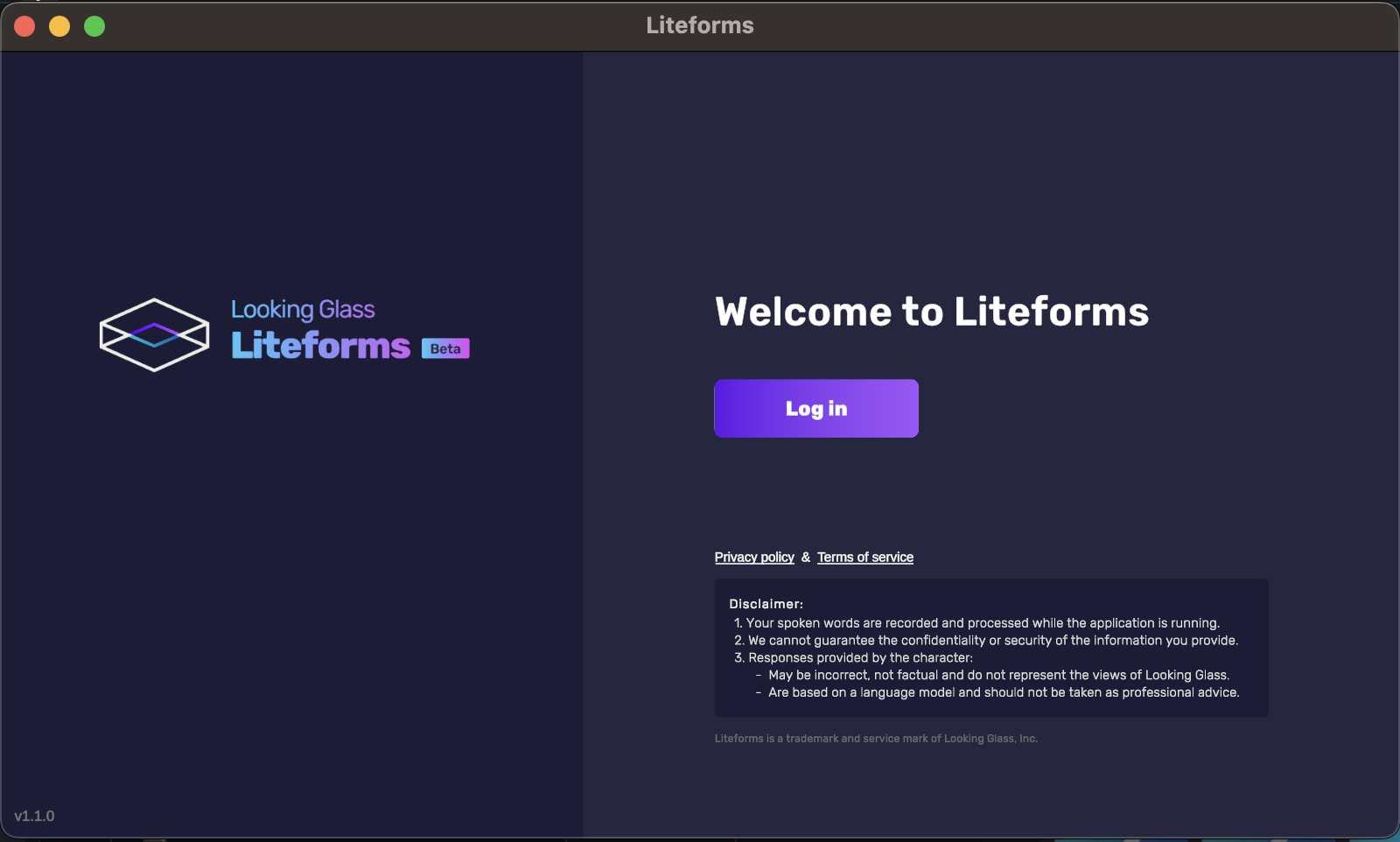
It should open automatically after install. Alternatively, you can launch Liteforms from the Applications folder, or via quick launch via `CMD + Space`.&#x20;

<figure><img src="https://content.gitbook.com/content/PuCaeVAli72TiclYlEG5/blobs/GrdGQA3QtBIe9z9ws4xZ/image.png" alt=""><figcaption></figcaption></figure>

Once you've logged in you should see the following screen:

<figure><img src="https://content.gitbook.com/content/PuCaeVAli72TiclYlEG5/blobs/DgYzQ4ZN7bWPrd4hb5Uc/Liteforms143-mainscreen" alt=""><figcaption></figcaption></figure>

From here, you can either select a Liteform and start a conversation, or you can select the "Create Liteform" button on the side nav to make you own, custom Liteform to talk to! [See our full guide](https://lfdocs.lookingglassfactory.com/software/experiments/liteforms/making-custom-liteforms) on creating custom Liteforms for more information.

Learn more about this fabulous trio of starting characters here:&#x20;

{% content-ref url="" %}
[](https://lfdocs.lookingglassfactory.com/software/experiments/liteforms)
{% endcontent-ref %}
