> For the complete documentation index, see [llms.txt](https://lfdocs.lookingglassfactory.com/llms.txt). Markdown versions of documentation pages are available by appending `.md` to page URLs; this page is available as [Markdown](https://lfdocs.lookingglassfactory.com/legacy/legacy-software/liteforms/get-started-on-windows.md).

# Get Started on Windows

{% hint style="info" %}
**Download Liteforms for Windows** [**here**](https://lookingglassfactory.com/software/liteforms)**.**
{% endhint %}

## Requirements

<table data-view="cards" data-full-width="false"><thead><tr><th></th><th></th><th data-hidden data-card-cover data-type="files"></th><th data-hidden data-card-target data-type="content-ref"></th></tr></thead><tbody><tr><td><mark style="color:blue;"><strong>Looking Glass Bridge</strong></mark></td><td>The connection between your computer and your Looking Glass.</td><td><a href="/files/QMEOJdKOOc7Ue0hRJ0Va">/files/QMEOJdKOOc7Ue0hRJ0Va</a></td><td><a href="https://lookingglassfactory.com/software/looking-glass-bridge">https://lookingglassfactory.com/software/looking-glass-bridge</a></td></tr><tr><td><mark style="color:blue;"><strong>Looking Glass Liteforms</strong></mark></td><td>Holographic AI platform powered by ChatGPT.</td><td><a href="/files/faVgqSz3osM06kkUKnUz">/files/faVgqSz3osM06kkUKnUz</a></td><td><a href="https://look.glass/liteforms">https://look.glass/liteforms</a></td></tr></tbody></table>

### Microphone Setup

{% hint style="warning" %}
If you got an error notifying you that "offline speech" needs to be configured, that means the connection between speech services and your mic is being blocked. Follow the steps below to resolve.
{% endhint %}

In order for Liteforms to hear you speak, the application needs access to your microphone. Occasionally, Windows Defender Firewall will block the app from accessing the microphone.&#x20;

**For most setups, the following is not required**, but if you're having issue connecting your microphone, you can resolve this issue by exiting Liteforms, [disabling Windows Defender Firewall](https://support.microsoft.com/en-us/windows/turn-off-defender-antivirus-protection-in-windows-security-99e6004f-c54c-8509-773c-a4d776b77960#:~:text=%20Turn%20off%20Defender%20antivirus%20protection%20in%20Windows,run.%20However%2C%20files%20that%20are%20downloaded...%20See%20More.) (or other firewalls on your setup), and restarting Liteforms. Please be sure to confirm that the correct mic is selected under "Settings" in the Liteform app.\
\
Once the mic connects once, you can re-enable Windows Defender and you shouldn't experience additional issues.\
\
If you need additional support, please contact us at <support@lookingglassfactory.com>

{% hint style="info" %}
Sometimes Windows may automatically switch your audio output device to the Looking Glass, if you can't hear Liteforms respond to you this is probably why. Switch your sound output in the audio settings panel on right side of the Windows taskbar.&#x20;
{% endhint %}

### Download and Install

Download and Install the Liteforms application from the requirements section above.\
\
Once installed, you can launch Liteforms in the Windows search bar by searching for **Liteforms.**\
\
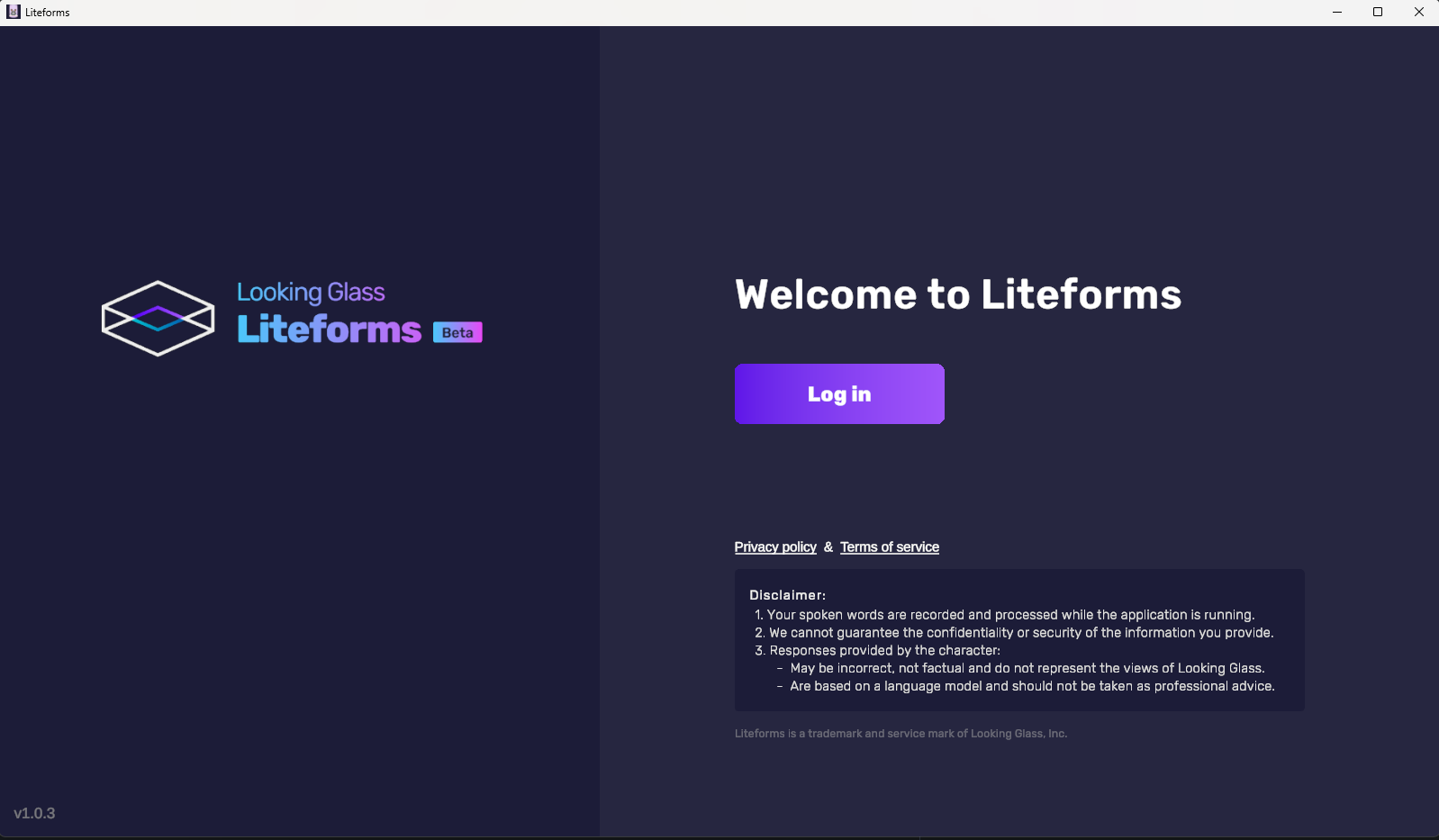
Once you open the application you should see a screen like this, click the **Log in** button to login to your account and start interacting with Liteforms!

<figure><img src="/files/gG0Bcdxz7qx8Nkwkacb8" alt=""><figcaption></figcaption></figure>

Once you've logged in you should see the following screen:

<figure><img src="/files/YrEqkrT32hKetAlePkP9" alt=""><figcaption></figcaption></figure>

From here, you can either select a Liteform and start a conversation, or you can select the "Create Liteform" button on the side nav to make you own, custom Liteform to talk to! [See our full guide](/legacy/legacy-software/liteforms/making-custom-liteforms.md) on creating custom Liteforms for more information.

Learn more about this fabulous trio of starting characters here:&#x20;

{% content-ref url="/pages/WUgTB5nAdvQfHNTy4jl6" %}
[Liteforms™ Desktop App](/legacy/legacy-software/liteforms.md)
{% endcontent-ref %}


---

# Agent Instructions
This documentation is published with GitBook. GitBook is the documentation platform designed so that both humans and AI agents can read, navigate, and reason over technical content effectively. Learn more at gitbook.com.

## Querying This Documentation
If you need additional information that is not directly available in this page, you can query the documentation dynamically by asking a question.

Perform an HTTP GET request on the current page URL with the `ask` query parameter:

```
GET https://lfdocs.lookingglassfactory.com/legacy/legacy-software/liteforms/get-started-on-windows.md?ask=<question>
```

The question should be specific, self-contained, and written in natural language.
The response will contain a direct answer to the question and relevant excerpts and sources from the documentation.

Use this mechanism when the answer is not explicitly present in the current page, you need clarification or additional context, or you want to retrieve related documentation sections.
