> For the complete documentation index, see [llms.txt](https://lfdocs.lookingglassfactory.com/llms.txt). Markdown versions of documentation pages are available by appending `.md` to page URLs; this page is available as [Markdown](https://lfdocs.lookingglassfactory.com/getting-started/looking-glass-go/recovery-mode.md).
# Recovery Mode
This page describes the workflow for recovering a Go that no longer boots.
{% hint style="info" %}
**Recovery Mode** is only intended to be used when a Looking Glass Go becomes completely unresponsive. To clear settings like Wi-Fi credentials, and account linking, please use a [factory reset](/getting-started/looking-glass-go/troubleshooting.md#how-do-i-perform-a-factory-reset) instead.
{% endhint %}
## Using Recovery Mode
To use recovery mode, you'll need the Go's USB-C cable and a computer with a USB-C cable. We recommend Windows for this process. MacOS will also work, however you will need a third-party application called [OpenMTP](https://openmtp.ganeshrvel.com/) to access the Go's storage drive.
### Preparing your Looking Glass Go
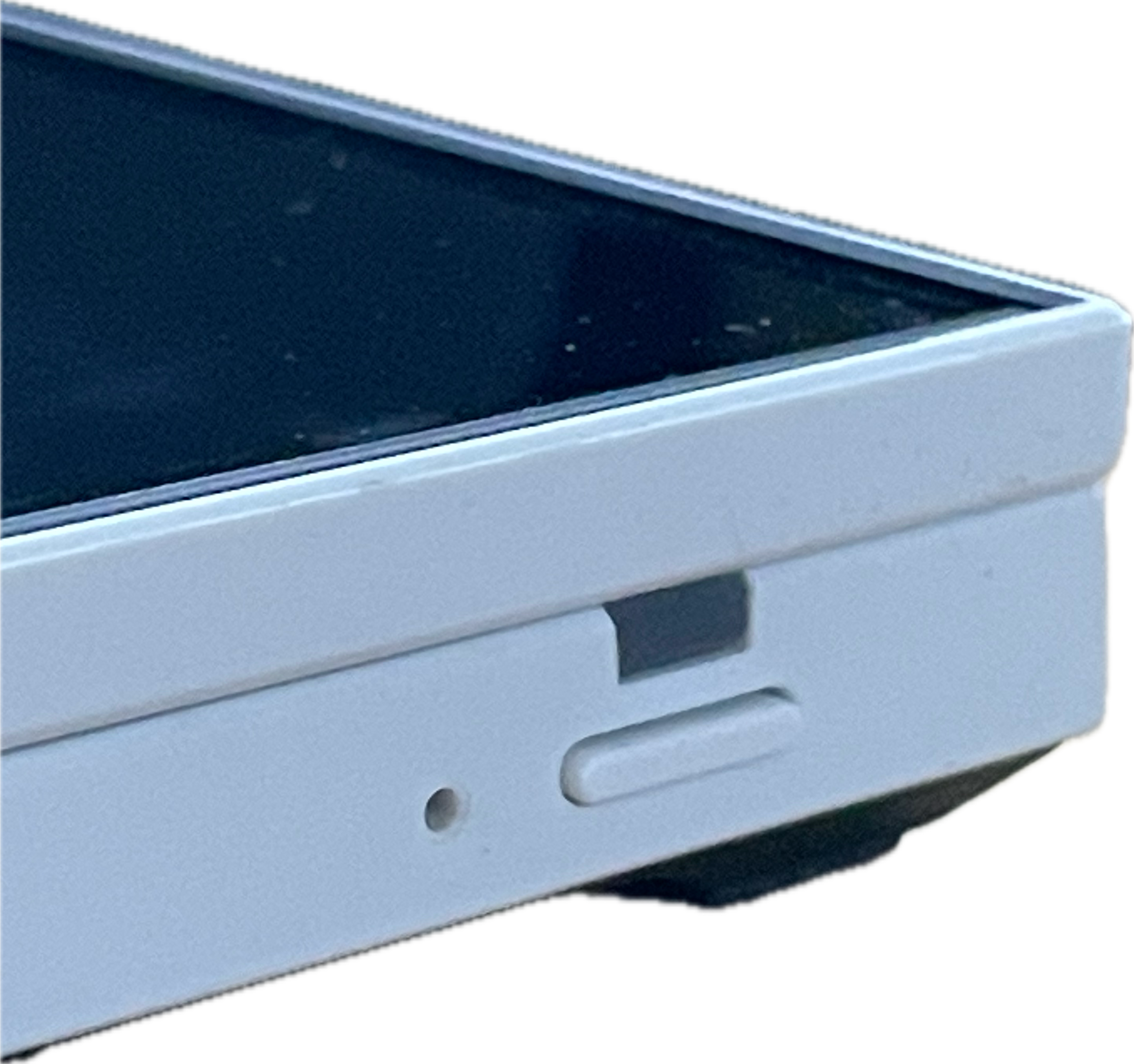
To prepare your Looking Glass Go for recovery mode, please find a paper clip or SIM card ejection tool to press the hidden `reset` button located to the left of the power button.
**Keep the `reset` button pressed** and follow these four steps, in order:
1. Plug your USB-C cable into your computer — do not plug in the Go yet
2. Plug the other end of the USB-C cable into the Go
3. Press and release the power button
4. Wait five seconds, then release the reset button
{% hint style="warning" %}
**When connected to some computers (those with DisplayPort Alt Mode), the Go will boot it into Desktop Mode at Step 3 — the indicated light will be blue. If this happens, press the power button again to trigger Standalone Mode.**
{% endhint %}
This should trigger the Go to boot into recovery mode. In this mode the **screen will be off**, and the LED on the side will be **solid yellow**.
### Accessing the Go's Storage Drive
{% tabs %}
{% tab title="Windows" %}
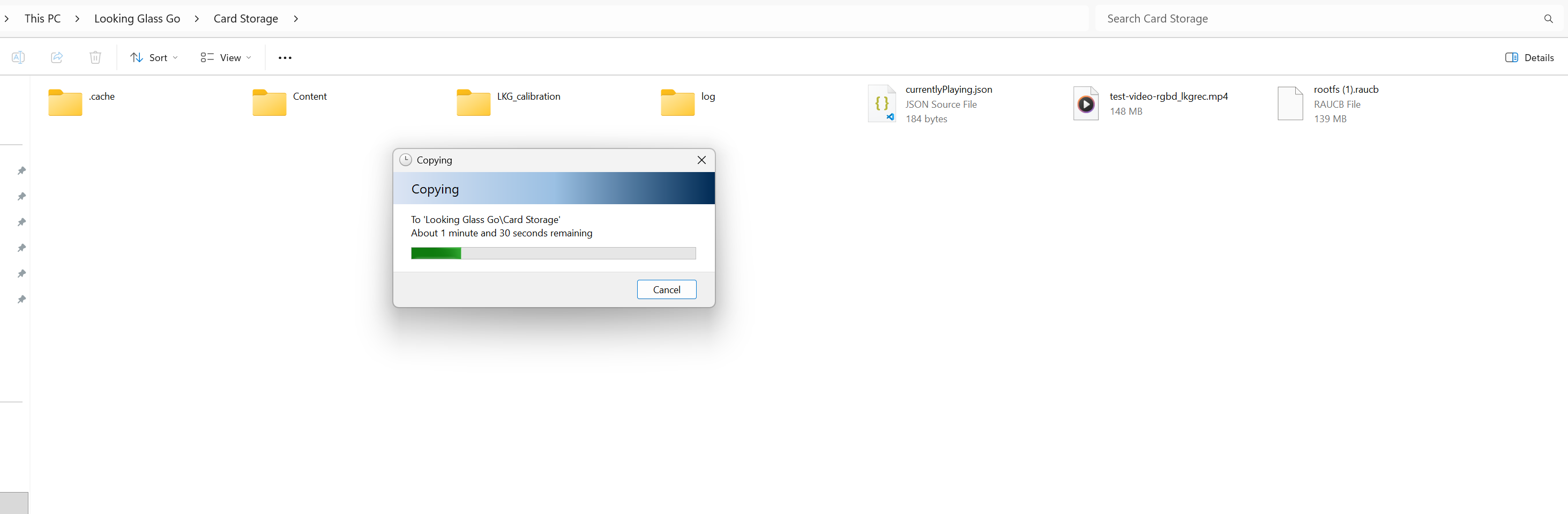
You should be able to access the Go's storage drive via MTP. On Windows, this will show as `Looking Glass Go`
Choose `Looking Glass Go` then choose `Card Storage`, download and place the latest [Looking Glass Go firmware](https://drive.google.com/file/d/1c2BeN92BUj5pogy6waoA_J6wnOnNIM2O/view?usp=sharing) into the `Card Storage` folder.
{% endtab %}
{% tab title="MacOS" %}
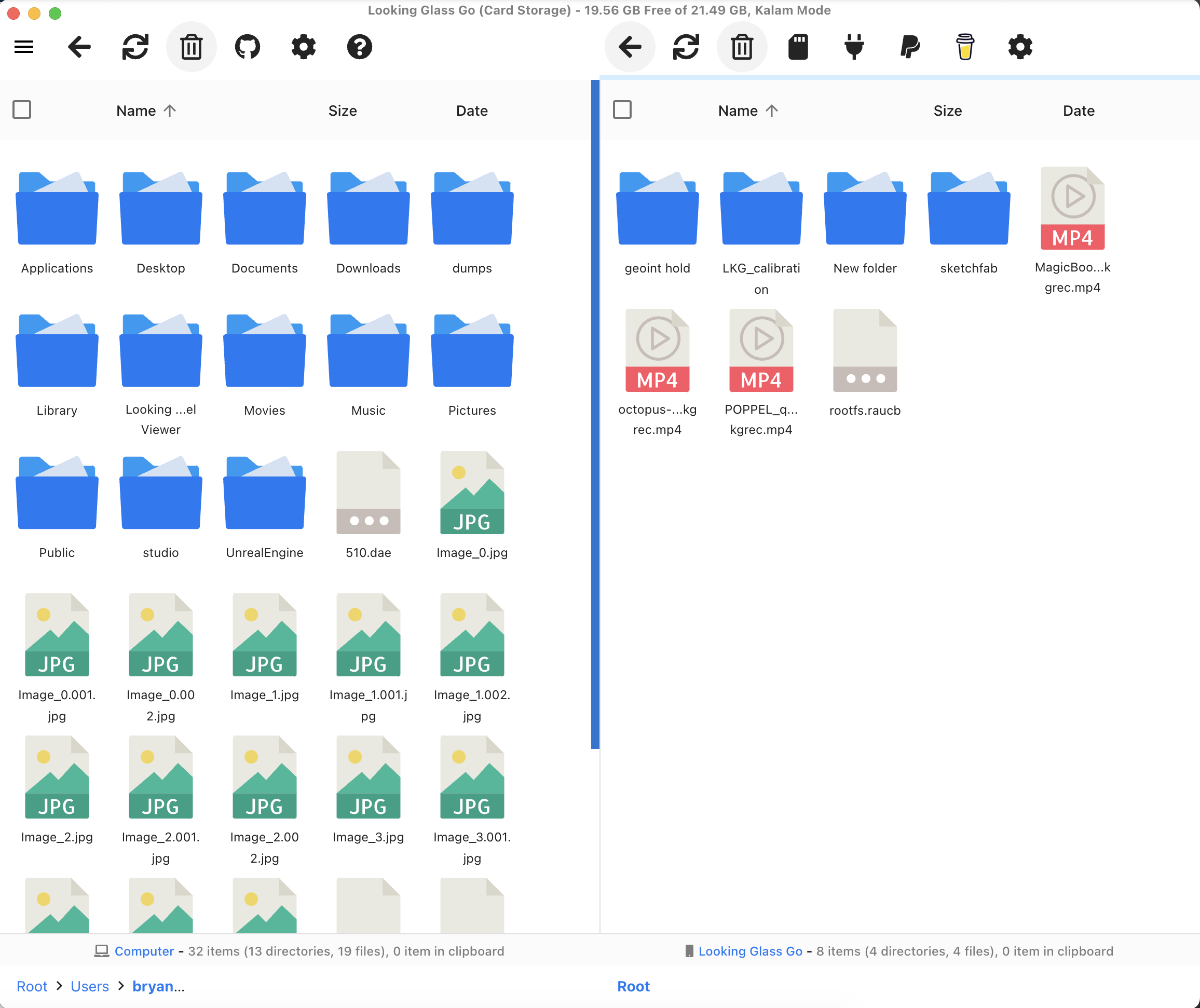
On MacOS you'll need to install [OpenMTP](https://openmtp.ganeshrvel.com/) to access the Go's storage.
You should see your Go's storage drive immediately upon opening OpenMTP.
{% hint style="info" %}
If you don't see your Go's storage drive, it's possible that another program has claimed the storage. Please make sure that applications like photos, google drive, dropbox, and google chrome are closed. This should allow OpenMTP to function normally.
{% endhint %}
Once you see your Go's storage download and place the latest [Looking Glass Go firmware](https://drive.google.com/file/d/1c2BeN92BUj5pogy6waoA_J6wnOnNIM2O/view?usp=sharing) into the `Card Storage` folder. You can drag this directly from finder into OpenMTP.
{% endtab %}
{% endtabs %}
### Resetting the Go's firmware
Upon placing the firmware on the Go, the device should start updating. The LED will begin breathing purple. **Do not unplug the Go during this process.**
After a few minutes, the Go should trigger a reboot and stand-alone functionality should resume.
If you encounter any issues with this process, please email ****, and include your device's serial number.