⚡Get Started with Looking Glass Go
This page will guide you through all the steps needed to get started with your Looking Glass Go.
First Steps 👣
Looking Glass Go can be used in two different ways:
Liteforms: talk with a holographic AI character on your Go. This requires Desktop Mode and Looking Glass Bridge.
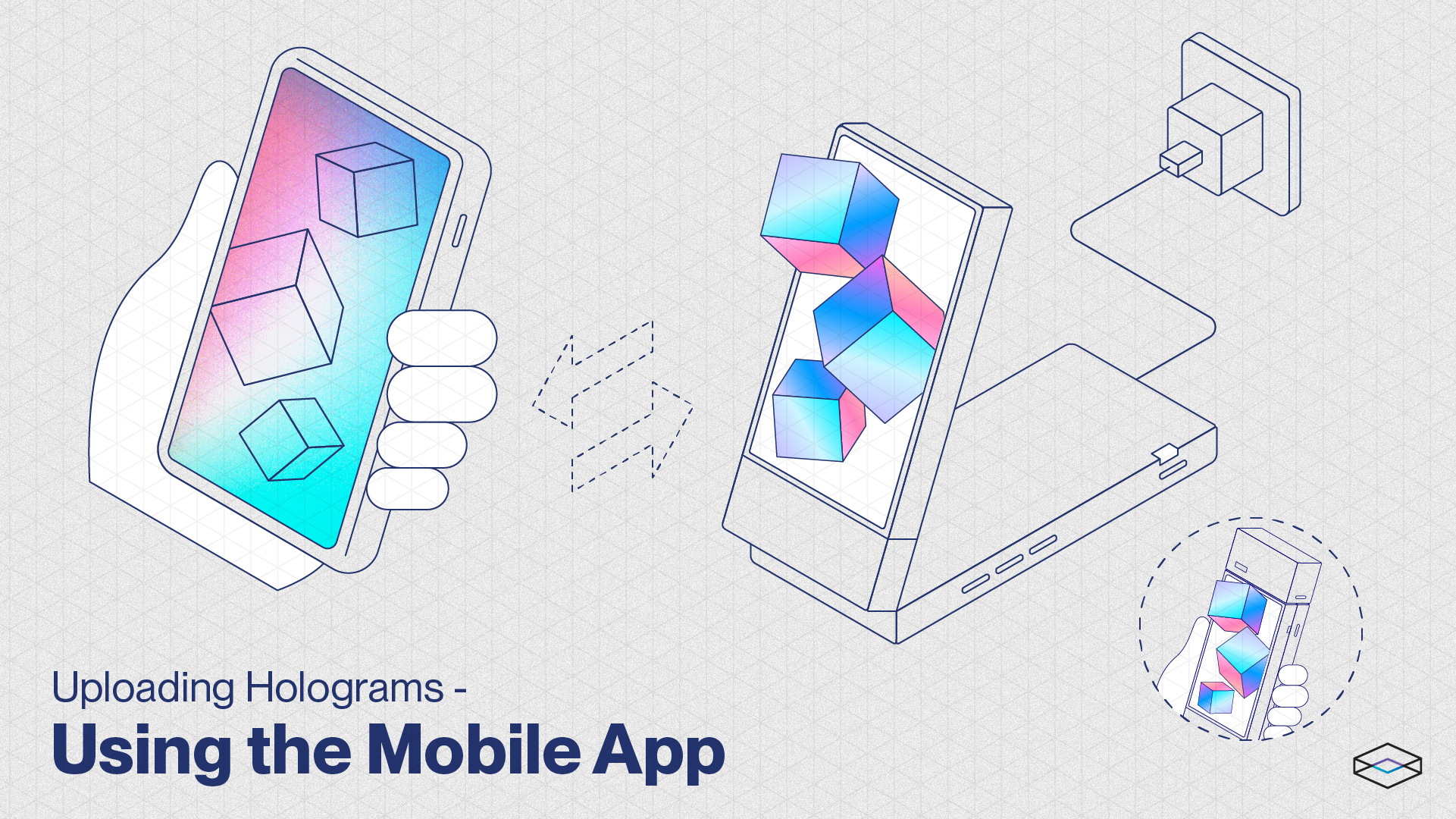
Go Mobile App + Blocks: upload, convert, manage, and sync holograms over WiFi. This uses Standalone Mode.
If this is your first time setting up the Go, complete the first-time setup below before choosing a route.
What's in the Box? 📦
When you unbox your Looking Glass, you'll find a few extra items along with the Go itself.
These include:
1x USB-C Power Adapter
1x USB-C Cable
1x Microfiber Cleaning Cloth
1x Holographic Sticker Sheet ✨
Switching on your Go 🔌

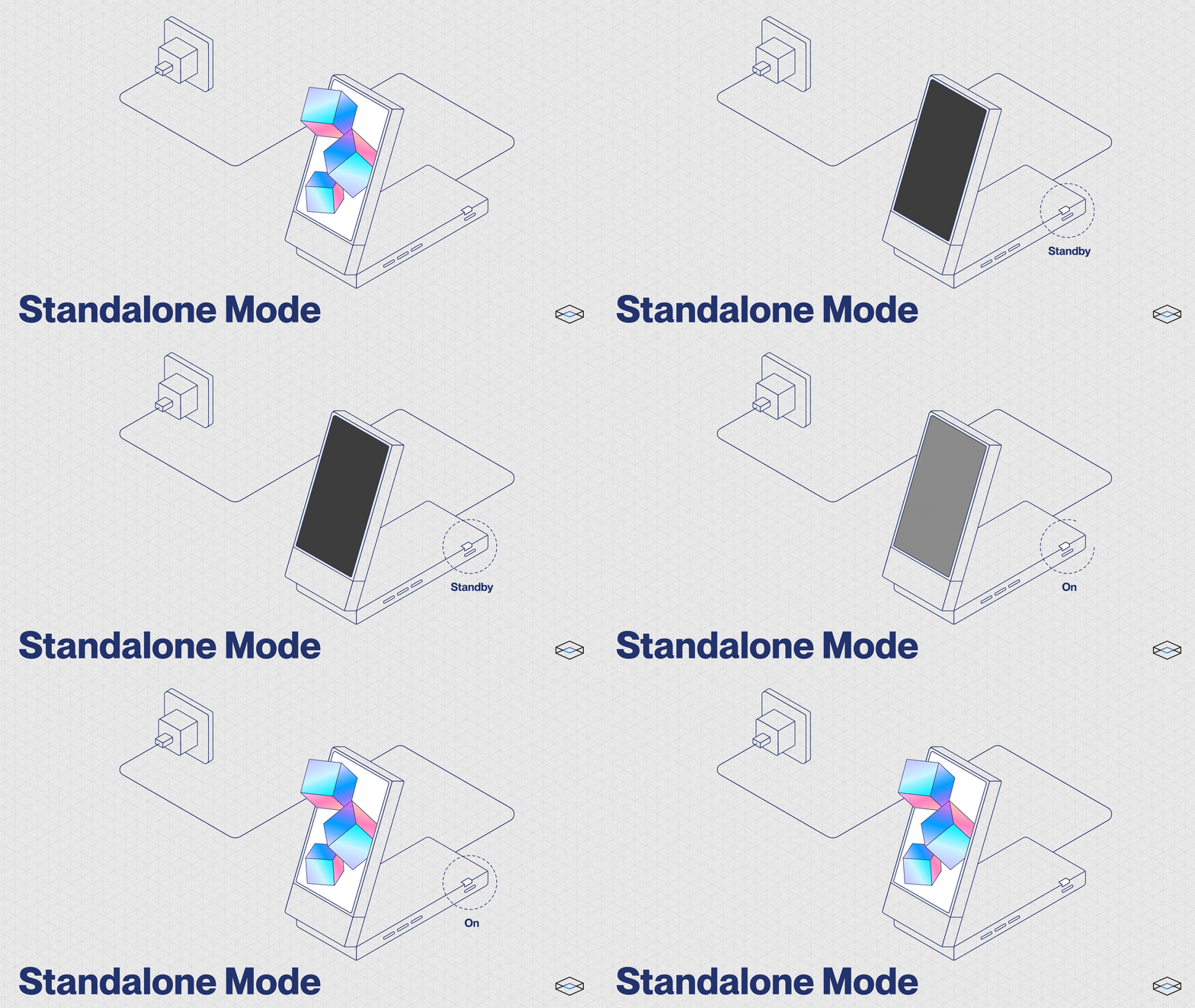
On the first setup, connect your Looking Glass Go to power by using the provided power adapter and USB-C cable and connecting the power adapter to a wall outlet. Press the power button to turn on your Go.
This will activate Standalone Mode (the power indicator will light up Breathing White).
To see more power and LED indicator states, see Power and LED States
Do not connect your Go to your computer the first time you power it on.
Instead, connect it to wall power using the provided cable and power adapter, then connect it to WiFi using the mobile app. This will ensure the first firmware update processes properly.
Enjoy the Demo Reel ⭐
We've curated over a dozen incredible holograms for you to enjoy once you first switch on your Go!
A full list of what you see can be found here → Default Playlist
Download the Looking Glass Mobile App 📱

Once you're ready to use your Go, you should connect it to WiFi so it is fully configured and can update its firmware.
First, download the Looking Glass mobile app for iOS or Android.
Once you've downloaded the Mobile App, follow the on-screen instructions to connect your Looking Glass Go to WiFi.
Connecting to WiFi 📶
The Looking Glass Go is designed to work exclusively with 2.4GHz WiFi networks. It cannot connect to 5GHz networks. Most modern routers offer both 2.4GHz and 5GHz bands, often under the same network name.
For more details on how to check your network's specifics, see Common Troubleshooting Issues
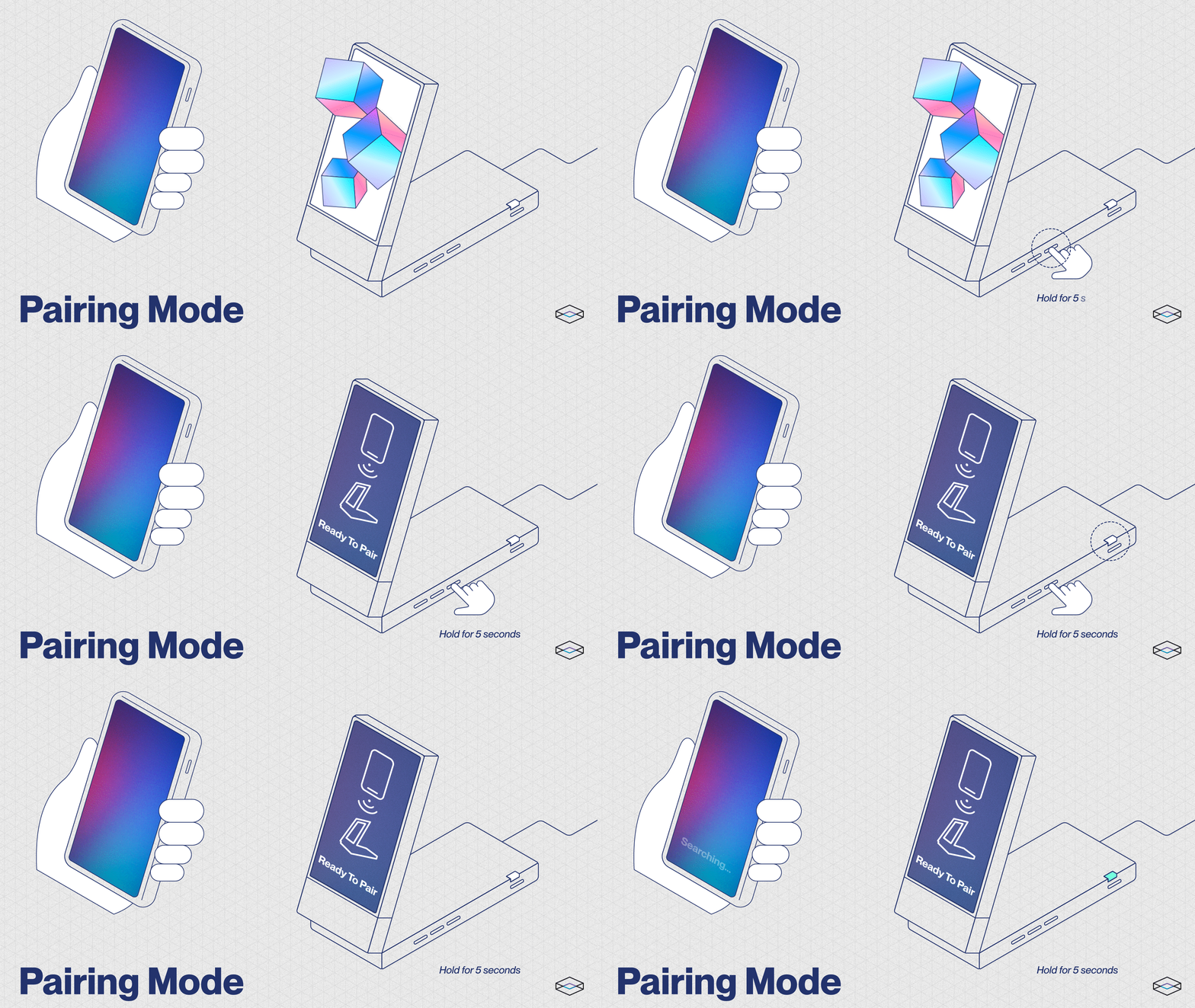
To connect your Looking Glass Go to a WiFi network, hold down the Next button (⏭️) for 5 seconds to enter Pairing Mode.

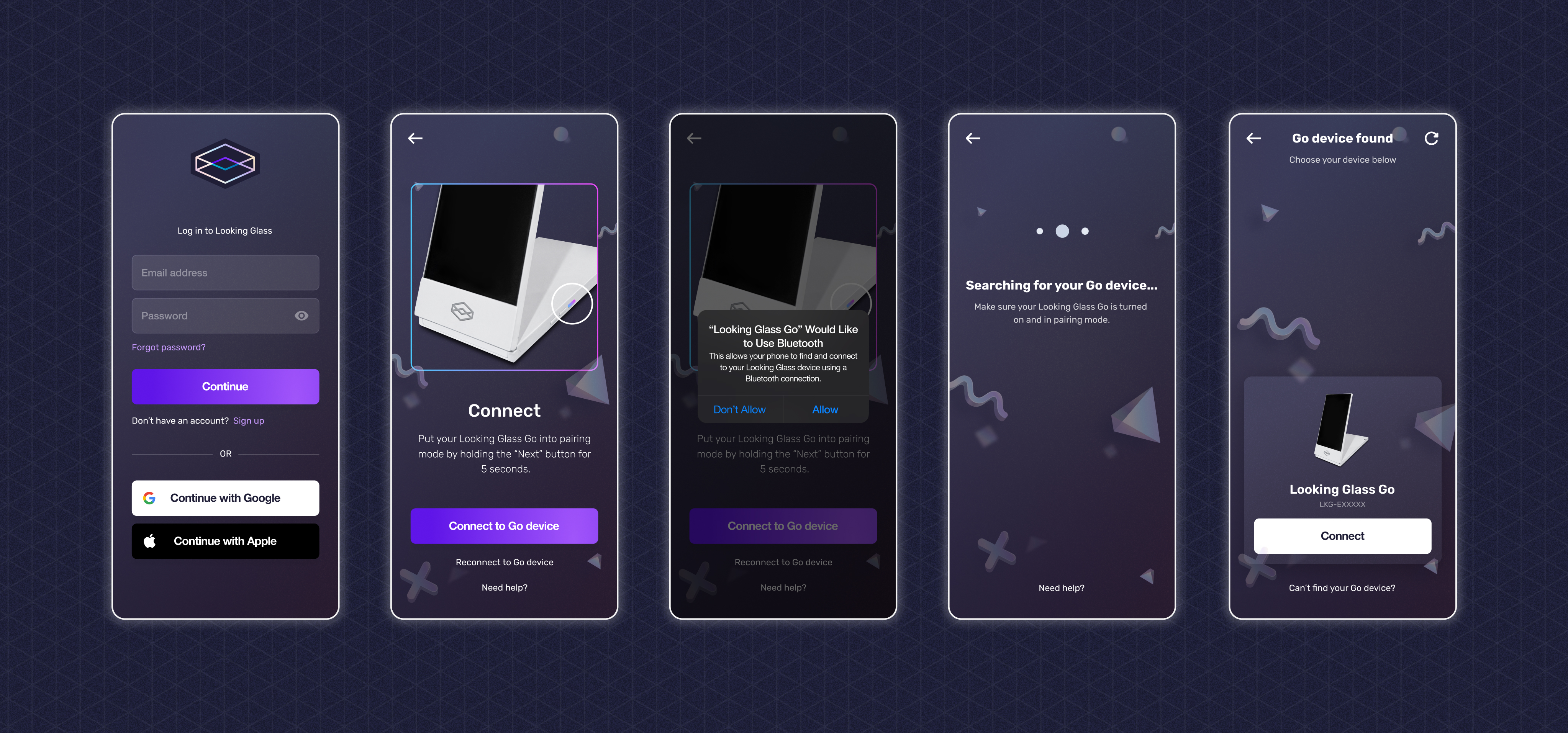
Here's what you'll see on the mobile app while connecting to WiFi:

Sign up / login to your Looking Glass account.
Connect to a Go device by following the instructions on screen.
Ensure that the Bluetooth connection on your phone is on and ready to pair with new devices.
Your Go device will show up when ready to connect.
If you run into any issues connecting to WiFi, see our Common Troubleshooting Issues page
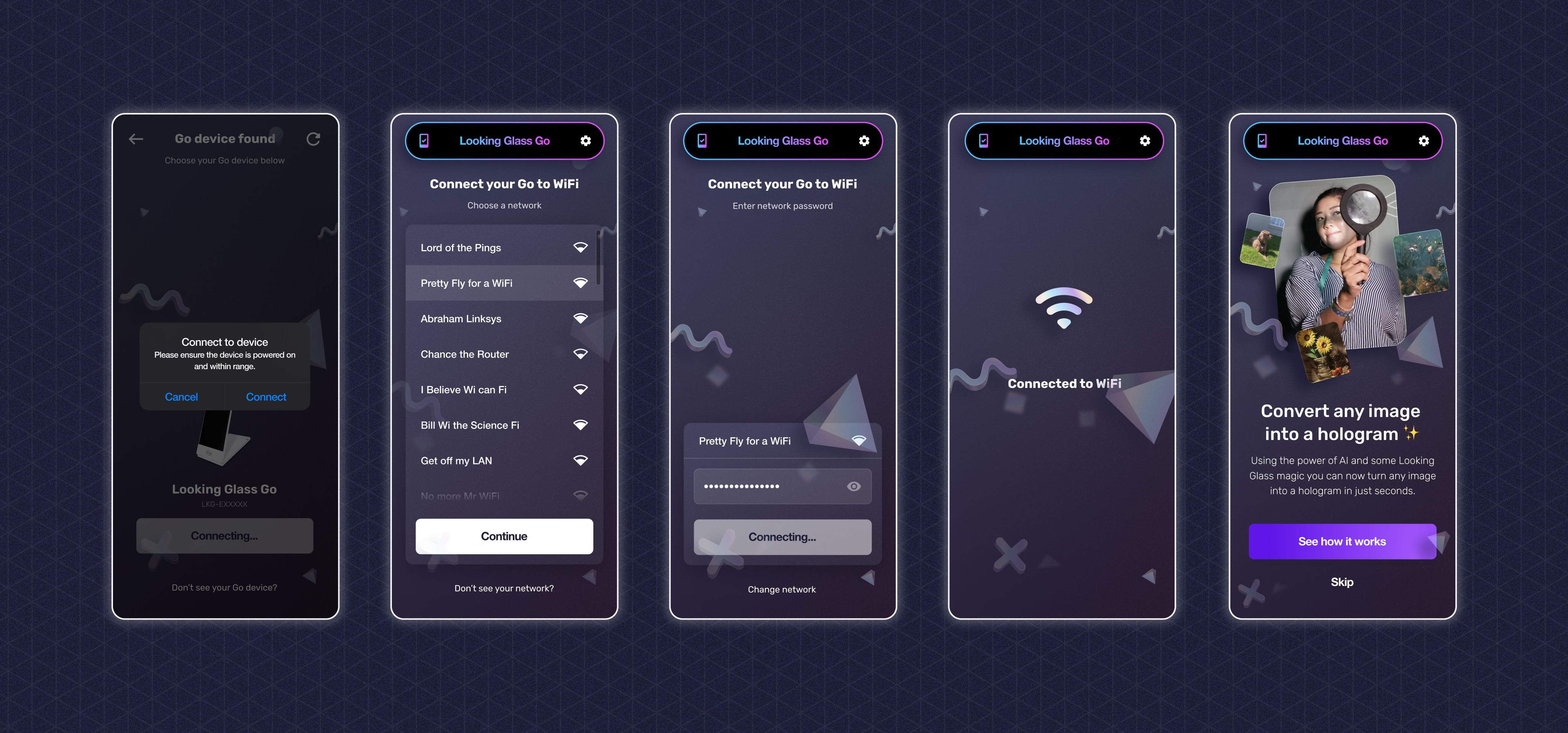
To confirm that the serial number matches the one on your device, check the sticker on the bottom of your Looking Glass Go.

Once you hit
Connect, a list of available WiFi networks will appear. Make sure you're close to the source of your WiFi connection for the best results. Connect to your WiFi network and enter its password.
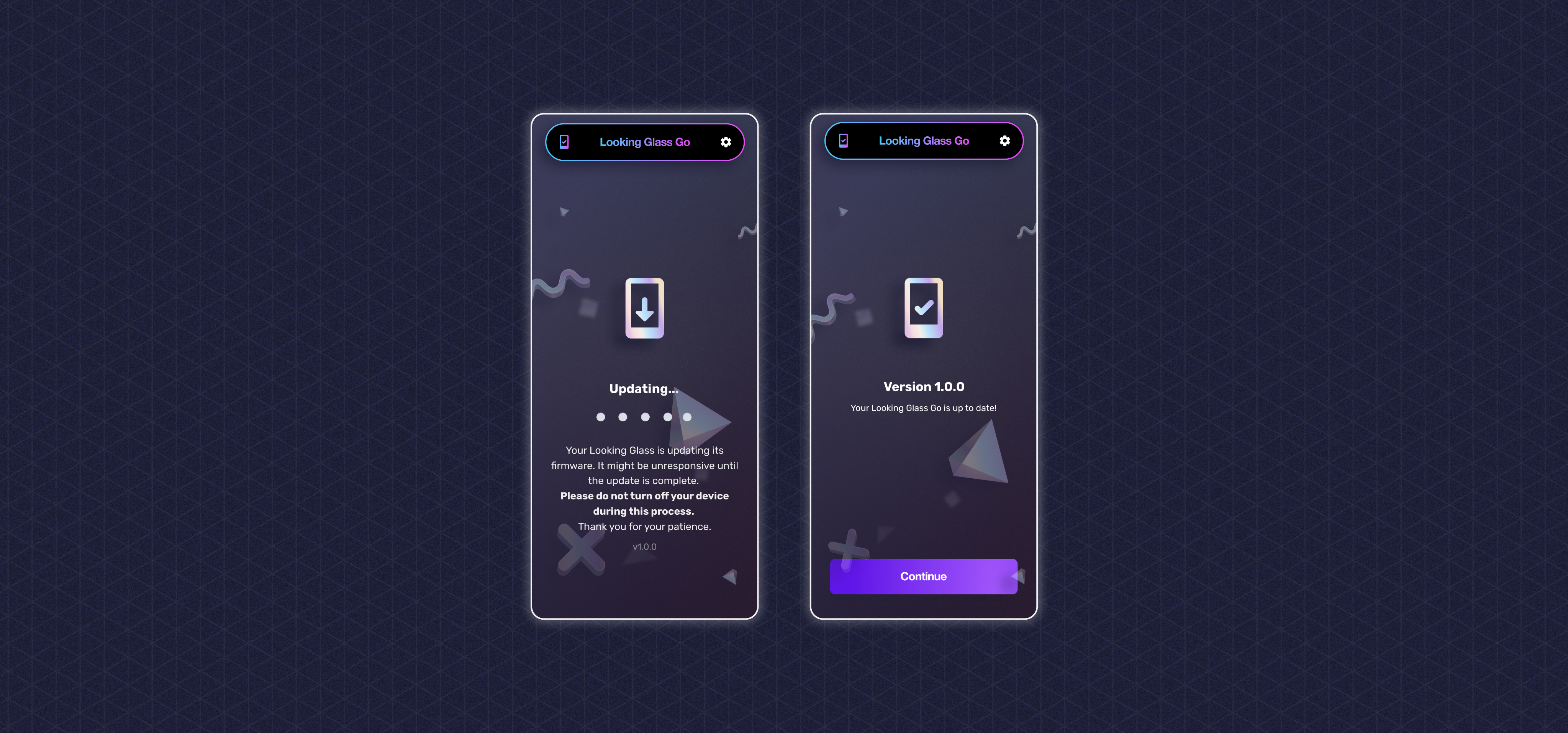
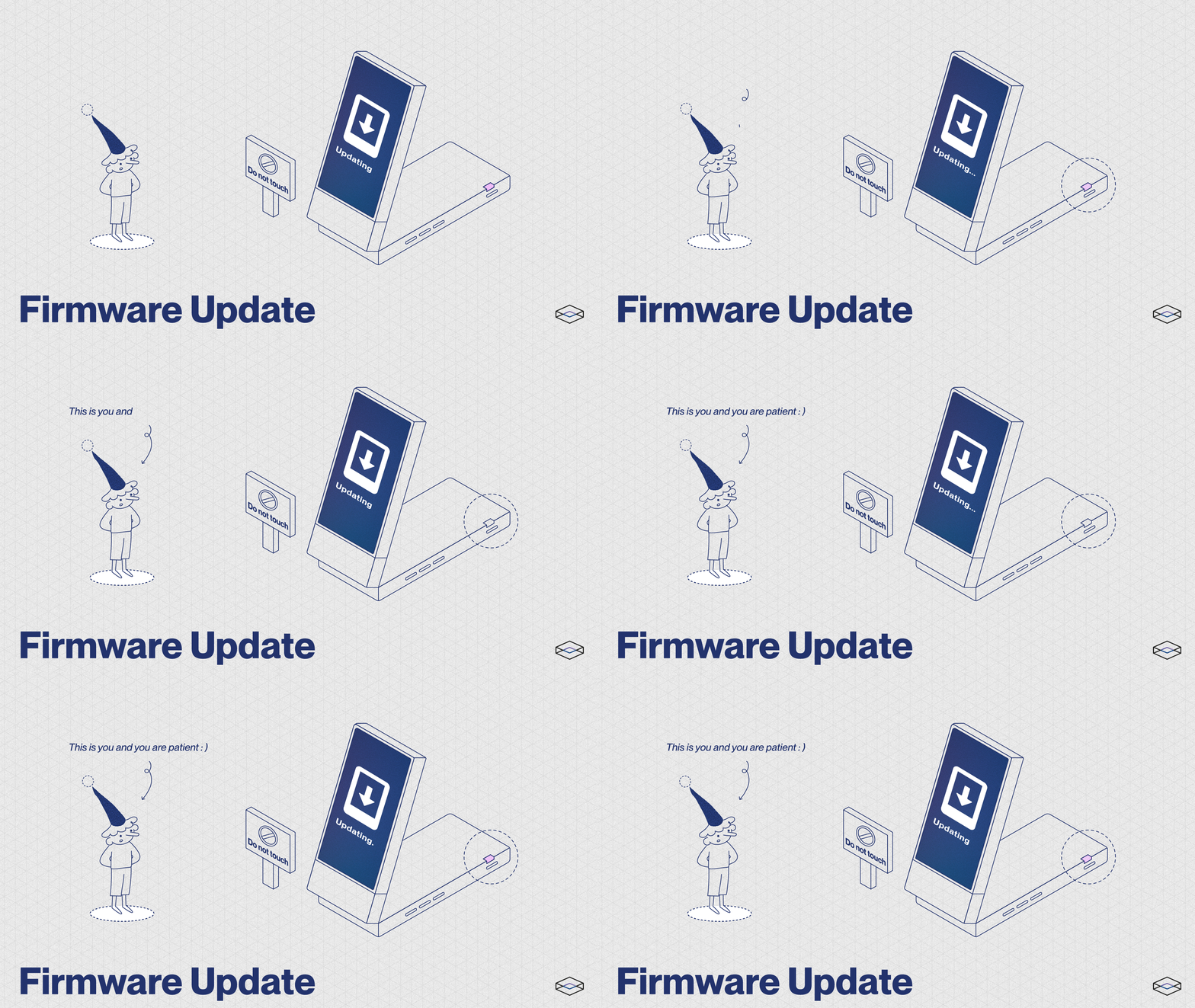
When you connect your Go to WiFi for the very first time, you will be notified that your Go is performing a firmware update. Do not touch your device during this process.

After setup is complete, choose your path — chat with an AI character using Liteforms or create a holographic slideshow with the Go Mobile app and Blocks.
Route A: Use Liteforms
Use this route if you want to talk with a holographic AI character on your Looking Glass Go.
Liteforms requires the Go to be in Desktop Mode, not Standalone Mode.

What You Need
A Looking Glass Go
A Mac, Windows, or supported Linux computer
Looking Glass Bridge installed and running
A Chromium-based browser recommended for local models and audio
Microphone access
Optional: Node.js 20+ and npm if running Liteforms locally from source
Optional: Provider credentials if using external LLM, speech-to-text, or text-to-speech providers
Connect the Go in Desktop Mode
Connect the Go to your computer with the included USB-C cable.
Your computer must support USB-C DisplayPort Alt Mode. If it does not, use a compatible HDMI-to-USB-C adapter.
Install and open Looking Glass Bridge.
Confirm the Go is in Desktop Mode. The status LED should be blue.
Run the Bridge test if needed. A successful test shows a hologram on the Go.
Open Liteforms
You can use Liteforms from your browser.
If running from source, which is required for OpenClaw configurations, run:
Open the local URL printed by Next.js, usually:
If port 3000 is already in use, Next.js may choose another port.
Configure Liteforms
On first launch, Liteforms lets you configure:
LLM: the character's brain, using browser-local models or an external provider.
Text-to-speech: the character's voice, using local Kokoro or an external speech provider.
Speech-to-text: microphone input, using local Distil-Whisper (English only) or an external provider.
Provider keys entered in Liteforms are stored locally in the browser and are not shared with us.
If you choose OpenClaw Gateway as your LLM provider, open your OpenClaw terminal and run:
openclaw config set gateway.http.endpoints.chatCompletions.enabled true --strict-json
Then restart the Gateway. Liteforms will use the default local endpoint, http://127.0.0.1:18789/v1, and the default model, openclaw/default. If Gateway auth is enabled, paste your gateway.auth.token or OPENCLAW_GATEWAY_TOKEN into the OpenClaw Gateway token field.
Allow microphone access when prompted. Local models may download on first use, which can take a few minutes depending on your network and hardware.
If Liteforms shows a Bridge setup banner, make sure Bridge is installed, running, and the Go is connected in Desktop Mode.
Start Talking
Use the chat panel to type or speak to the character. You can also edit the character's name, pronouns, personality, and VRM avatar settings.
Press the "Hologram-iphy" button with a connected device to view your character on the Go. For best rendering results, double-click the browser window that opens on your Go device to enter fullscreen mode.
For full instructions, see our user guide.
Route B: Use the Mobile App
Use this route if you want to upload photos, convert them into holograms, manage playlists, and sync content to the Go over WiFi.
The mobile app sync workflow uses Standalone Mode. If the app cannot see your Go, confirm the Go is not in Desktop Mode.
Uploading your first hologram
Once you are connected to your Looking Glass account and WiFi, you can start uploading new holograms to your Looking Glass Go using the mobile app.

To upload your first photo, hit
Select photos to convertIf you are using an iPhone,
Allow Access to All PhotosorSelect Photo...Choose an image that you want to upload and convert
Once your photo has been uploaded, hit
Focus hologramsto start the editing process. The output of our AI depth generation may vary, so you may want or need to edit the resulting hologram
Syncing and updating holograms on your device may take some time depending on how many holograms you are syncing.
Editing Holograms

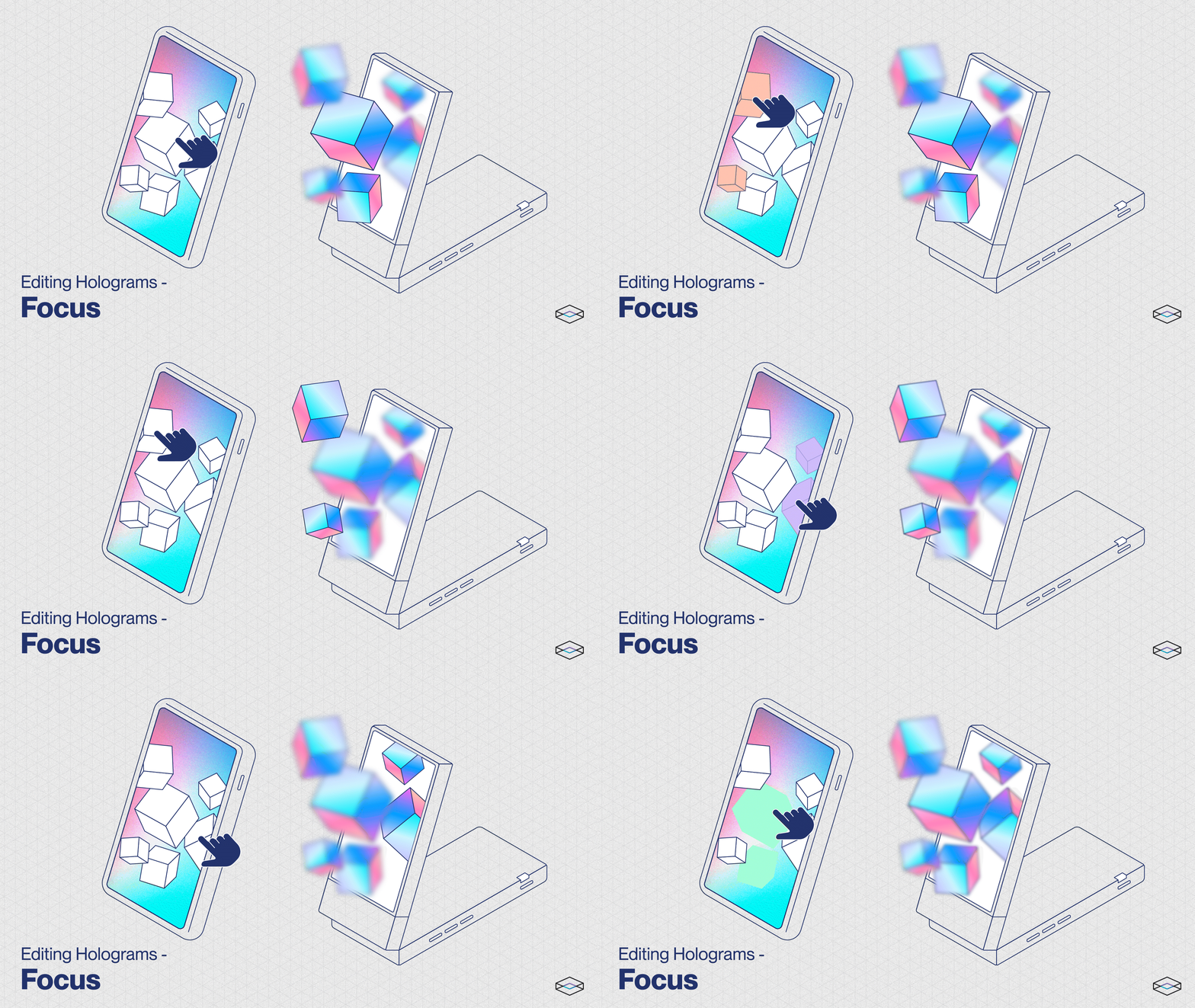
To select the point of focus of your hologram, tap or click on the subject you wish to be most in focus and our AI algorithm will adjust the focal point of the hologram. This is something that will take a bit of practice over time, but for most portrait photos of people, we recommend determining the subject of the photo and making sure that you tap to focus on focal points like eyes.

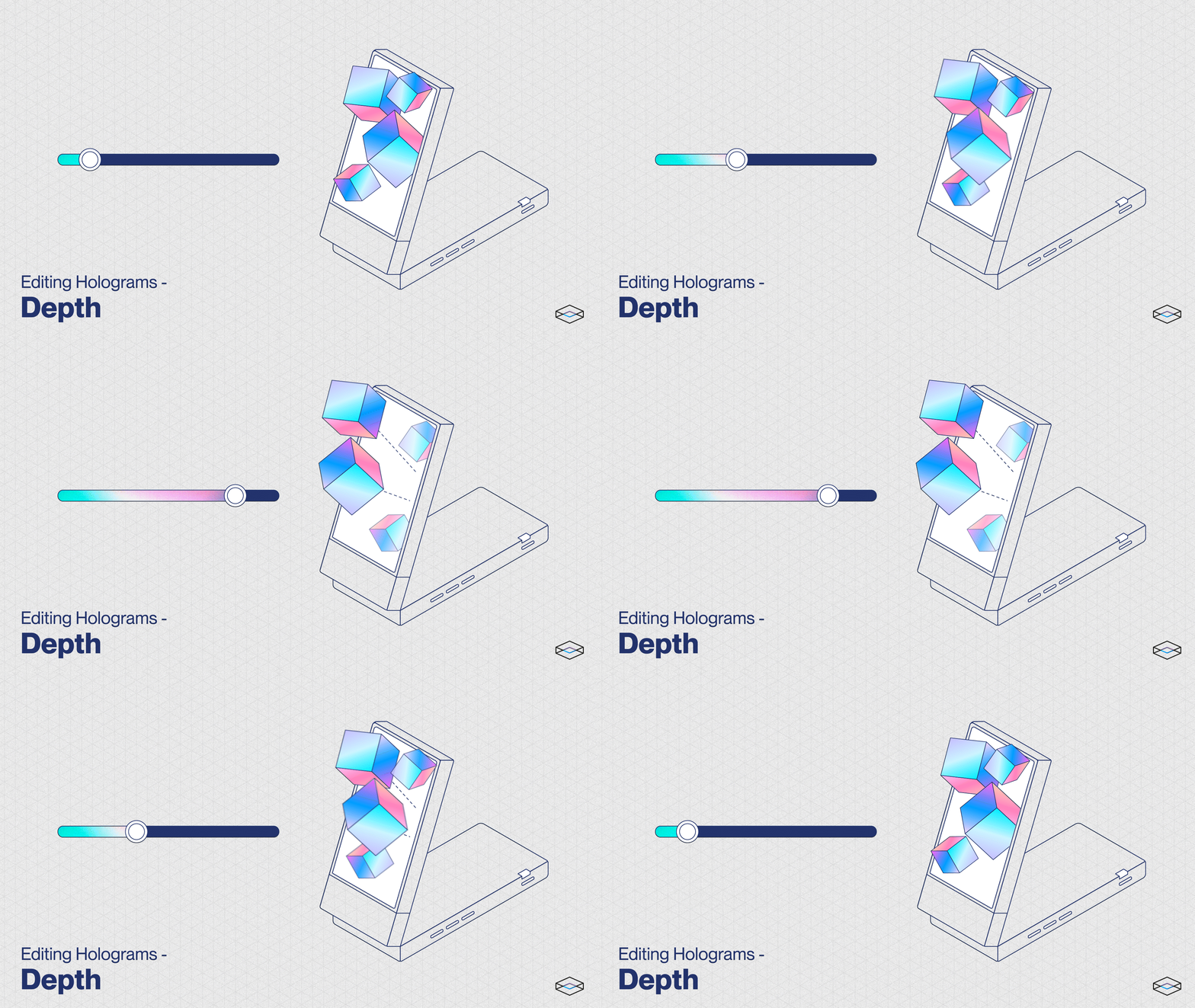
The depth slider changes how far forward from the display you want your photo to stretch. To change the depth of your hologram, use the slider to indicate whether you want the hologram to have more or less depth.

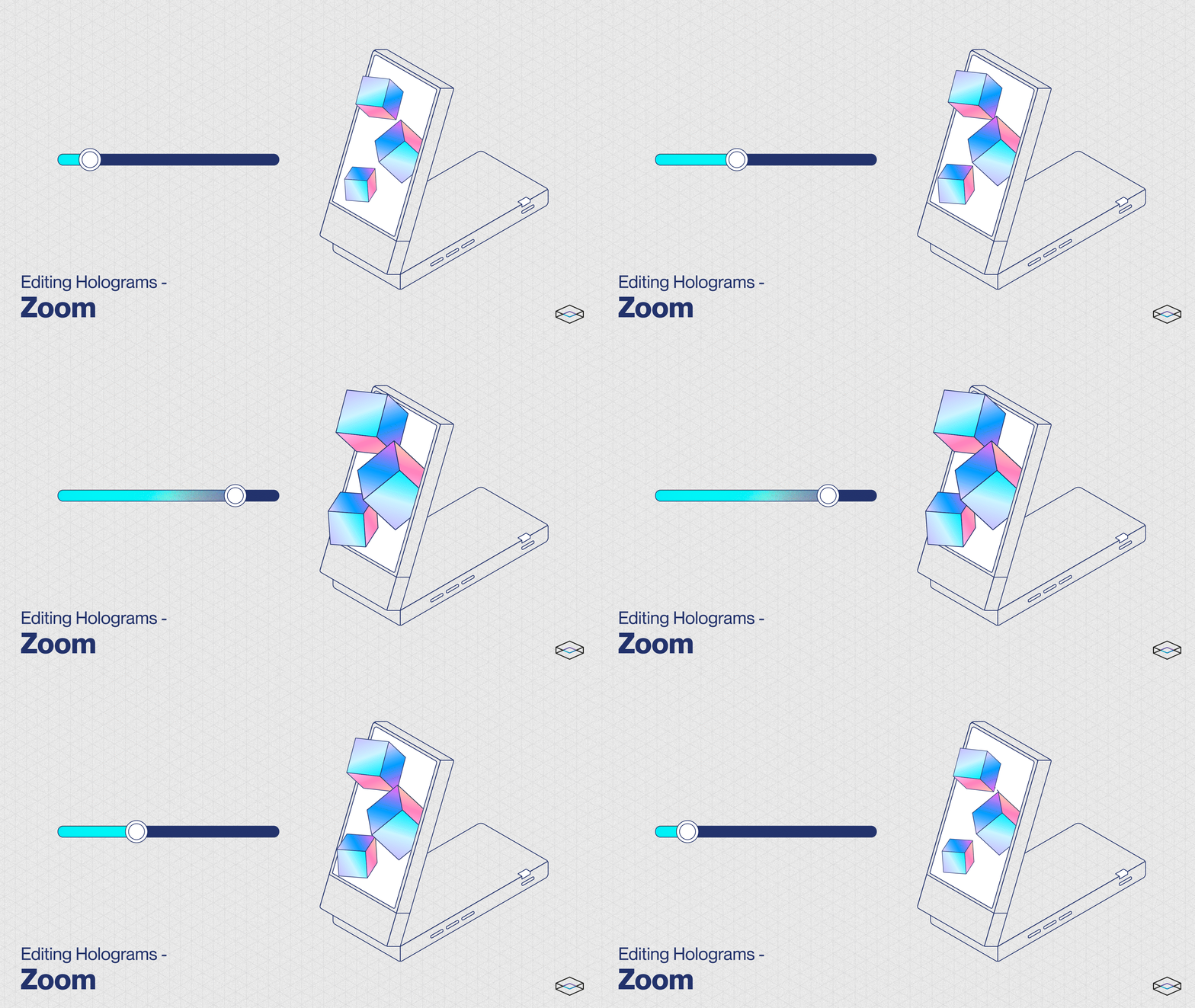
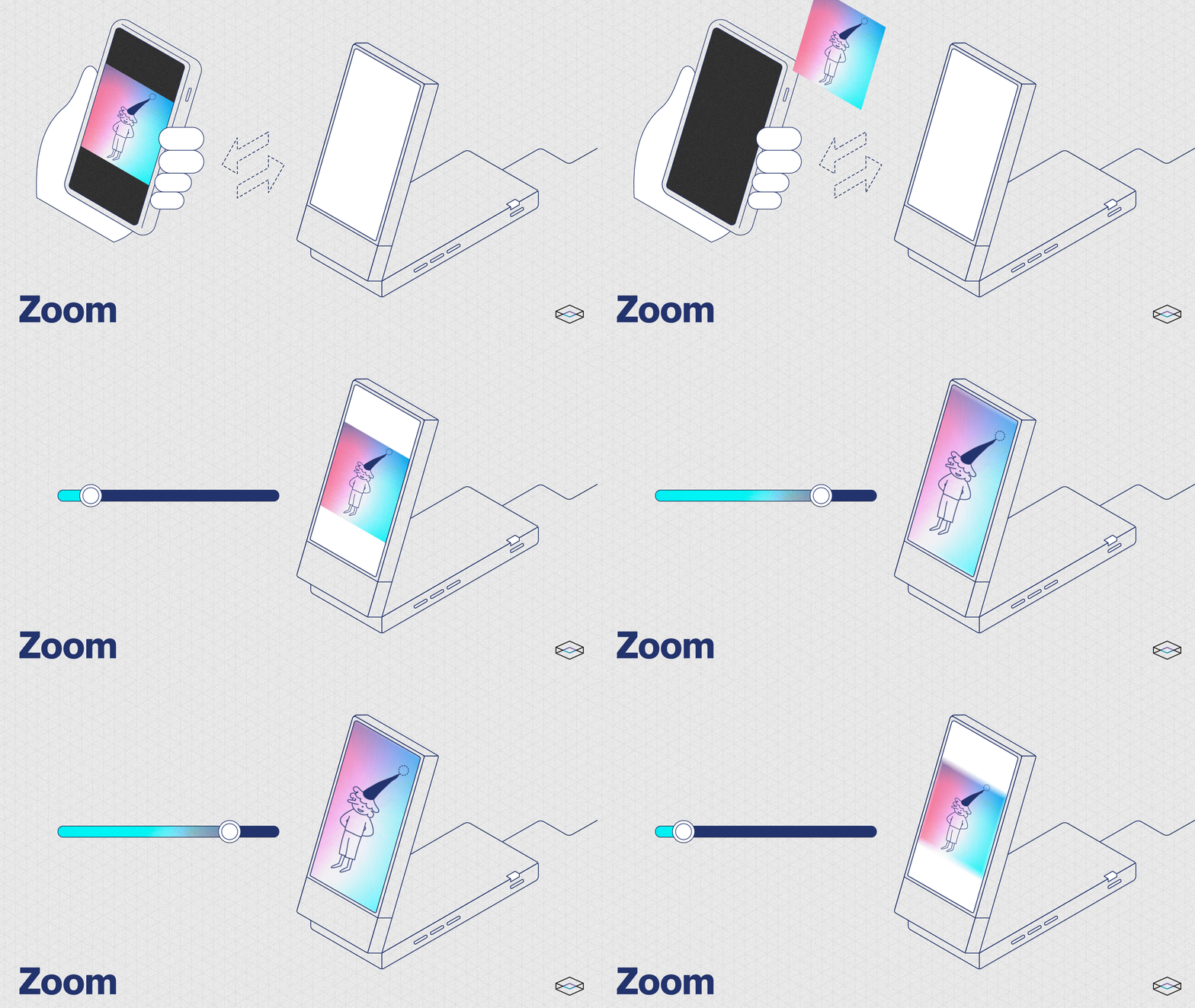
The Zoom slider controls how cropped in your image is. The Looking Glass Go has a screen resolution of 9:16, so if your photos are in a 3:4 ratio, you might want to zoom in your images a little bit to eliminate the black bars at the top and bottom of the screen.

Use the slider to indicate whether you want the hologram to be zoomed in (which will crop the image) or zoomed out.
This covers the first steps for getting started with your Looking Glass Go!
To dive deeper into what's possible with your Looking Glass Go and the mobile app, check out this guide:
📱Using the Go Mobile AppFirmware Updates

Looking Glass Go will periodically receive OTA (over-the-air) updates via its WiFi connection.
When connecting your Looking Glass Go to WiFi for the first time, it will need to be updated to the latest firmware. This can take anywhere from 5 minutes to 1 hour depending on your WiFi connection speed.
Follow the instructions on your mobile app and do not touch your Looking Glass Go as the firmware is being updated. During the update, the screen might look like it's switched off and the LED might switch off temporarily.
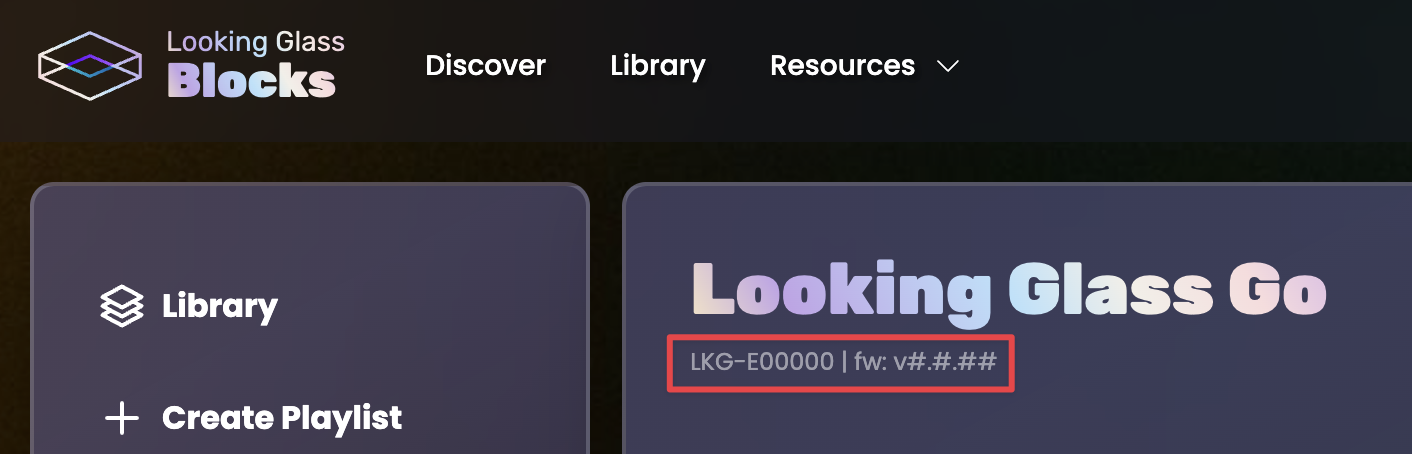
When updating, the LED on your Looking Glass will be breathing purple when the firmware has been downloaded successfully and is updated. Note: If more than 1 hour has passed and your Looking Glass Go has not fully completed the firmware update process, please reach out to [email protected] with the subject line "Firmware Update" and provide us with your serial number (which appears on the bottom of your device and on the app and looks like: LKG-E#####)
Firmware Version

To see and experience holographic projects and experiments from creators around the world and find live updates on all things Looking Glass, join our community!
Last updated