> For the complete documentation index, see [llms.txt](https://lfdocs.lookingglassfactory.com/llms.txt). Markdown versions of documentation pages are available by appending `.md` to page URLs; this page is available as [Markdown](https://lfdocs.lookingglassfactory.com/getting-started/16/portrait.md).
# Looking Glass 16" Light Field Display (Portrait)
Setup your Looking Glass 16" Light Field display.
## 1. Set up your Looking Glass 16"
Download the latest version of the Set up, Safety & Wall Installation Guide below :arrow\_heading\_down: to set up your Looking Glass 16" (Portrait).
{% file src="/files/zslTRUQG130WhFuZOf0k" %}
## 2. Plug in and power on your Looking Glass 16"
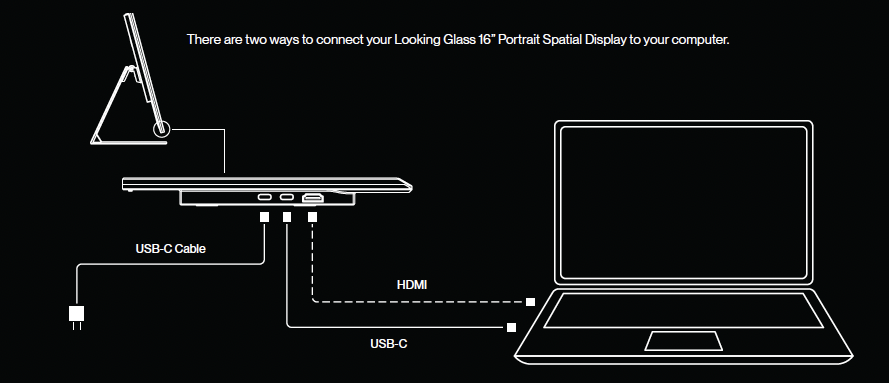
**USB-C Alt-Mode**
Use this mode if your connected computer has a USB-C port that supports USB-C Alt Mode.\
When using USB-C Alt-Mode, the LED indicator will blink green.
1. Plug in the first USB-C cable (to deliver power) connected to a wall adapter. Use the provided power adapters only.
2. Plug in the second USB-C cable to your computer through a port that supports Alt-Mode.
3. Your display should switch on automatically. If not, press the ON/OFF switch.
**HDMI-Mode**
Use this mode if your connected computer does not support USB-C Alt Mode.\
In this configuration, you will be using the included HDMI cable in addition to the USB-C cables.\
When using HDMI-Mode, the LED indicator will blink blue.
1. Plug in the first USB-C Cable (to deliver power) connected to a wall adapter. Use the provided power adapters only.
2. Plug in the second USB-C Cable into the Looking Glass 16” and the other end to your computer.
3. Plug in the HDMI cable into the Looking Glass 16” and the other end to your computer.
4. Your display should switch on automatically. If not, press the ON/OFF switch.
## 3. Setting up your computer
{% tabs %}
{% tab title="With a Mac (Apple Silicon only) " %}
* Under `Settings` > `Displays` , change the Looking Glass display resolution to 2160 x 3840, and the rotation to 270°.
* Ensure True Tone is toggled `Off`
{% endtab %}
{% tab title="With a PC" %}
* The display mode should be in `Extend these displays`. Looking Glass display should be selected\
\
If a second display is not detected at first, hold down the `Windows Key + P` and select `Extend` in the side window. A display with the number 2 should automatically appear (as shown below).\
\
Select your Looking Glass display.
* `Night Light` should be off (optional, as it will impact the color performance of our displays)
* Scale should be set to 100%
* Display orientation should be set manually to Portrait (flipped)
* Confirm the resolution is 2160 x 3840 (after setting the orientation)
{% endtab %}
{% endtabs %}
## 4. Download software (for Mac and PC only)
In order to use your displays with a Mac or PC, you will need to download Looking Glass software to run 3D content. You need to:
* Download Looking Glass Bridge from our website [here](https://look.glass/bridge).
* Download and install the latest version of Looking Glass Studio [here](https://lookingglassfactory.com/software/looking-glass-studio).
Once you've got Looking Glass Bridge installed, run this test below and you should see a hologram appear on your display! For more information about Bridge check out our documentation [here](/software/looking-glass-bridge/using-looking-glass-bridge.md).
{% embed url="" %}
## 5. Run your demo reel in Looking Glass Studio
* Download a demo reel for your Looking Glass 16" Light Field Display (Portrait) [here](https://drive.google.com/open?id=1_ho1RPhH1v8qAZPSKCurAvoKcgjNO8M9\&usp=drive_fs).
* Import all the `.hop` files into Looking Glass Studio.
{% hint style="danger" %}
OLED Image Retention or Burn-In:\
\
Burn-in and image retention are possible on virtually any display.\
\
Most cases of burn-in in OLED displays are a result of static images or on-screen elements displaying on the screen uninterrupted for many hours or days at a time – with brightness typically at peak levels.\
\
To mitigate this, we would recommend not to have your Looking Glass 16" display connected to your computer if you are not showing any moving content for hours at a time.
{% endhint %}
## 6. Download plug-ins & software to create your own applications
* Download Looking Glass Model Viewer [here](/software/looking-glass-model-viewer.md) to easily load your own 3D models onto the display.
* Download the latest Looking Glass Unity plug-in [here](https://lookingglassfactory.com/software/looking-glass-unity-plugin) to create your own interactive applications.
* Access our native SDK [here](/software/looking-glass-bridge-sdk.md) to integrate your custom OpenGL, DX, or Metal renderer.
* See our other creator tools for more content possibilities [here](/software/creator-tools.md).
.png)
.png)
.png)